

The Messages app swipe-to-delete feature is quick and efficient. When this function stops working, it is frustrating. Deleting conversations becomes slow. This issue often comes from small software glitches. Sometimes, conflicting user preferences cause it. Outdated system files may also be the root cause. We must fix the underlying problem. This restores the efficient functionality you expect.
Table of contents
Restoring Swipe Functionality in macOS Messages
1. Restart the Messages Application
A temporary issue can halt UI features. The swipe-to-delete gesture often fails because of this. Start with a simple fix. A forced quit and relaunch often works. This clears temporary memory. Then the app resets its state. This should make the feature work again.
Don’t miss the best of The Mac Observer
Set us as a preferred source and our Apple reporting ranks higher in your Google Search results and Discover feed — one tap, no account changes.
- Press Command + Option + Esc. This opens the Force Quit Applications window.
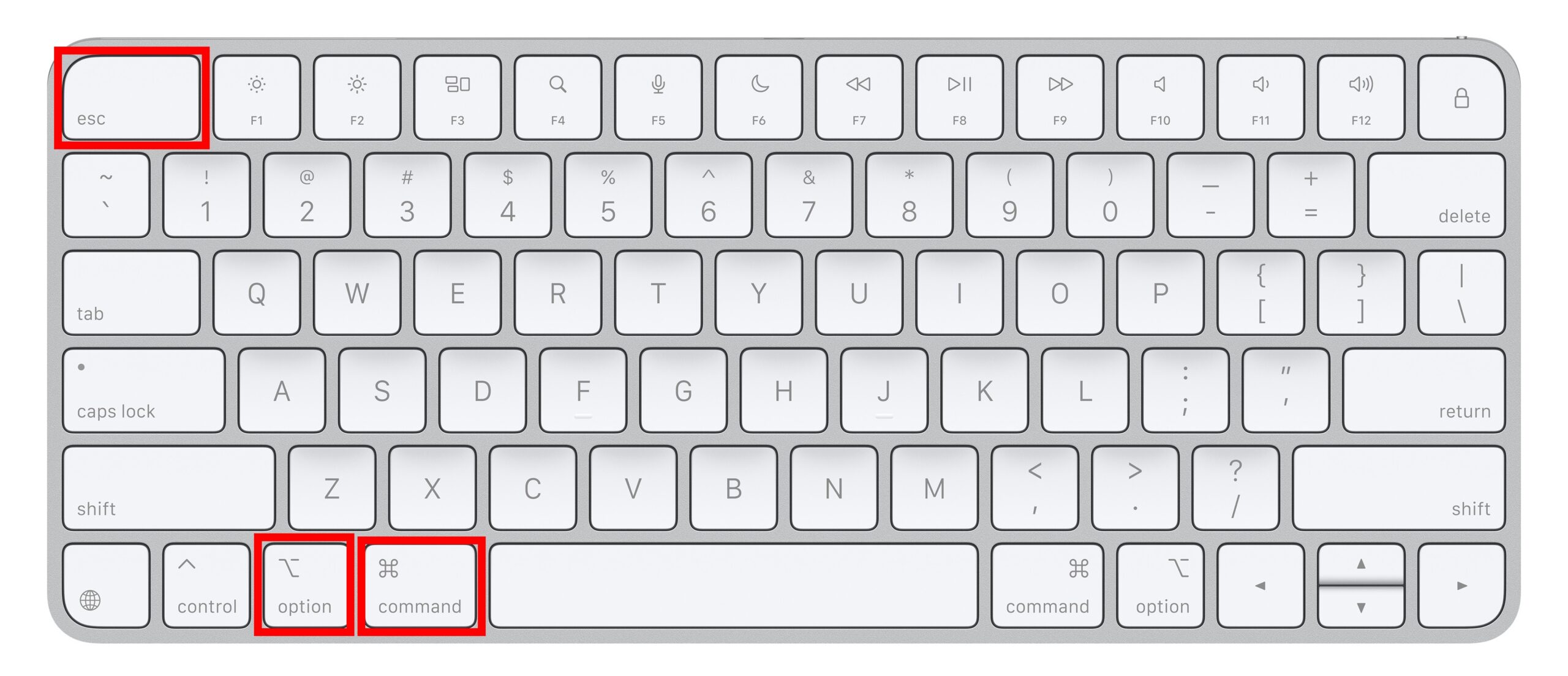
- Select Messages from the list.
- Click the Force Quit button.
- Wait a few moments afterward. Relaunch the Messages app. Test the gesture right away.
2. Perform a System Reboot
Restarting the app may not fix the issue. Therefore, the problem might be deeper. It could be in system memory or temporary caches. A complete system reboot is key. This crucial step flushes the system’s volatile memory (RAM). It also resets all active processes. This clears many stubborn software bugs.
- Click the Apple menu at the top left.
- Select Restart… from the list.
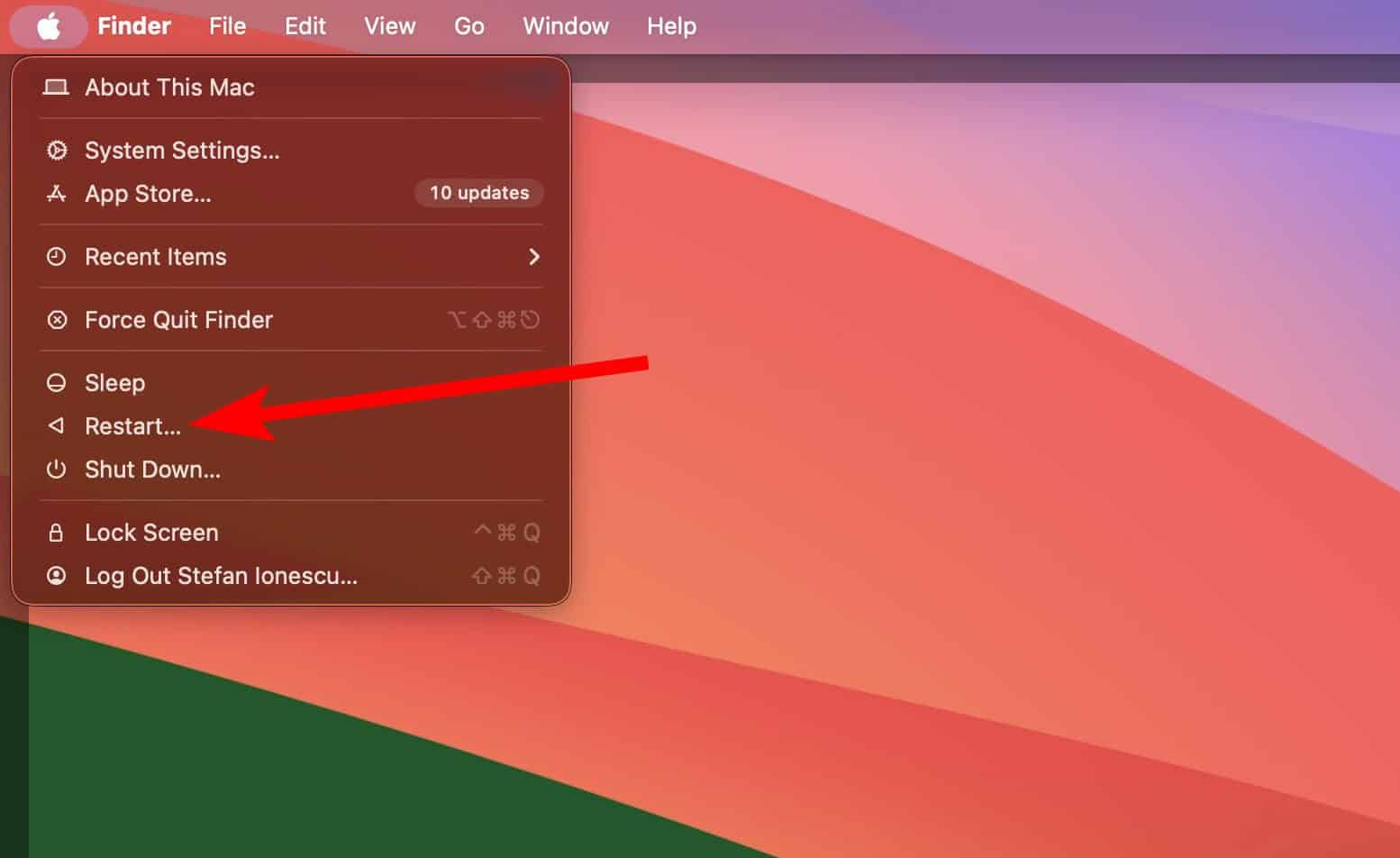
- Do not select “Reopen windows when logging back in.” This prevents the error state from reloading.
- After the MacBook restarts, open Messages. Then, try the swipe-to-delete action.

3. Verify Trackpad and Input Settings
The swipe-to-delete action uses your Trackpad settings. It connects to the “Secondary click” function. This gesture is a shortcut for the right-click menu. So, your input devices must be correct. Make sure they are properly configured. This lets the operating system recognize the gesture. Furthermore, if you are experiencing wider issues where you can’t send or receive messages, this can sometimes stop successful deletion.
- Go to System Settings (or System Preferences).
- Select the Trackpad or Mouse section.
- Check that Secondary click is on. Make sure it uses your preferred method.
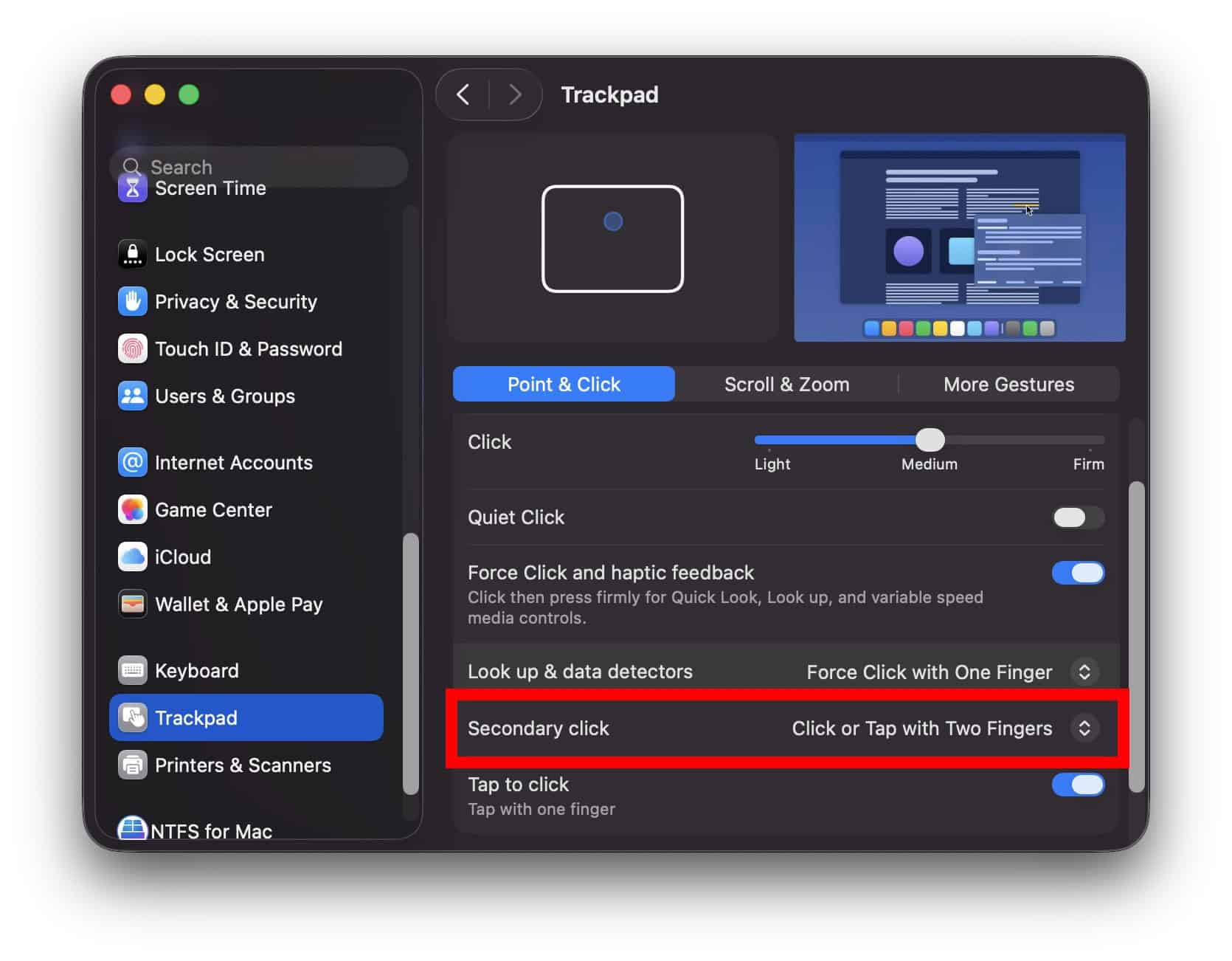
- If the setting looks correct, try an alternative deletion method. Use Control + Click on the conversation. Then, select Delete Conversation.

4. Update Your macOS Software
Software bugs commonly cause unexpected app behavior. Therefore, Apple releases macOS updates often. These updates include patches for these bugs. They specifically address issues in core apps like Messages. Keeping your system updated is your best defense. This ensures you have the most stable Messages app. Similarly, this maintenance applies to other apps. For instance, ensuring that the Apple Mail app is updating correctly often requires checking for software patches.
- Click the Apple menu. Select System Settings (or System Preferences).
- Click General. Then select Software Update.
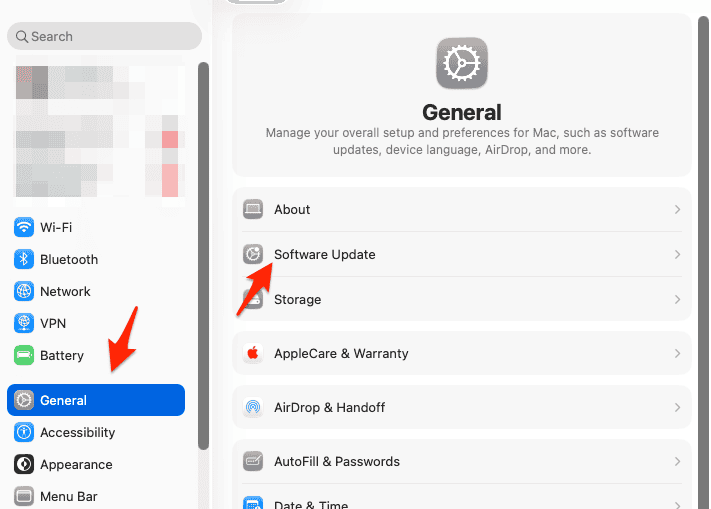
- If an update is available, click Update Now. Follow the on-screen instructions.
- Install the latest macOS version. Test the swipe function after the update finishes.

5. Isolate the Problem with a New User Profile
The issue might persist despite updates. Hence, a corrupted preference file may be the cause. This problem would be in your current user account. Creating a new user profile helps isolation. Test the function in this new profile. This determines if the problem is account-specific. This method helps you focus troubleshooting on your user library.
- Go to System Settings > Users & Groups.
- Click Add User…
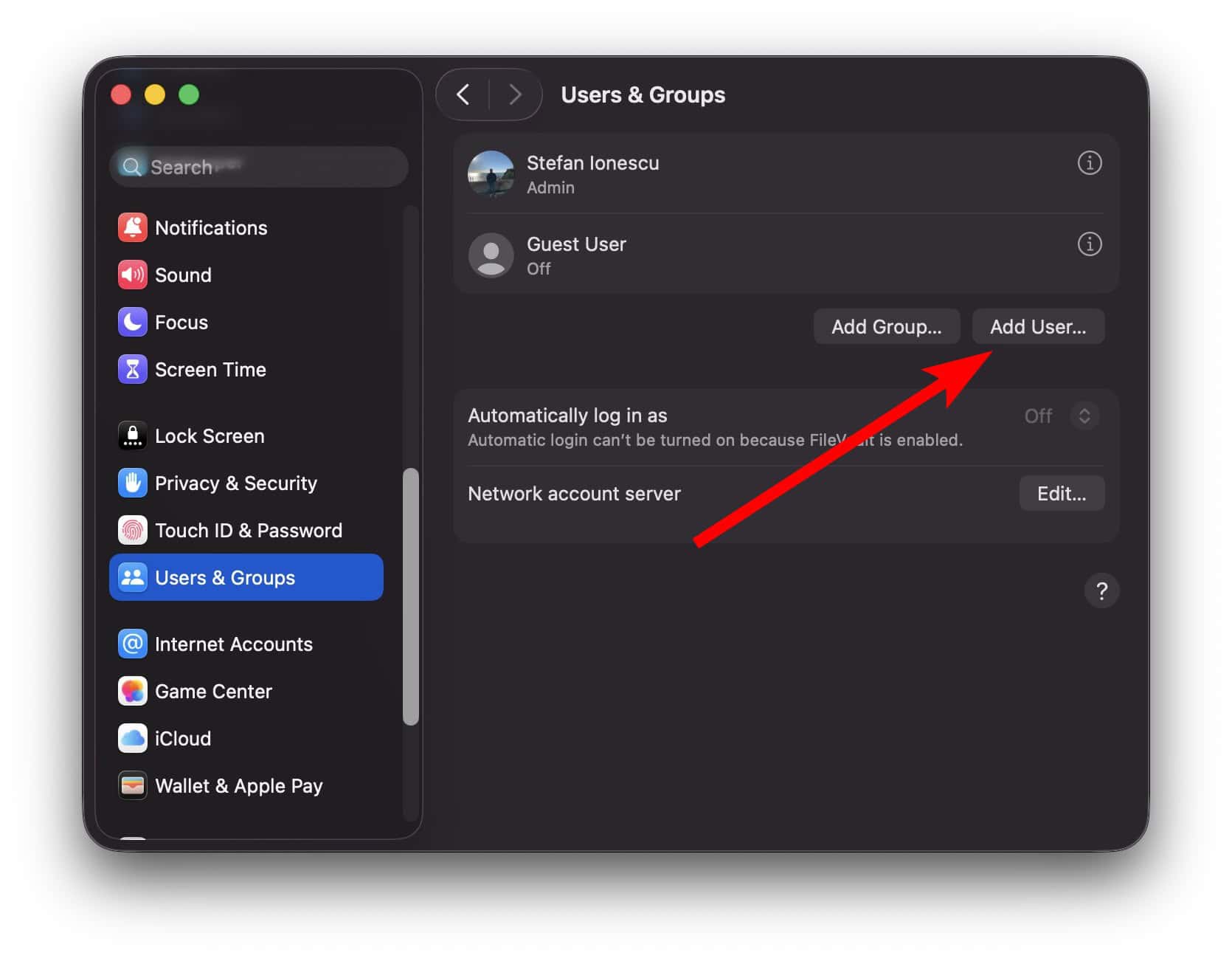
- Create a new Standard or Administrator user.
- Log out of your current account. Then, log in to the new test account.
- Open Messages in the new account. Try the swipe-to-delete action there. If it works, your primary user profile settings have the issue.

FAQ
Yes, you have reliable alternatives. You can Control-click the conversation. Next, select Delete Conversation. Alternatively, select the conversation. Then, press the Delete key on your keyboard.
Messages sync across your Apple ecosystem. Consequently, this affects message management. Knowing how to handle deleting Apple Watch messages is helpful. Deleting on one device usually reflects on others. This is especially true when iCloud sync is active.
Maximizing Messages App Reliability
The broken swipe-to-delete gesture is usually a small obstacle. You can fix it easily with systematic steps. Start with simple restarts. Progress to system-level checks if needed. Make sure your system and input settings are optimal. Ultimately, you restore the convenient functionality. This is essential for a clean messaging history. Therefore, consistent software maintenance is key. Remember to check for updates routinely. This is crucial if you face other persistent syncing or functionality issues that affect device communication.


![Fix “macOS Cannot Verify That This App is Free from Malware” [2026]](https://www.macobserver.com/wp-content/uploads/2025/05/MacBook-displaying-multiple-macOS-Gatekeeper-icons-under-a-red-X-surrounded-by-Gatekeeper-dialogs-over-the-default-macOS-Sequoia-wallpaper.webp)

Discussion