
Earlier we shared a story of a woman in Texas being chased, and how her AirDrop settings might have exposed her. In this tip we’ll tell you how to secure iOS AirDrop settings.
Secure iOS AirDrop
AirDrop is a feature on Apple devices that lets you wirelessly share files with other Apple devices, like photos, videos, and documents. If you go to Settings > General > AirDrop, or open Control Center, you can control your AirDrop receiving settings. There are three options:
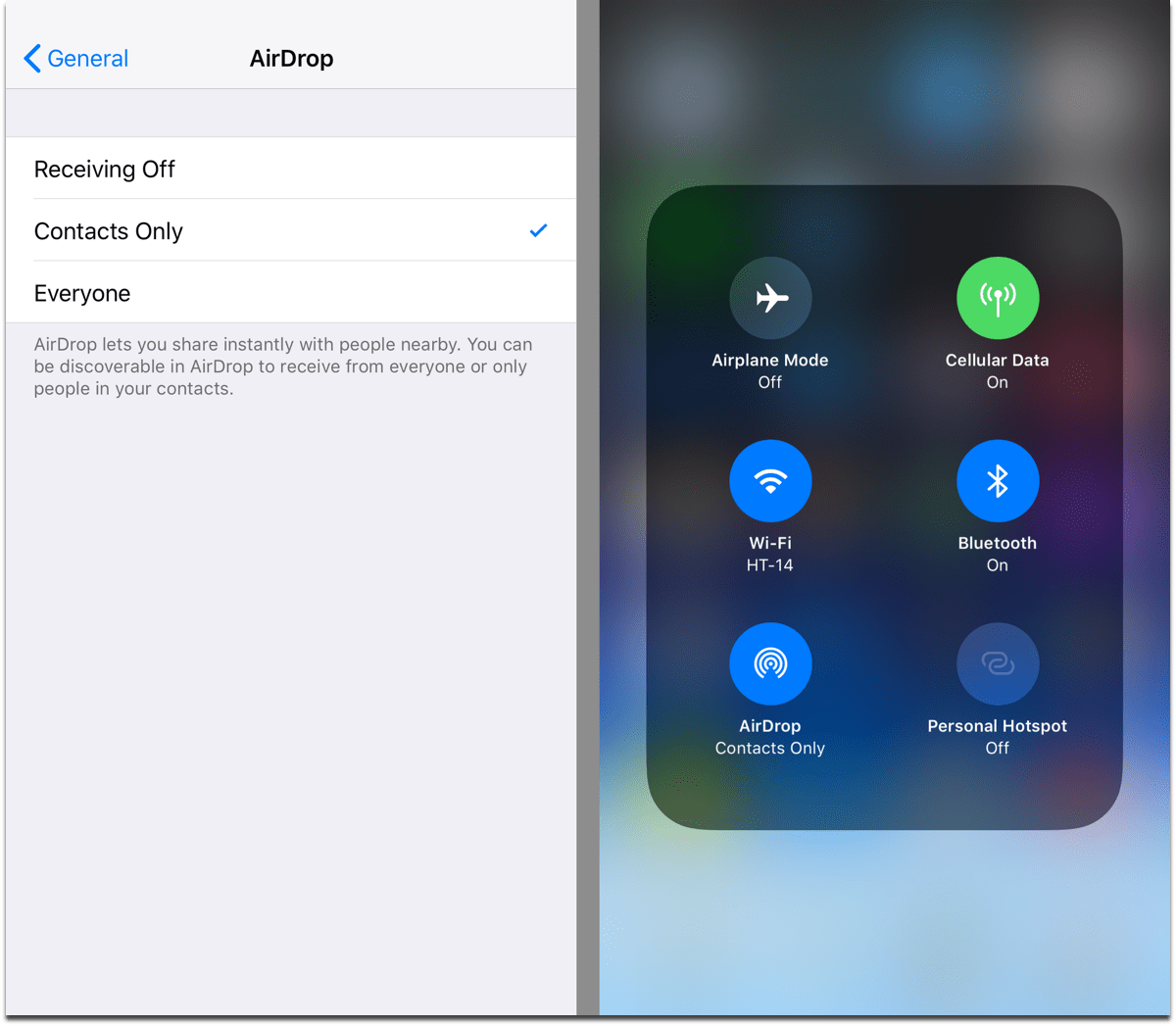
- Receiving Off: You won’t receive AirDrop requests.
- Contacts Only: Only your contacts can see your device.
- Everyone: All nearby iOS devices using AirDrop can see your device.
Choosing “Contacts Only” is the safest option. It means that only people in your contacts list can send you stuff with AirDrop, and see your device when its nearby. Or, if you don’t use AirDrop at all you can turn it off.
Don’t miss the best of The Mac Observer
Set us as a preferred source and our Apple reporting ranks higher in your Google Search results and Discover feed — one tap, no account changes.




It’s worth noting that Control Center in iOS 11 doesn’t show AirDrop by default, as it did in earlier versions. To get to it, you need a long-press/force-press on the “network” panel in Control Center. That’s the one at top-left, containing Airplane-mode/Cellular/WiFi/Bluetooth.
Do that and you’ll see the expanded panel shown above.