

When your Apple Pencil is not connecting to your iPad, it usually comes down to a drained battery, loose nib, outdated iPadOS, Bluetooth glitches, or even an incompatible iPad model.
Sometimes the problem is as simple as a case blocking the magnetic connector, while in other cases, it may require resetting network settings or re-pairing the Pencil entirely. Let’s go through all possible solutions!
Table of contents
- Troubleshooting Apple Pencil Connection Problems
- 1. Charge the Pencil
- 2. Restart and Toggle Bluetooth
- 3. Forget and Re-Pair the Pencil
- 4. Force Restart with Pencil Attached
- 5. Tighten the Pencil Tip or Clean it
- 6. Reset Network Settings (for USB-C Pencil or pairing oddities)
- 7. Compatibility Check
- 8. Try LightBlue App for Persistent 10th Gen Pairing Issues
- Tips
- Frequently Asked Questions
- Summary
- Conclusion
Troubleshooting Apple Pencil Connection Problems
1. Charge the Pencil
Low battery is the most common problem. Make sure your Apple Pencil has enough power:
Don’t miss the best of The Mac Observer
Set us as a preferred source and our Apple reporting ranks higher in your Google Search results and Discover feed — one tap, no account changes.
- First generation: Plug into the iPad’s Lightning port.
- Second generation or Apple Pencil Pro: Snap it magnetically to the side of the iPad.
- USB-C Pencil: Remove the cap and plug it into the USB-C port.
Let the Apple Pencil charge for 10 minutes before trying again.
2. Restart and Toggle Bluetooth
- Go to Settings > Bluetooth, turn Bluetooth off, wait a few seconds, and turn it back on.
- Restart your iPad and try pairing again.
3. Forget and Re-Pair the Pencil
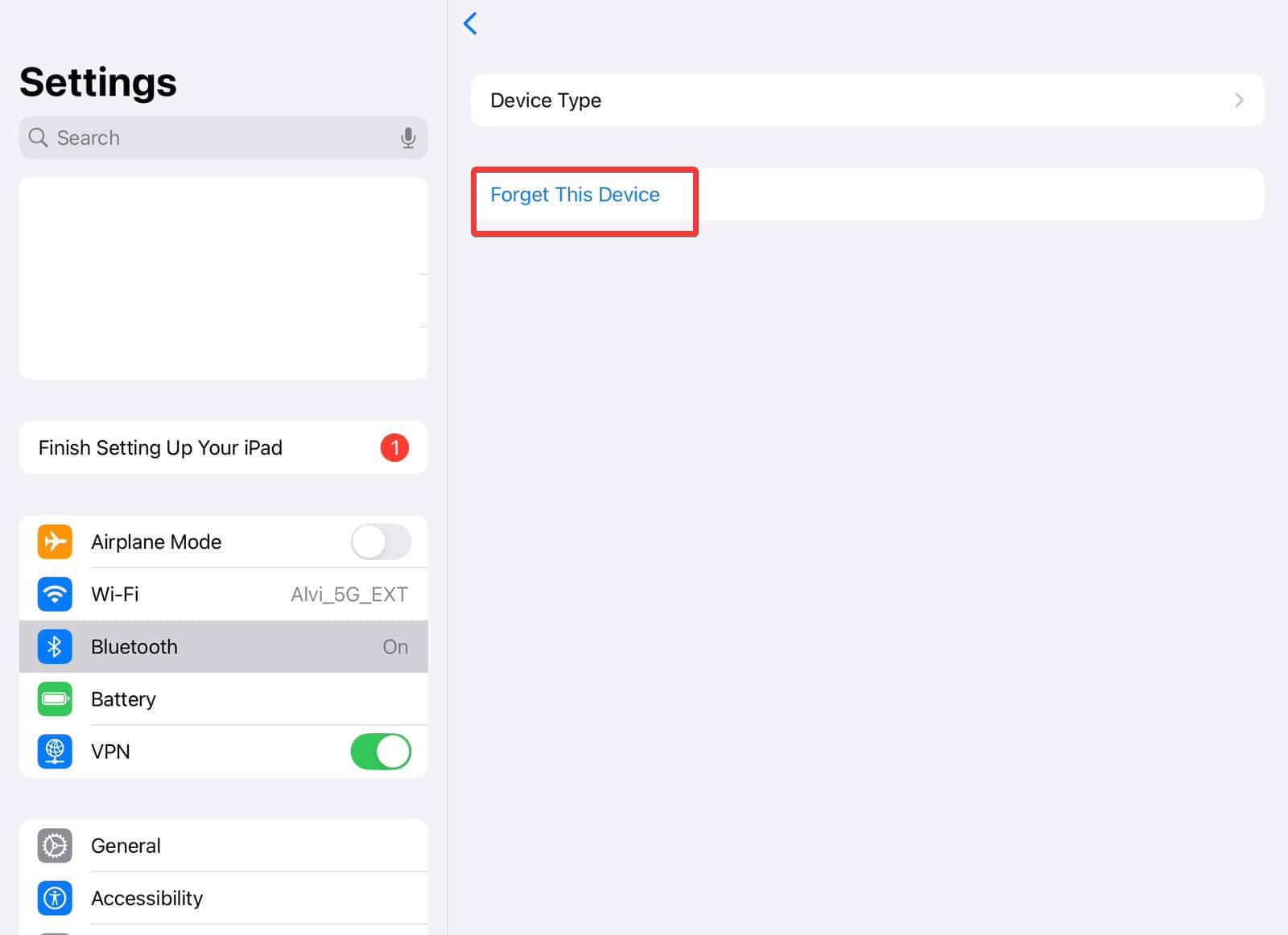
- In Settings > Bluetooth, find the Apple Pencil under My Devices, tap the info icon, and select Forget This Device.
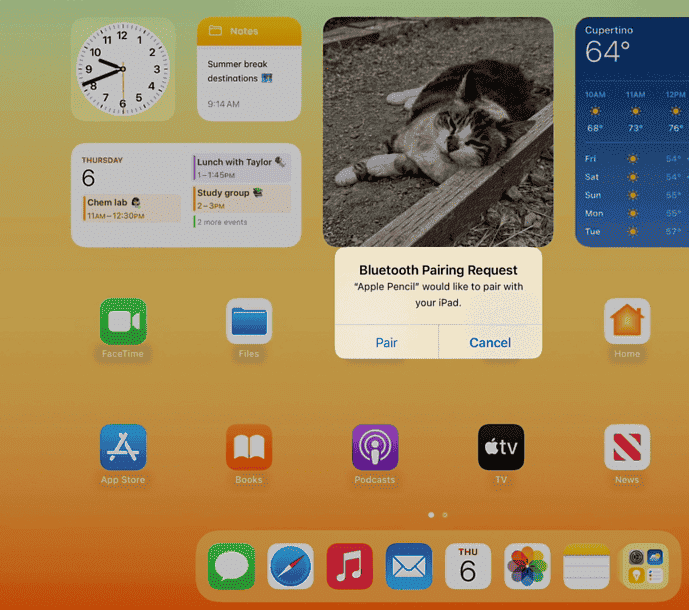
- Then connect or attach the Pencil again and tap Pair when prompted.


This also helps when your Apple Pencil is not writing.
4. Force Restart with Pencil Attached
Some users fixed connection issues by restarting the iPad while the Pencil remains attached:
- Connect the Pencil to the iPad (magnetically or via port).
- Force restart the iPad.
- After a restart, detach and reattach the Pencil.
5. Tighten the Pencil Tip or Clean it
If your Pencil seems paired but does not write, check the nib. If it is loose, tighten it carefully, as it may solve the issue.
A dirty nib or port can block the connection. Remove the tip, clean it gently with a damp microfiber cloth, and dry it before screwing it back on. Clean the iPad’s port or magnetic edge if needed.
If it’s broken, replace the Apple Pencil tip and check for improvements.
6. Reset Network Settings (for USB-C Pencil or pairing oddities)
If pairing via USB-C fails:
- Go to Settings > General > Reset > Reset Network Settings.
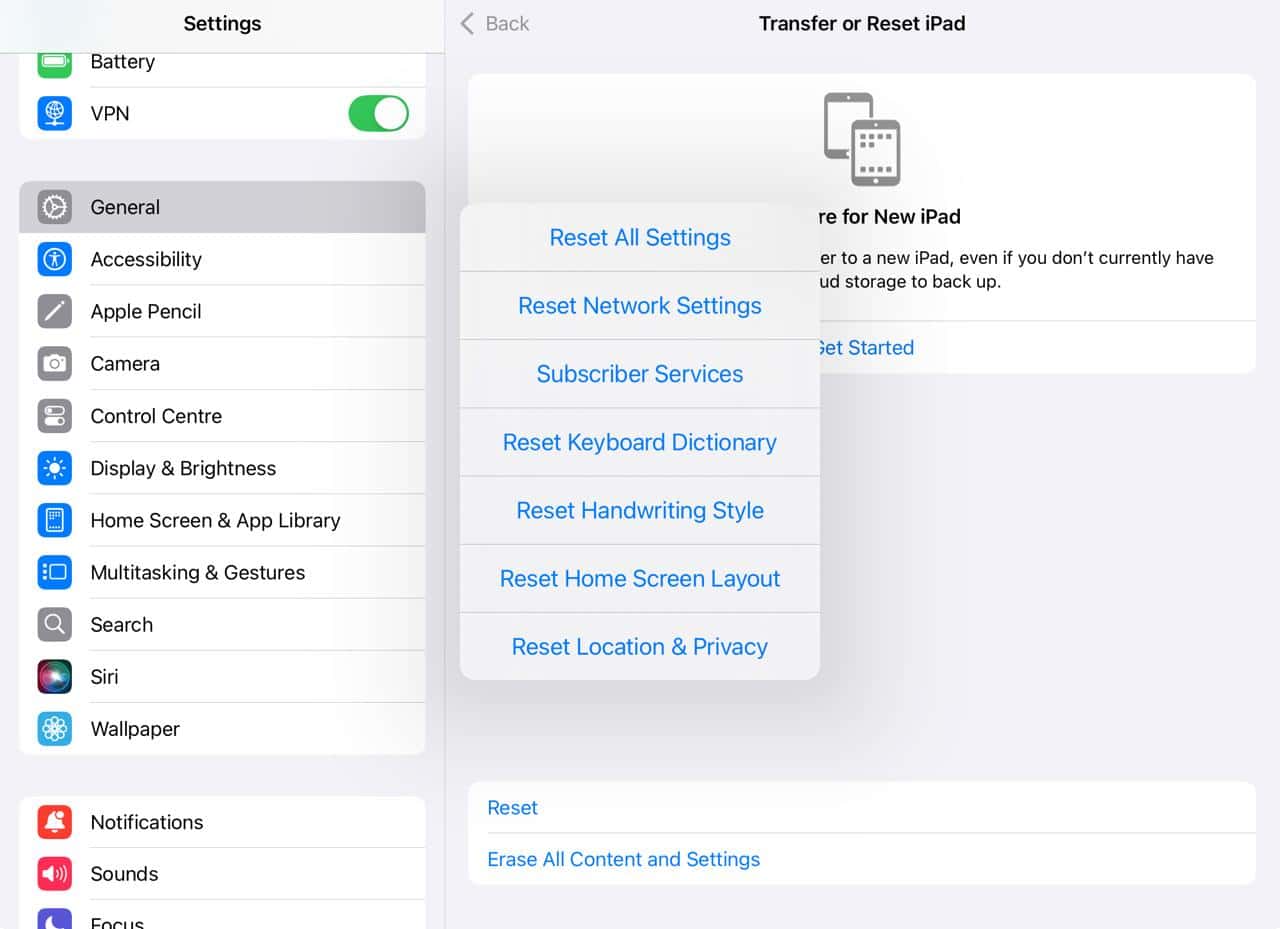
- Confirm Wi Fi info will be erased. Then try to pair again.

7. Compatibility Check
Make sure your Apple Pencil and iPad are compatible. For example, older iPads need the original Pencil, while newer ones work with the second generation or Pro models.
8. Try LightBlue App for Persistent 10th Gen Pairing Issues
Some users with a 10th-generation iPad and first-generation Pencil fixed pairing by installing a third-party app called LightBlue from the App Store:
- Charge the Pencil for 5 minutes, disconnect the cable.
- Open the LightBlue app, scan for the Apple Pencil.
- Enter pairing code 1234 and tap pair. Use this method again if pairing is lost after reboot or charging.
Tips
- Make sure your iPad has the latest iPadOS update
- Remove iPad cases, especially those that cover the magnetic edge
- Test your Apple Pencil in Apple’s Notes app for clear input testing
- If possible, try connecting the Pencil to another iPad to rule out hardware issues
- Contact Apple Support or visit an Apple Store if none of these steps help
Frequently Asked Questions
Sometimes Bluetooth thinks the Pencil is connected, but the nib is loose or there is a software glitch. Tighten the nib, restart the iPad, or forget and re-pair the device.
Yes. If the Pencil attaches magnetically, a bulky case may prevent a strong connection. Try removing the case and pairing again.
Certain updates have caused pairing problems. You can force restart with the Pencil attached or check for a software update to fix bugs.
Absolutely. If it works on another iPad, you know the issue is with your iPad. If no iPad accepts your Pencil, the Pencil may need service.
Summary
- Charge your Pencil properly for at least 10 minutes.
- Restart the iPad and toggle Bluetooth off and on.
- Forget the device in Bluetooth settings, then re-pair.
- Force restart the iPad while the Pencil is attached.
- Tighten the pencil tip or clean it.
- Reset network settings if USB-C pairing fails.
- Confirm both iPad and Pencil are compatible.
- Use LightBlue app pairing if you have persistent pairing issues with the 10th-gen iPad and the 1st-gen Pencil.
- Remove any case that could block the magnetic connection.
- Contact Apple Support if none work.
Conclusion
Troubleshooting Apple Pencil connection issues can feel tricky, but most of the time, it is easy to fix. Start with charging, restarting, and re-pairing. Ensuring compatibility and keeping your iPad software updated helps prevent future issues. If all else fails, Apple Support is your next stop.
With these simple steps, you will likely have your Pencil working again in no time.


The LightBlue app totally fixed my pencil pairing issue