

iPhone Error 4045 often appears when you try to restore or update your device using Finder on Mac or iTunes on Windows. The problem can be linked to loose hardware components, outdated software, faulty cables, or blocked connections to Apple servers.
The good news is that most users have resolved this error by checking hardware parts, updating their computer and iTunes, or fixing network and USB issues. So, let’s get to troubleshooting and fixing iPhone error 4045!
Table of contents
How to fix iPhone Error 4045?
1. Check for hardware issues
In some cases, iPhone error 4045 has been linked to hardware problems. A loose front camera after a drop can trigger the error. Reseating or securing the camera usually fixes the issue.
Don’t miss the best of The Mac Observer
Set us as a preferred source and our Apple reporting ranks higher in your Google Search results and Discover feed — one tap, no account changes.
Another reported cause is a corroded haptic engine contact. Disconnecting or unplugging the faulty part allows the phone to restart normally.
If you believe it’s either of these, contact Apple Support and get the hardware inspected for faults.
2. Update your computer and iTunes
Make sure your Mac or PC has the latest operating system.
- On Windows, update iTunes or the Apple Devices app.
- On Mac, run the latest macOS or iTunes version via Software Update.
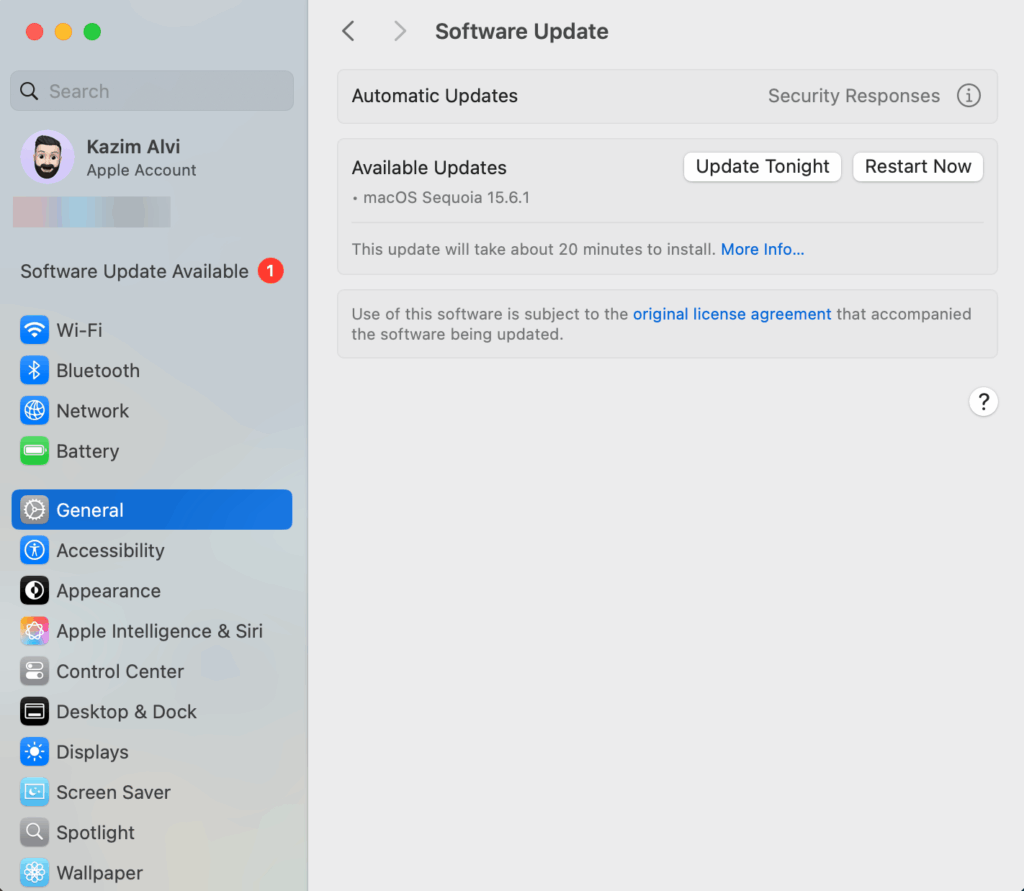
Restart your computer before trying the restore again.
Updating iTunes also helps with similar issues like iPhone Error 9.
3. Fix network and server issues
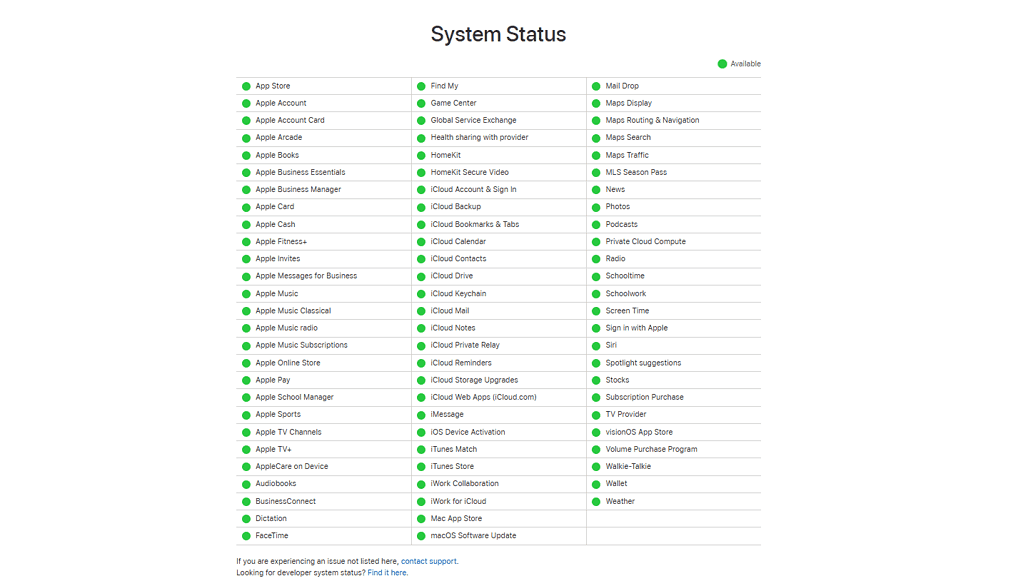
- Check Apple’s System Status page to make sure servers are up.
- Turn off VPN, proxy, firewall, or antivirus software temporarily.
- Restart your internet router and reconnect to a stable Wi-Fi or wired connection.
- Try restoring again after adjusting these settings.
4. Try a different USB setup
- Use an Apple-certified USB cable.
- Switch to another USB port on your computer.
- If possible, test on a different computer with updated software.
- Avoid USB hubs and connect the cable directly to the computer.
5. Basic troubleshooting tricks
- Unplug accessories like cases, docks, or external devices before restoring.
- Keep the iPhone plugged in for a while, even overnight. Some devices boot back up after an extended connection.
- Repeat the restore after making each change to confirm if the issue is resolved.
Tips
- Always back up your iPhone before attempting major fixes.
- Start with the simplest solutions, like changing the cable or port.
- Keep both your computer and iTunes fully updated.
- If none of the steps work, seek professional Apple support.
Frequently Asked Questions
It is an unknown restore or update error that usually points to hardware issues, faulty cables, or blocked server connections.
Yes. Many users fix it by updating their computer, replacing cables, or securing loose hardware like the front camera. For hardware-related issues, I recommend seeking professional help.
Not always. It can also be caused by outdated iTunes, blocked servers, or network problems.
Yes. Using another updated computer often solves the issue if the original one has software or network conflicts.
Summary
- Check for loose or faulty hardware parts like the front camera or haptic engine.
- Update your Mac or PC and install the latest version of iTunes or Apple Devices app.
- Disable VPN, firewall, or antivirus software that may block Apple servers.
- Use a certified USB cable and try different ports or another computer.
- Keep the device plugged in for a while, as it may recover on its own.
Conclusion
The iPhone error 4045 usually has a simple fix once you identify the root cause. Start with quick checks like updating software, changing cables, or turning off VPNs, and move on to hardware inspection if needed.
With patience and step-by-step troubleshooting, you can get your iPhone working again without too much hassle.




Discussion