
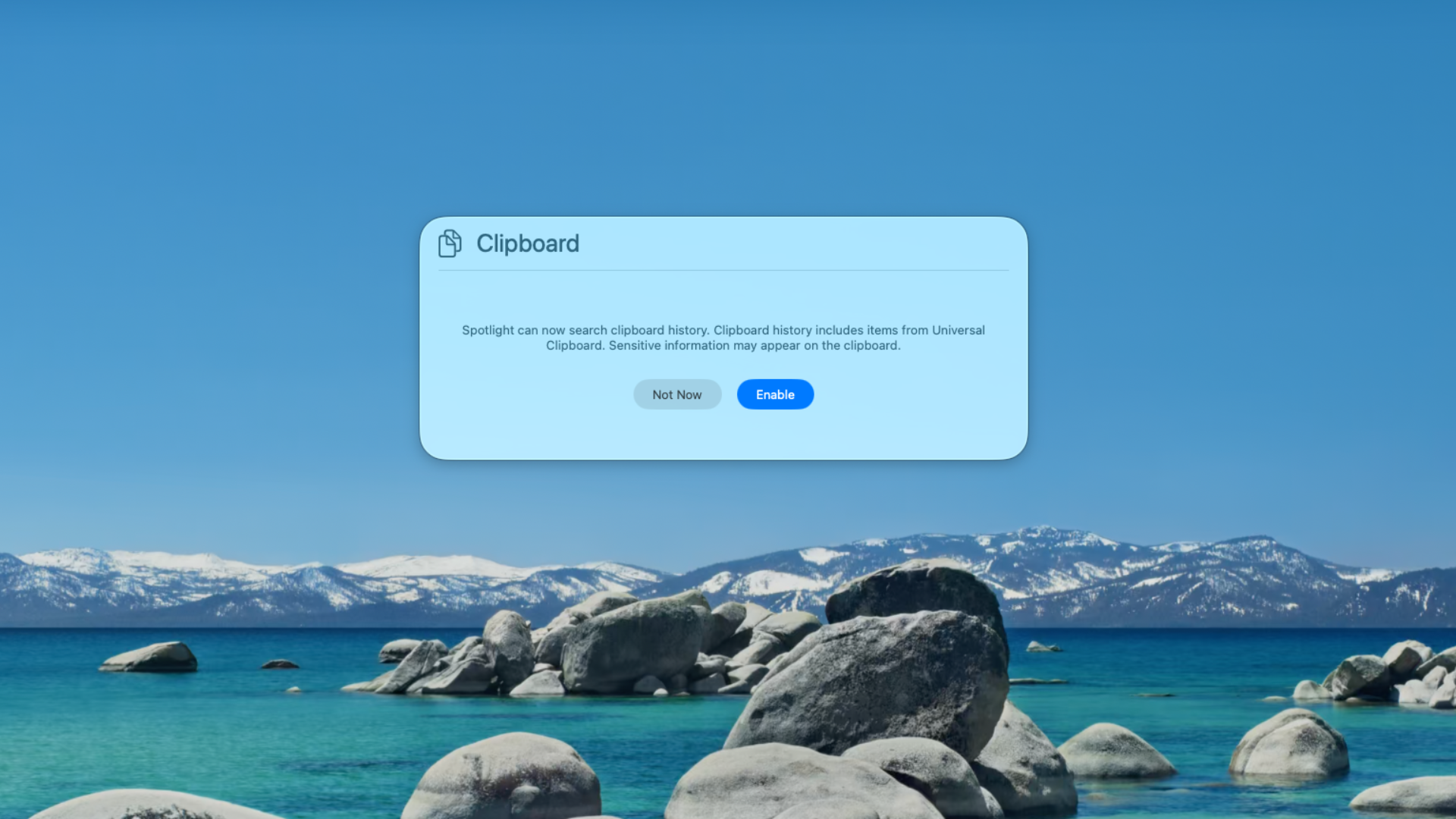
For years, Mac users have relied on third-party apps like Alfred, Raycast, or dedicated clipboard managers to store more than one copied item at a time. With macOS Tahoe (26), Apple has finally built a Clipboard History right into Spotlight. It’s not as powerful as some third-party tools, but it’s a big step forward, and for many people, it will be enough.
Here’s how to use it.
Table of contents
What Clipboard History does
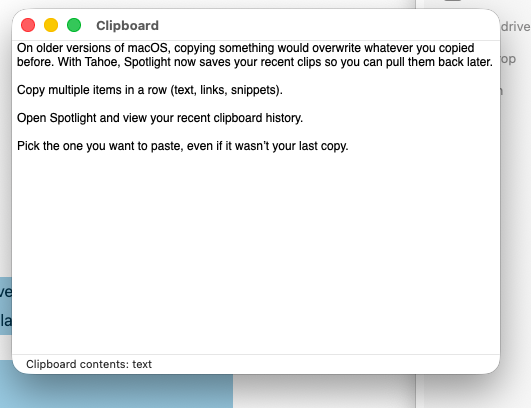
On older versions of macOS, copying something would overwrite whatever you copied before. With Tahoe, Spotlight now saves your recent clips so you can pull them back later.
Don’t miss the best of The Mac Observer
Set us as a preferred source and our Apple reporting ranks higher in your Google Search results and Discover feed — one tap, no account changes.
- Copy multiple items in a row (text, links, snippets).
- Open Spotlight and view your recent clipboard history.
- Pick the one you want to paste, even if it wasn’t your last copy.
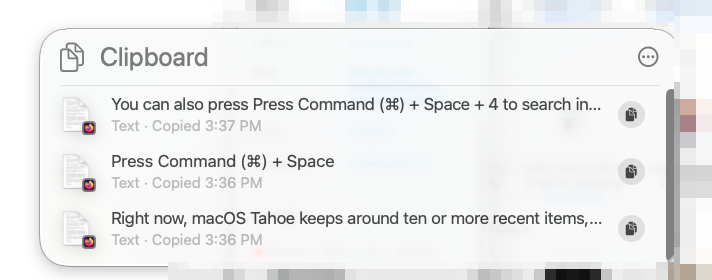
Right now, macOS Tahoe keeps around ten or more recent items, but there’s a catch: the history only lasts eight hours. After that, it wipes itself clean for privacy and security.
How to access Clipboard History
- Press Command (⌘) + Space to open Spotlight.
- Type Clipboard (or scroll to the new section if you’re already searching).
- A list of your recent copied items will appear.
- Select the one you want, and it’s instantly placed back on your clipboard.
- Paste as normal with Command (⌘) + V.
It’s that simple, Spotlight is now not just a launcher, but also a basic clipboard manager.
 NOTE
NOTE
Limitations to know
- Eight-hour limit: Anything copied earlier than that disappears. Don’t rely on it for long-term storage.
- No pinning or favorites: Unlike third-party managers, you can’t keep an item permanently.
- No sync to iPhone or iPad: Universal Clipboard still works between devices, but Tahoe’s Clipboard History itself doesn’t sync across platforms.
If you need more control, apps like Alfred or Raycast still do a better job. But Apple’s version is free, private, and built in.
This addition makes Spotlight a lot more useful. Apple is clearly trying to catch up to (and in some ways surpass) rivals:
- Clipboard History matches Alfred and Raycast’s long-time features.
- New Quick Actions in Spotlight can even leapfrog them, letting you create shortcuts like “ST” for “Start Timer.”
If you’re curious about how Apple is reshaping all of its software, you can also see what changed on the iPhone side with iOS 26’s new Liquid Glass design or the Dark Mode complaints.
Tips for getting the most out of Clipboard History
- Use it for copying multiple URLs while browsing, then paste them into Notes later.
- Collect snippets of text for emails or articles without worrying about losing one.
- Remember that anything you copy here will clear after eight hours, so paste important info into Notes or another safe spot before logging off.
Want more macOS Tahoe help? Check out:


so my payment for pasteme pro wasn’t wasted then.
clipboard history was the 1 thing I was looking forwards to and am vey much disappointed