
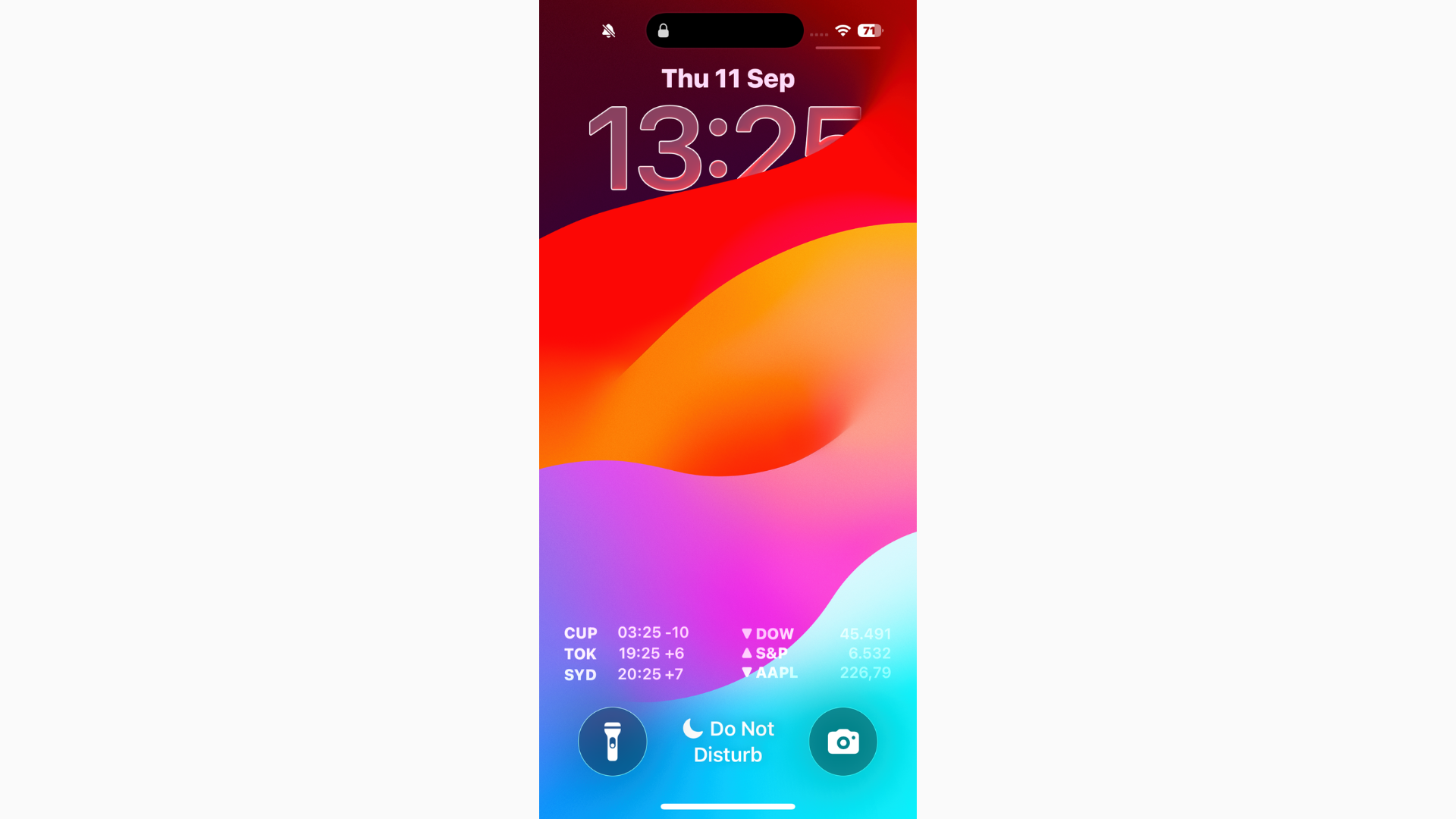
Some iPhone users on iOS 26 have noticed that notifications are harder to read, whether because of Apple’s new translucent design, low contrast, or simply because alerts aren’t showing at all. The good news: there are a few settings you can tweak and fixes you can try.
Table of contents
Make notifications easier to read with Reduce Transparency
Apple doesn’t let you disable transparency system-wide, but you can reduce it, which makes backgrounds more opaque and text easier to see.
- Open Settings.
- Tap Accessibility.
- Tap Display & Text Size.
- Scroll down and toggle Reduce Transparency on.
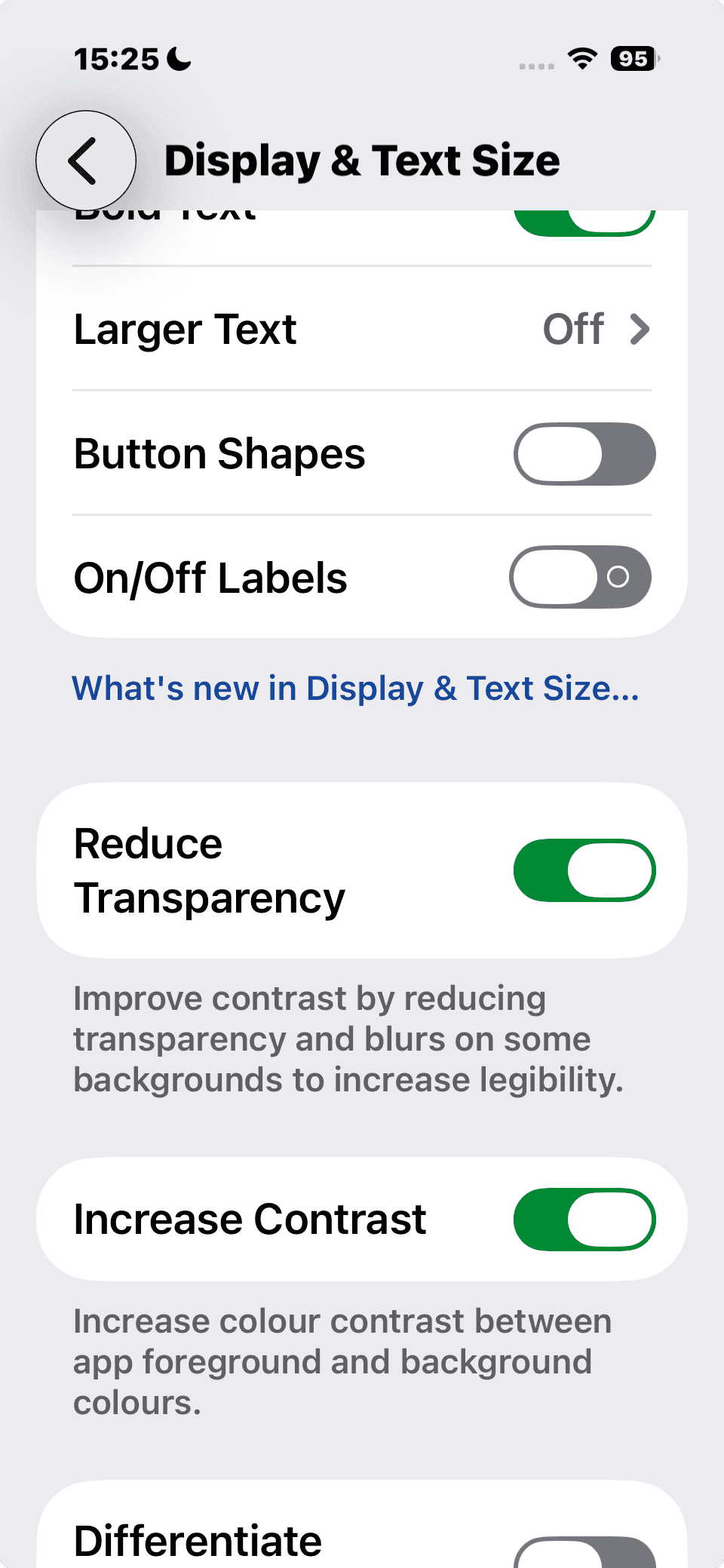

This doesn’t turn transparency off completely, but it does make notifications stand out more against busy wallpapers or blurred backgrounds. If you want even more readability, pair this with a simple background from our best iOS 26 wallpapers.
Don’t miss the best of The Mac Observer
Set us as a preferred source and our Apple reporting ranks higher in your Google Search results and Discover feed — one tap, no account changes.
If notifications don’t show at all
Sometimes the issue isn’t readability — it’s that notifications aren’t arriving. Try these steps:
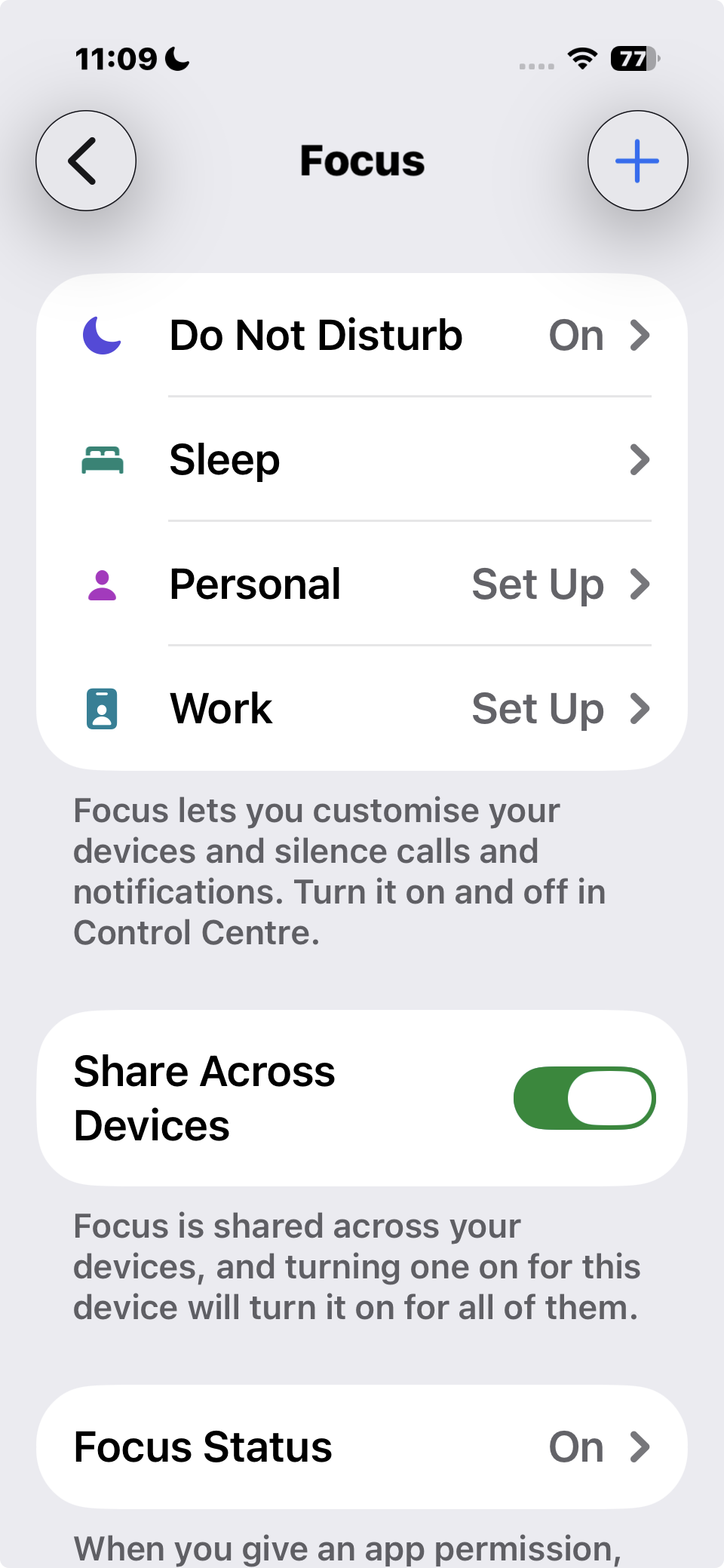
- Check Focus modes: Go to Settings → Focus and make sure Do Not Disturb, Work, or other Focus profiles aren’t hiding alerts.
- Verify app settings: Settings → Notifications → [App] → Allow Notifications. Toggle on banners, sounds, and badges.
- Restart your iPhone: A quick reboot often clears stuck notification services.
- Update your apps: Out-of-date apps may not support iOS 26’s notification system.
- Update iOS: If you’re still on the launch build, install the latest patch. If it doesn’t show, try iOS 26 update not showing up — fixes.
For older devices, notification bugs were common even before iOS 26 — see our guide: Fix notifications not working on iOS 18.
Other display adjustments for readability
- Bold Text: In Accessibility → Display & Text Size, toggle Bold Text.
- Increase Contrast: Same menu, toggle Increase Contrast for sharper notification text.
- Reduce Motion: If animations make text harder to follow, make iOS 26 less animated.
Related iOS 26 fixes
- All reported iOS 26 bugs and issues with fixes
- Why is iOS 26 so laggy? Causes and fixes
- Fix iMessage not working after iOS 26 update
- Make apps clear on iPhone
If you can’t read notifications in iOS 26, start by turning on Reduce Transparency for a more solid background. Then check notification settings, Focus modes, and app permissions if alerts aren’t showing up at all. Between accessibility tweaks and a few system fixes, you should be able to make your iPhone’s notifications more visible and reliable.


Discussion