
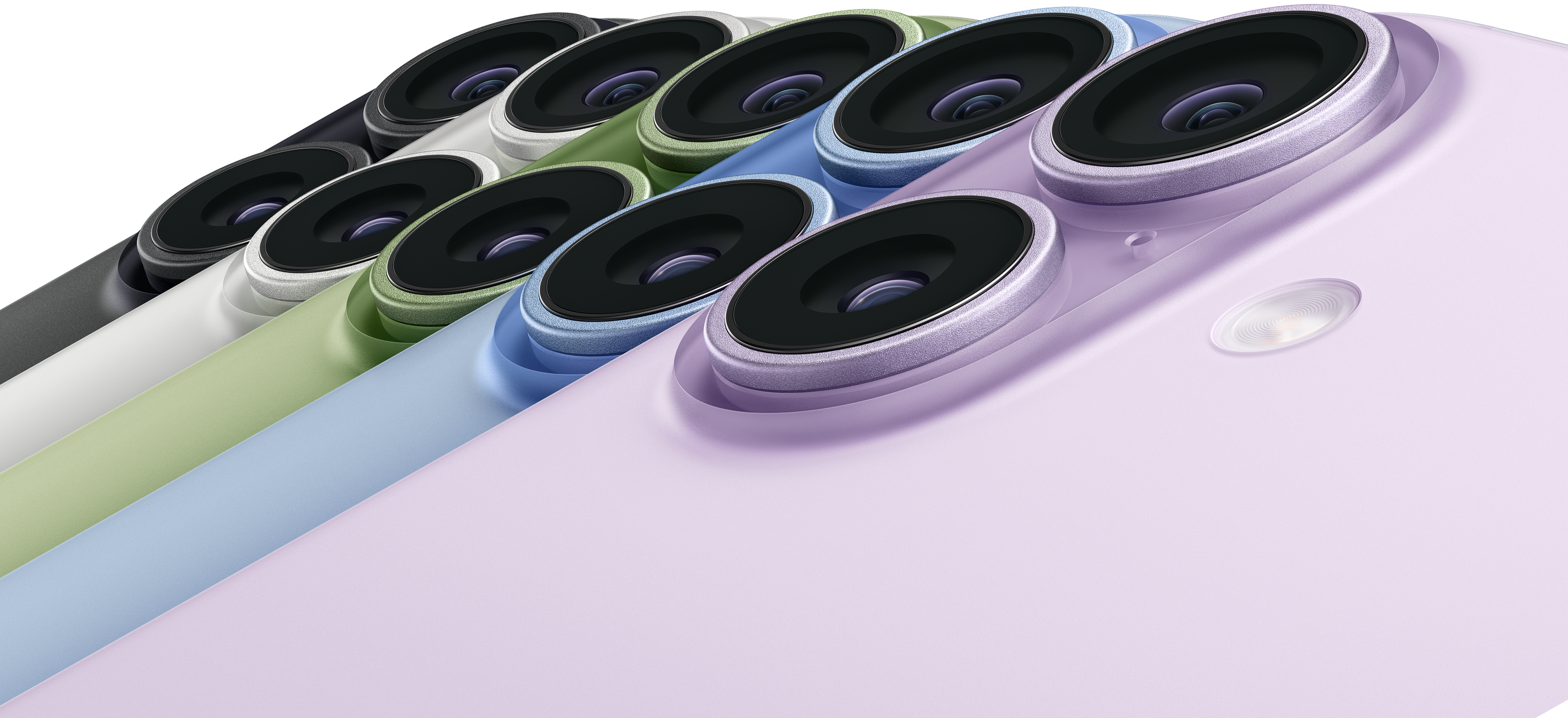
Apple’s iOS 26 update introduced several enhancements to the iPhone camera system, but not all users are seeing sharper results. A growing number of complaints point to blurry photos, especially when using the default Camera app. This issue appears across multiple iPhone models, including the iPhone 16 and iPhone 17, and has been identified as one of the reported bugs. Whether the problem stems from software glitches, autofocus inconsistencies, or user settings, there are several steps you can take to restore image clarity.
Table of contents
Common Causes of Blurry Camera on iOS 26
Blurry images after updating to iOS 26 are often linked to changes in lens calibration, autofocus behavior, or system-level bugs. Apple’s redesign of the 24mm (1X) lens and sensor may also affect how the camera performs in different lighting conditions.
Some users report that Portrait mode and low-light shots are particularly affected. Others find that the issue resolves after tweaking settings or restarting the device.
Don’t miss the best of The Mac Observer
Set us as a preferred source and our Apple reporting ranks higher in your Google Search results and Discover feed — one tap, no account changes.
How to Fix Blurry Camera Issues on iOS 26
1. Restart Your iPhone
A simple restart can resolve temporary software glitches.
- Press and hold the Side button and either of the Volume buttons.
- Slide to power off.

- Wait 30 seconds, then turn the device back on.

2. Force Close and Reopen the Camera App
Refreshing the app can clear memory issues.
- Swipe up from the bottom of the screen and pause.
- Locate the Camera app.
- Swipe it up to close, then reopen it.
3. Clean the Camera Lens
Smudges or dust can interfere with focus.
- Use a microfiber cloth to gently wipe the lens.
- Avoid using liquids or abrasive materials.
4. Toggle Autofocus Lock
Sometimes autofocus gets stuck or misfires.
- Open the Camera app.
- Tap and hold on the subject until AE/AF Lock appears.
- Tap elsewhere to reset the lock.
5. Reset All Settings
This restores default configurations without deleting data.
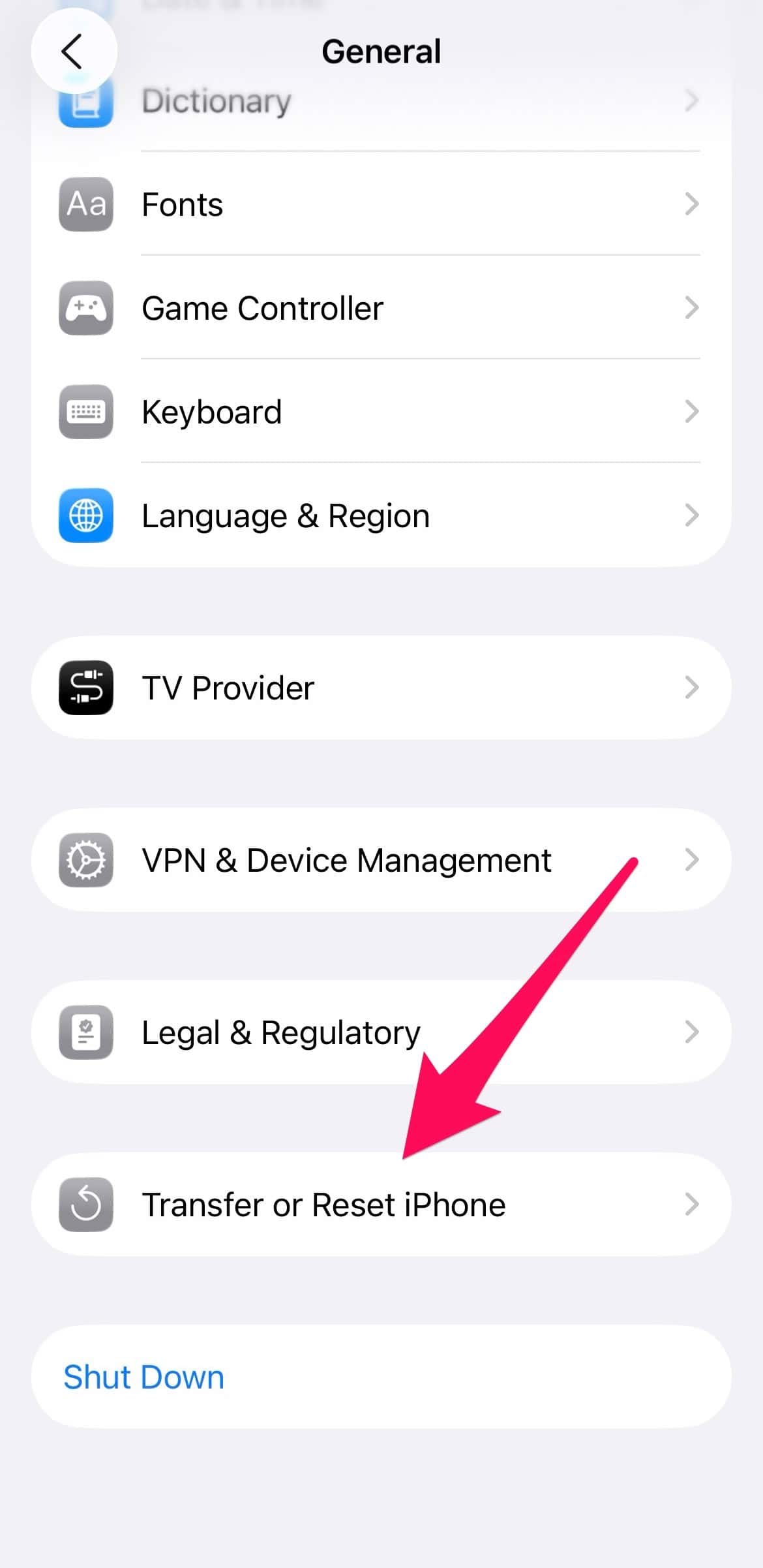
- Go to Settings > General > Transfer or Reset iPhone.
- Tap Reset > Reset All Settings.
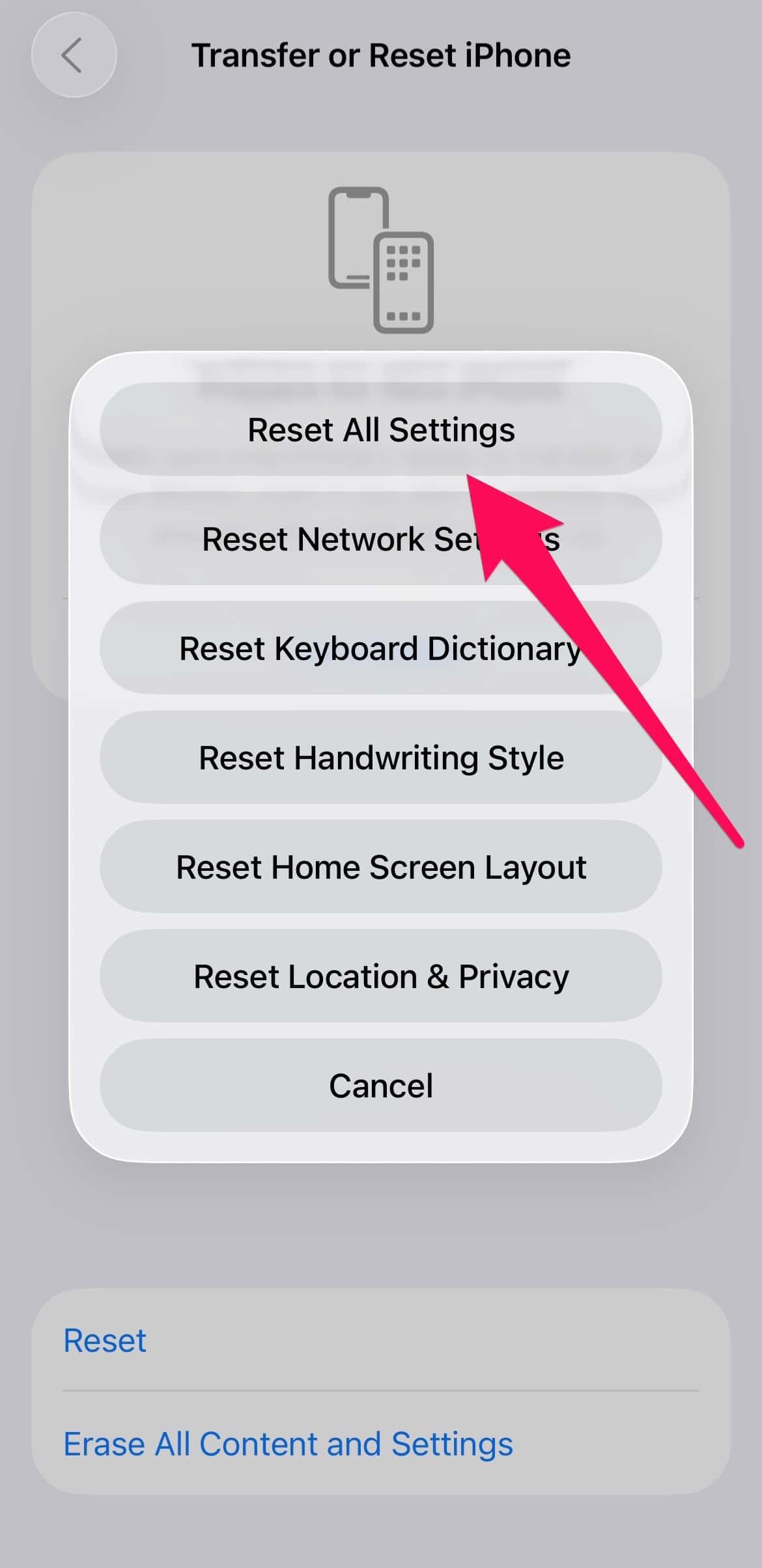
- Enter your passcode and confirm.


6. Adjust Camera Settings
Some settings may conflict with the new camera behavior. Review the iOS 26 settings you should change to optimize performance.
7. Explore Portrait Mode Alternatives
If blur issues persist in Portrait mode, consult this complete guide to portrait mode for tips on lighting, focus, and depth control.
FAQ
Not usually. Most blurry camera problems after an update are software-related.
Apple typically addresses widespread bugs in minor updates. Keep your device updated.
Reports are most common on newer models like iPhone 16 and iPhone 17, but older devices may also be affected.
Some apps offer manual focus and stabilization, but results vary.
Can third-party apps help?
Some apps offer manual focus and stabilization, but results vary.
Unblurring the Camera in iOS 26
While the blurry camera issue in iOS 26 can be frustrating, most users find relief through basic troubleshooting and settings adjustments. If you’re using an iPhone 16, you may also enjoy the iOS 26 photographic styles update which enhances image vibrancy and tone. Stay updated and experiment with different modes to get the best results from your camera.


Discussion