

After updating to iPadOS 26, I noticed that Microsoft Excel suddenly stopped working the way it used to. At first, it would freeze when opening certain files. Then, it began crashing without warning. Sometimes, the app wouldn’t even launch at all.
This kind of issue isn’t unusual right after a major iPadOS release, as app developers often need some time to optimize their software for the latest version. Still, it can disrupt daily work, especially if you rely on Excel for reports, data entry, or business tasks. Here’s exactly what I did to make Excel stable again on iPadOS 26.
Table of contents
Common Causes: Why Excel Isn’t Working on iPadOS 26
Excel may stop working after updating to iPadOS 26 due to a few common issues. The most frequent cause is app incompatibility, where the current Excel version isn’t yet optimized for the new system.
Don’t miss the best of The Mac Observer
Set us as a preferred source and our Apple reporting ranks higher in your Google Search results and Discover feed — one tap, no account changes.
Other possible reasons include:
- Corrupted app data or cache after the update.
- Outdated Excel version missing recent patches.
- Low storage or memory conflicts affect performance.
- Third-party extensions or keyboards are interfering with the app.
- Microsoft account sync issues are causing login or cloud errors.
Most of these are easy to fix with updates, resets, or a quick reinstall.
Easy Ways to Fix Excel Problems on iPadOS 26
1. Check for Excel App Updates
After a major iPadOS update, some apps need a compatibility patch. If your Excel app hasn’t been updated since the iPadOS 26 release, that’s likely the cause. Microsoft usually pushes quick bug fixes within a few days of a new iOS rollout.
- Open the App Store.
- Tap your profile icon in the top-right corner.
- Scroll down to see available updates.
- If Microsoft Excel is listed, tap Update.
Once updated, relaunch the app and check if it opens normally.
2. Restart Your iPad
Sometimes, the issue isn’t the app, it’s the system. A simple restart clears temporary background errors or memory conflicts that can cause Excel to crash.
- Hold the Top button and either Volume button until the power slider appears.

- Drag the slider to turn off your iPad.
- Wait a few seconds, then press the Top button again to restart.

After restarting, open Excel and see if the problem is resolved.
3. Reinstall Microsoft Excel
If Excel continues to freeze or won’t open, reinstalling it gives you a clean start. This removes any corrupted files or cache that might have built up after the update.
- Touch and hold the Excel icon on your Home Screen.
- Tap Remove App > Delete App.
- Open the App Store, search for Microsoft Excel, and reinstall it.


Once installed, sign back into your Microsoft account and test your files.
4. Clear App Data and Cache
App data and cache can sometimes conflict with a new system update, especially if you’ve been using Excel heavily. Clearing stored data can refresh how the app interacts with iPadOS.
- Go to Settings > General > iPad Storage.
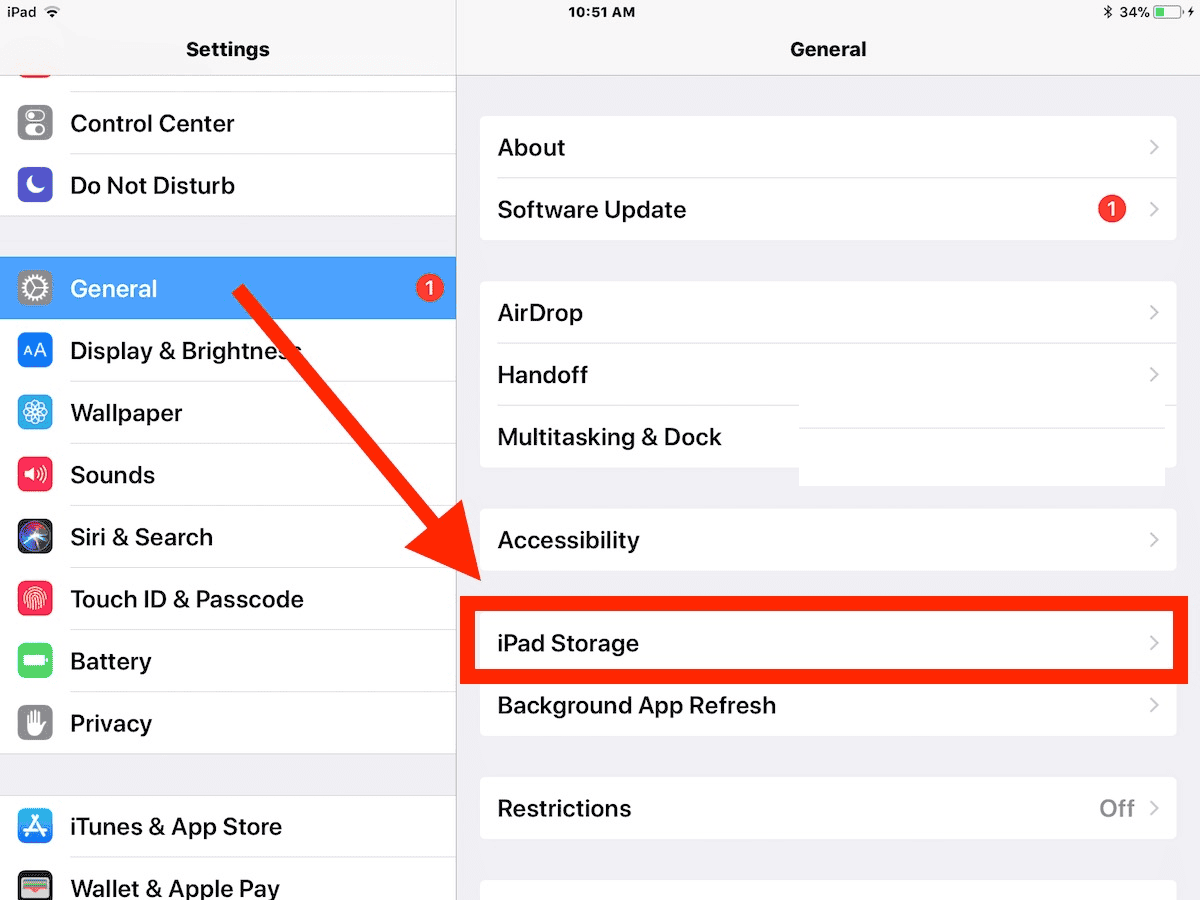
- Find and tap Microsoft Excel.
- Choose Offload App.
- Once completed, reinstall Excel from the App Store.

This process removes temporary files but keeps your documents safe.
5. Check File Compatibility
Older or complex Excel files might not open properly after a system update. Try isolating the issue by testing a few files.
- Open a smaller or newer Excel file to check if it loads.
- If your file doesn’t open, try saving it in the .xlsx format using another device.
- Avoid using files with macros, as iPadOS may not support all advanced functions.
If only one or two files crash, the issue might be with those documents—not Excel itself.
6. Disable Third-Party Keyboard or Extensions
Some third-party keyboards or file extensions can interfere with how Excel handles input or file access. Disabling them temporarily helps narrow down the issue.
- Go to Settings > General > Keyboard > Keyboards.
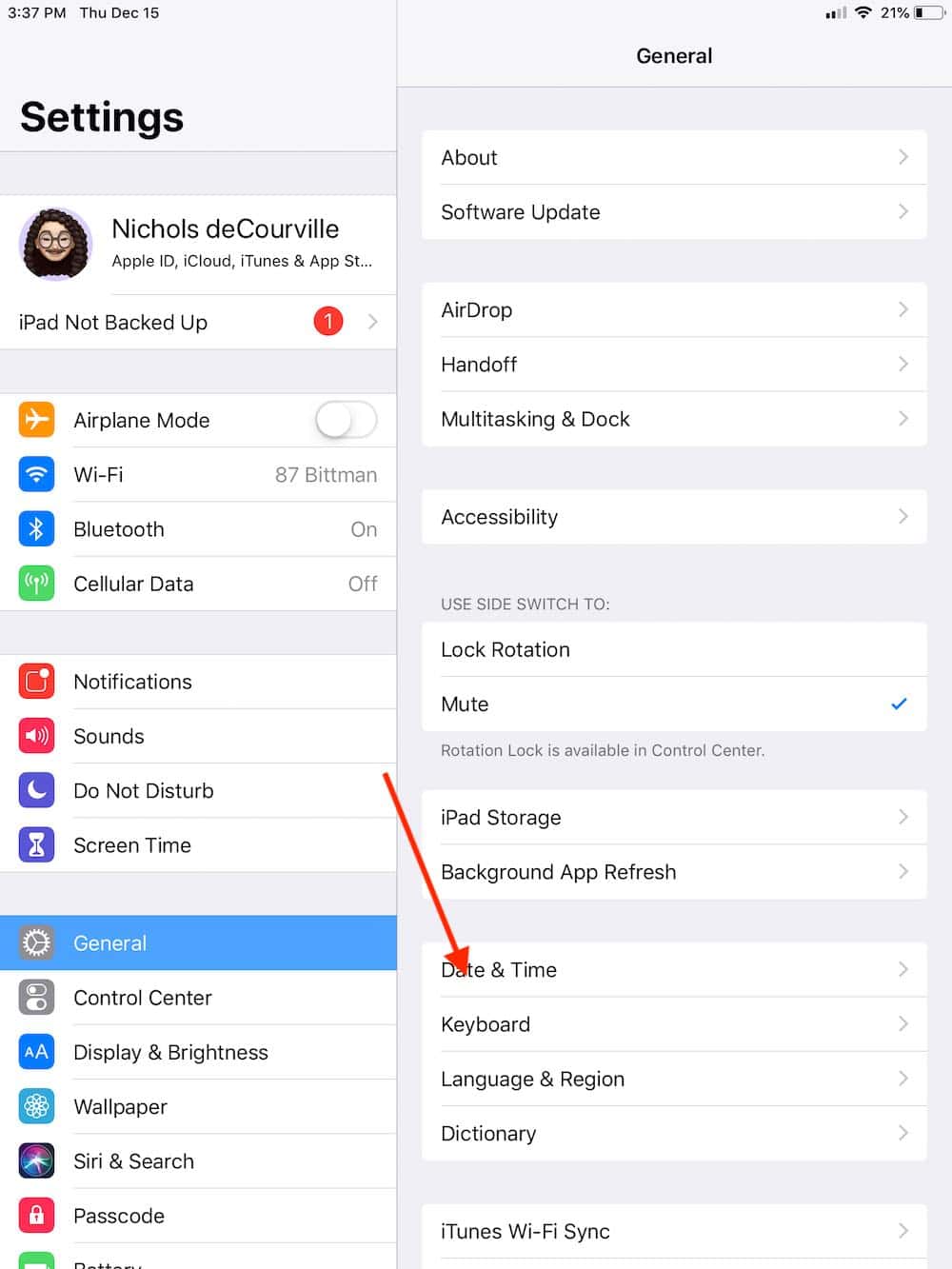
- Remove or disable any third-party options.
- Reopen Excel and test if it runs smoothly.

If it works fine afterward, the conflict lies in one of those add-ons.
7. Reconnect Your Microsoft Account
Sometimes, Excel may not sync properly after an iPadOS update, especially if your session token expires. Signing out and back in refreshes your access.
- Open Excel.
- Tap Settings > Account.
- Sign out of your Microsoft account.
- Sign back in with your credentials.
This re-establishes the connection to OneDrive and other Microsoft services.
8. Update iPadOS 26
Apple often releases quick bug-fix updates after major rollouts. If Excel issues persist, check for any minor updates to iPadOS 26.
- Go to Settings > General > Software Update.
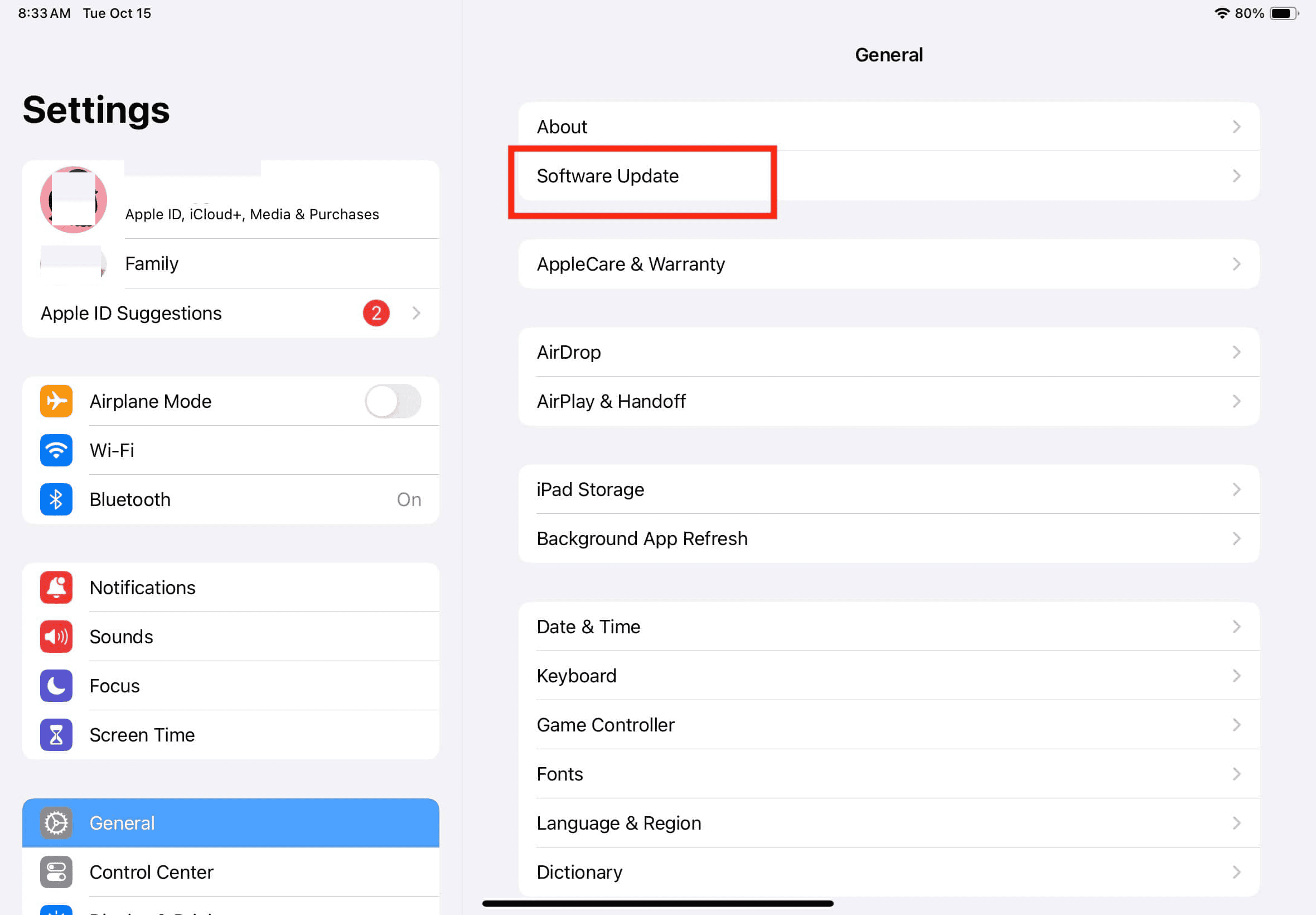
- Tap Download and Install if an update is available.

Even a small patch can fix compatibility problems that affect Excel and other Office apps.
9. Contact Microsoft Support
If none of the above steps fix the issue, it might be a known bug on Microsoft’s side. They usually offer app-specific troubleshooting or beta updates.
- Visit support.microsoft.com.
- Choose Excel for iPad under product options.
- Use chat or email to describe your issue and include your iPad model and iPadOS version.
Tips to Keep Excel Stable on iPadOS 26
- Always keep Excel and iPadOS up to date.
- Avoid running too many heavy apps alongside Excel.
- Store large files on OneDrive or iCloud instead of local storage.
- Restart your iPad occasionally to clear background processes.
- Check for Office 365 updates regularly if you’re using it via subscription.
Conclusion
If Excel isn’t working on iPadOS 26, the issue is usually linked to compatibility, cached data, or outdated app files. By updating, reinstalling, or clearing the app cache, most users can fix the problem quickly. After following these steps, Excel should start working perfectly on your iPad again. Keep both Excel and iPadOS updated, and you’ll avoid most of these issues in the future.
FAQs
It’s likely due to outdated app files or compatibility issues with the new system.
No, your files saved to OneDrive or iCloud remain safe. Only unsaved local files might be lost.
Yes, but cloud sync features like OneDrive will only work with an internet connection.
Contact Microsoft Support or wait for the next iPadOS or Office update, which often includes stability fixes.




Discussion