

The Beats Studio Pro headphones feature powerful active noise cancellation (ANC) technology. It is designed to block out background sounds for a more immersive listening experience. However, turning on noise cancellation can work slightly differently depending on the device. We’ll explain how to turn on the noise-canceling mode on the Beats Studio Pro across all Apple devices.
Table of contents
What is the Noise Cancellation Mode in Beats Studio Pro?
Noise Cancellation Mode in Beats Studio Pro uses advanced microphones and adaptive processing to reduce external sounds such as traffic, chatter, or background hum. The technology works by detecting unwanted noise and generating sound waves that counter it, creating a quieter listening space.

Users can also switch between Noise Cancellation, Transparency, and Off modes, depending on their environment. Noise Cancellation is ideal for travel, public areas, or work settings where background sounds can be distracting. Transparency mode, on the other hand, allows some outside sound to pass through so users can stay aware of their surroundings.
Don’t miss the best of The Mac Observer
Set us as a preferred source and our Apple reporting ranks higher in your Google Search results and Discover feed — one tap, no account changes.
Ways to Turn On Noise Cancellation on Beats Studio Pro
1. Using an iPhone or iPad
Turning on noise cancellation through an iPhone or iPad is straightforward once your Beats Studio Pro are paired.
- Open Settings on your iPhone or iPad.
- Tap Bluetooth.
- Find the Beats Studio Pro in the list and tap the (i) icon next to it.
- Under Noise Control, select Noise Cancellation.


Alternatively, if the headphones are already connected, swipe down from the top-right corner of the screen to access Control Center, press and hold the volume slider, and choose Noise Cancellation from the options.
If the headphones do not appear under Bluetooth devices, it may help to reconnect or pair them again. Refer to this guide on connecting Beats earbuds to an iPhone for step-by-step pairing instructions.
2. Using a Mac
The Beats Studio Pro can easily switch ANC modes when connected to a Mac.
- Make sure the Beats Studio Pro are connected via Bluetooth.
- Click the Control Center icon in the top menu bar.
- Select Sound or click the Bluetooth menu.
Choose Beats Studio Pro from the list.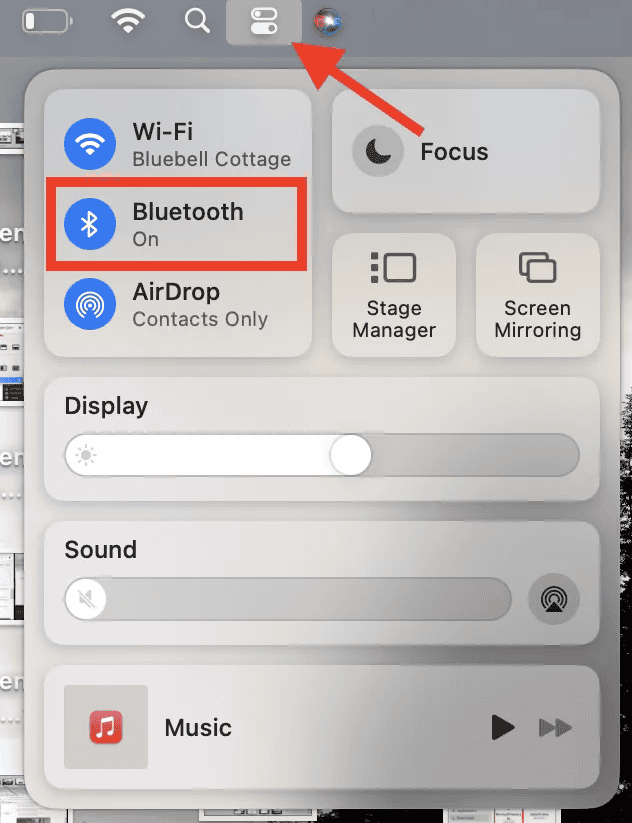
- Under Noise Control, click Noise Cancellation.

This setting stays active until manually changed, so the next time the headphones connect, they will automatically enable the last used mode.
If connection issues occur, users can check why Beats may not connect properly and resolve pairing problems quickly.
3. Using an Apple Watch
The Apple Watch offers a convenient way to toggle noise cancellation without pulling out an iPhone.
- Ensure the Beats Studio Pro accessory is connected to the iPhone paired with the Apple Watch.
- Wear both the Apple Watch and the Beats Studio Pro.
- Wake the Apple Watch screen.
- Open Control Center by swiping up from the watch face.
- Tap the AirPlay icon (triangle with circles).
- Select Beats Studio Pro from the device list.
- Tap “Noise Cancellation” to enable ANC.
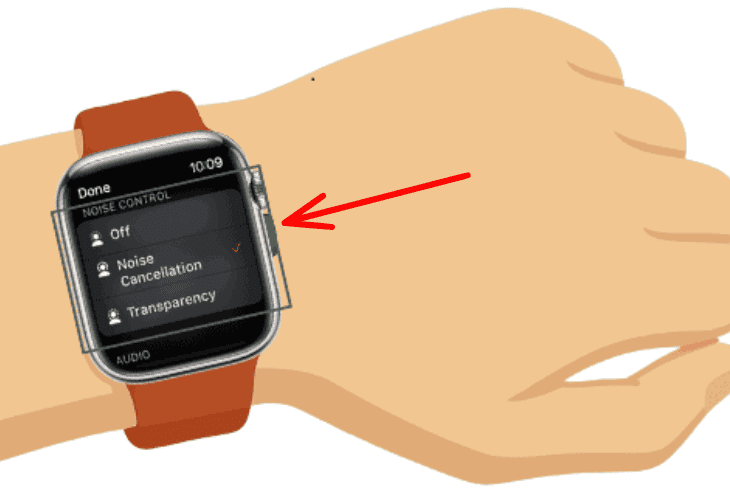

This seamless control is one of the advantages of pairing Beats with the Apple ecosystem. For users who want to connect their Beats across multiple Apple devices, this Beats Solo 3 pairing guide provides helpful setup steps that also apply to Beats Studio Pro.
4. Using Siri Voice Commands
Siri provides hands-free control over noise cancellation settings, useful when devices aren’t easily accessible.
- Activate Siri by saying “Hey Siri” or pressing the Siri button.
- Say one of these commands:
- “Turn on noise cancellation.”
- “Enable noise canceling.”
- “Switch to noise cancellation mode.”
- Siri confirms the change with a voice response.
- The Beats Studio Pro switches to ANC mode.
Additional Siri commands for noise control:
- “Turn on transparency mode.”
- “Turn off noise cancellation.”
- “Switch to transparency.”
The voice commands must be issued while wearing or near the Beats Studio Pro for the settings to apply correctly.
Tips
- Ensure the headphones are fully charged for optimal ANC performance.
- Keep firmware updated to the latest version using the Beats app or macOS settings.
- Switch between Noise Cancellation and Transparency modes depending on the environment.
- For reference, users can also check how to turn off noise cancellation on AirPods Pro for similar Apple audio controls.
- Avoid using ANC in extremely windy conditions, as it can affect microphone performance.
- Store Beats Studio Pro in their case when not in use to protect the internal sensors.
Final Thoughts
Activating noise cancellation on Beats Studio Pro is straightforward across all Apple devices, with multiple access points ranging from physical buttons to voice commands. The integration with iOS, macOS, and watchOS makes switching between listening modes seamless, regardless of which device is in use.
FAQs
Yes. The Beats Studio Pro includes both Noise Cancellation and Transparency modes, which can be switched manually through connected Apple devices.
Yes. The “b” button on the side of the headphones allows quick toggling between Noise Cancellation, Transparency, and Off modes.
Check that the headphones are updated, properly fitted, and connected to an Apple device with the latest iOS or macOS version.
Yes, activating Noise Cancellation slightly reduces battery life compared to using the headphones in standard mode.



Discussion