

Switching from an iPhone requires one essential step. You must deregister iMessage. If you fail to do this, you will miss text messages. Your contacts’ iPhones will keep sending blue iMessages. They should be sending standard green SMS texts. Therefore, properly disabling and deregistering ensures seamless communication. It prevents any messaging delays during your transition.
Table of contents
Essential Steps for Managing Your iMessage Status
1. Disable iMessage on Your iPhone or iPad
First, switch off the service directly on your old device. This is the most direct action. The action tells Apple’s servers to stop associating your number with iMessage. Do this before you remove the SIM card. Thus, your device communicates the status change to Apple. This begins the process reliably.
- Open the Settings > Apps > Messages.
- Toggle the iMessage switch to the Off position (it should appear grey).

- Also, check the Send & Receive section. Ensure your phone number is no longer active there.

2. Deregister iMessage Through Apple’s Website
What if you lost access to your iPhone? Maybe you forgot to turn off iMessage before switching your SIM card. In that case, Apple provides an online tool for you. This tool helps you officially remove your number from the service. Consequently, this method serves as a critical backup step.
- Visit the official Apple Deregistration webpage.
- Enter the phone number you wish to deregister in the field.
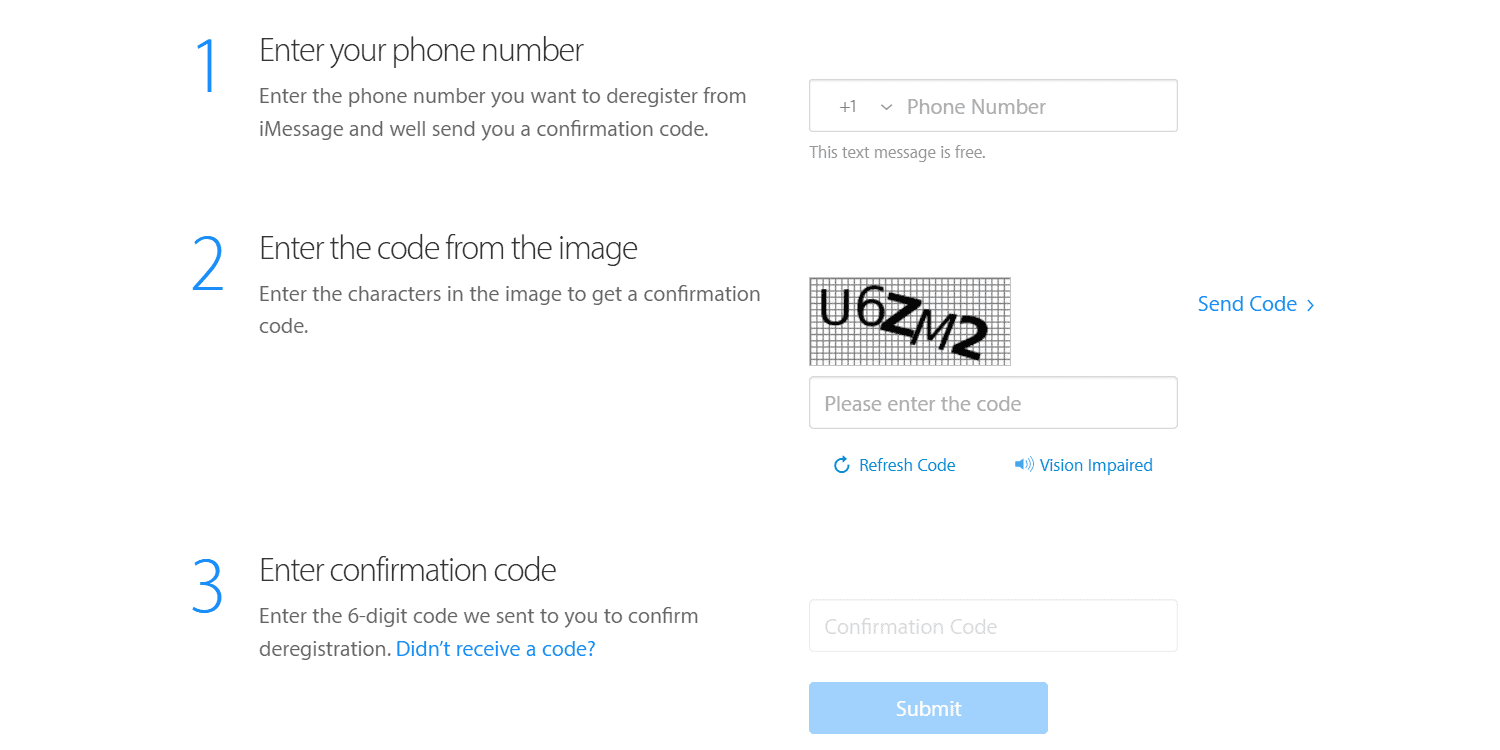
- Apple will send an SMS confirmation code to your number. (It will be in your new phone).
- Enter the 6-digit confirmation code on the website. This completes the deregistration process.

3. Turn Off iMessage on Secondary Devices
Furthermore, you must check any linked Apple hardware manually. This prevents Apple from routing messages to them. For example, you might use your Apple ID on a Mac or an Apple Watch. You must disable the service on those devices iPad as well. These devices use your Apple ID connection. Therefore, you must disable them individually.
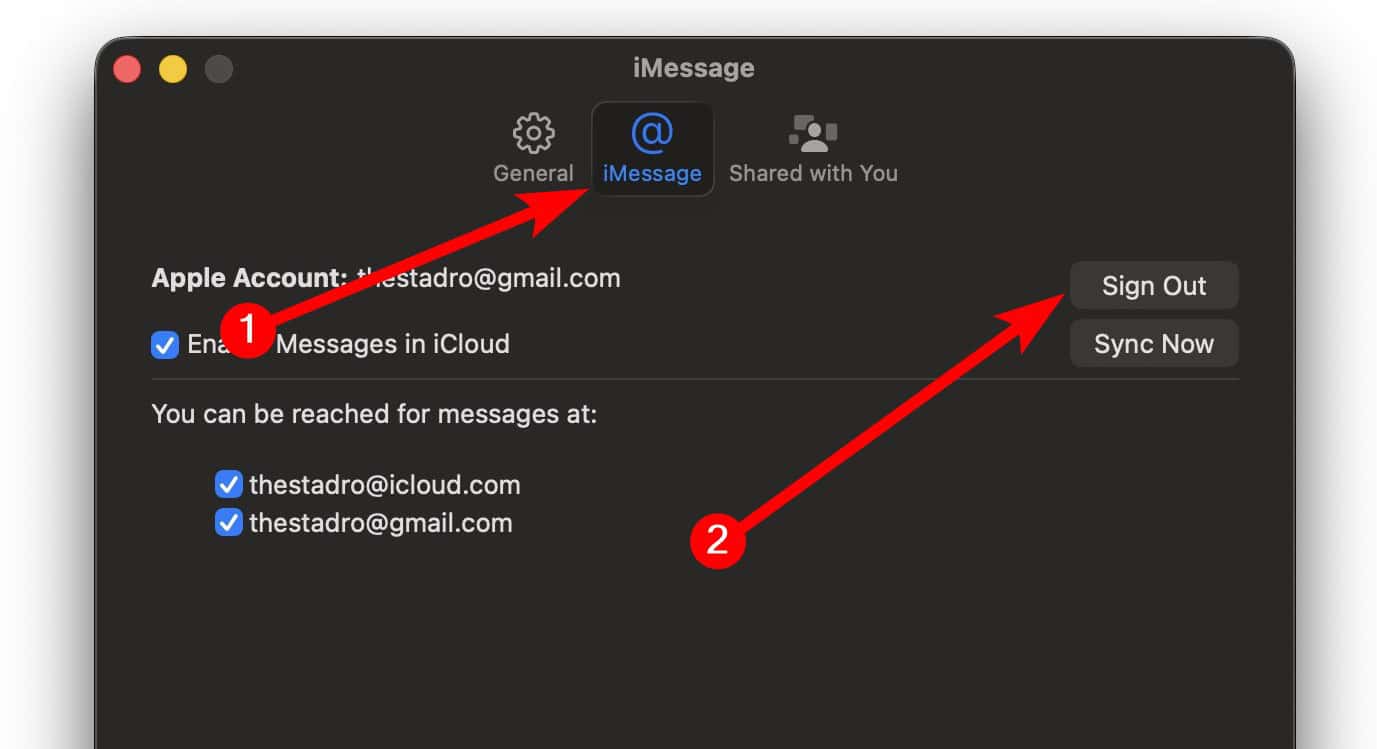
- On a Mac, open Messages.
- Go to Messages > Settings > iMessage.
- Click Sign Out.
- On an Apple Watch, open the Watch app on your iPhone.
- Go to Messages > Notifications >Custom > Don’t Use iMessage.
- On an iPad, follow the same steps as disabling on an iPhone.

4. Verify iMessage Functionality
Finally, you should confirm your number’s status after deregistering. Have an iPhone user send you a message. This is a great way to check. The process succeeded if it arrives as a green SMS bubble.

What if you encounter an issue? For instance, you might see an iMessage Signed Out Error on iPhone. Therefore, troubleshooting may become necessary.
FAQ
The online deregistration process is typically instant. However, it may take a few hours for Apple’s servers to fully propagate the change.
Yes, you can. Simply insert your SIM into an Apple device. Then enable iMessage in your settings. This action will re-register your number.
Actionable Steps for Communication Continuity
Completing these steps prevents communication headaches. It ensures you receive all texts on your new device. Verifying the service is off on every device is crucial. This matters whether you lend out an iPad or migrate operating systems. Thus, you maintain reliable text service. You must take proactive measures to disable and deregister your number. If you later return to Apple’s ecosystem, learning How to Turn on iMessage on iPhone, iPad, Mac will be the first step.


