
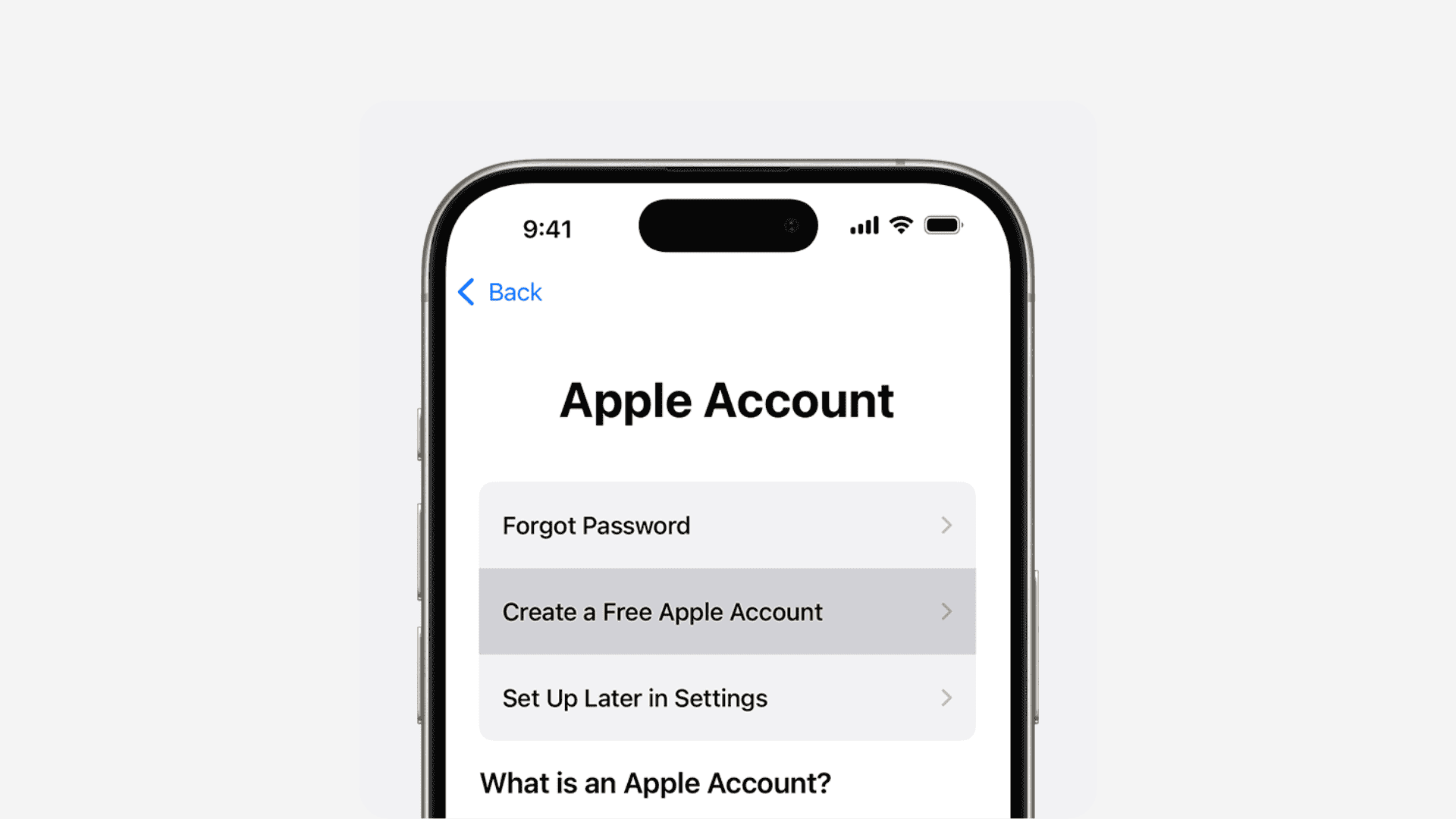
You might see an error stating your Apple ID is not valid for the current store. This notification usually appears when your account region does not match the local App Store storefront. Fortunately, you can fix this issue quickly by following a few simple troubleshooting steps.
Table of contents
Troubleshooting for Apple ID Errors
If Apple blocks your purchases, licensing restrictions or cached data usually cause the problem. Consequently, you must align your settings with your current location to restore access.
1. Verify Your App Store Region
First, check if you are trying to download an app available only in another country. You must ensure your device uses the correct regional store.
Don’t miss the best of The Mac Observer
Set us as a preferred source and our Apple reporting ranks higher in your Google Search results and Discover feed — one tap, no account changes.
- Open the Settings app on your iPhone.
- Tap your Name at the top.
- Select Media & Purchases.
- Tap View Account.
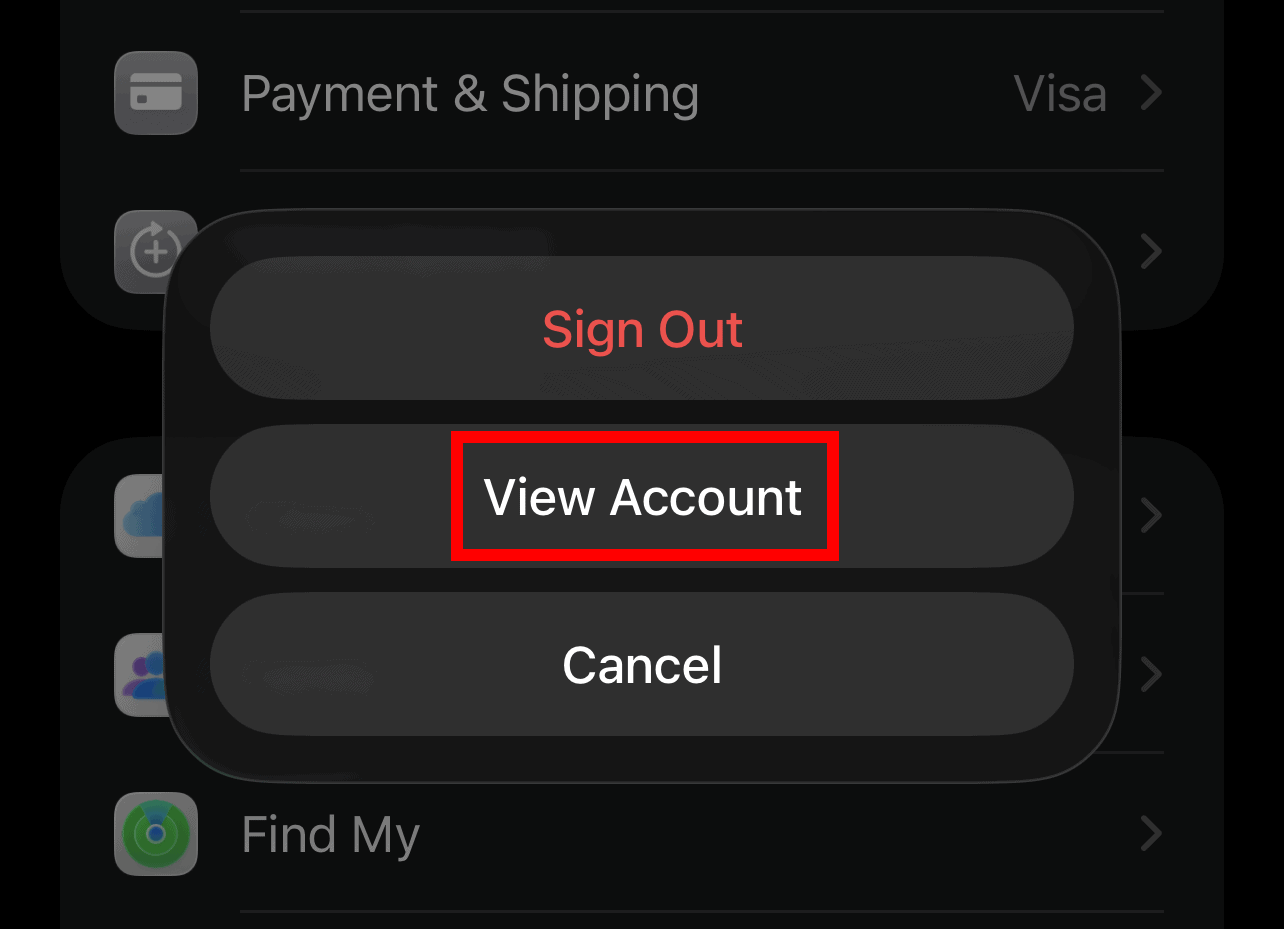
- Select Country/Region.
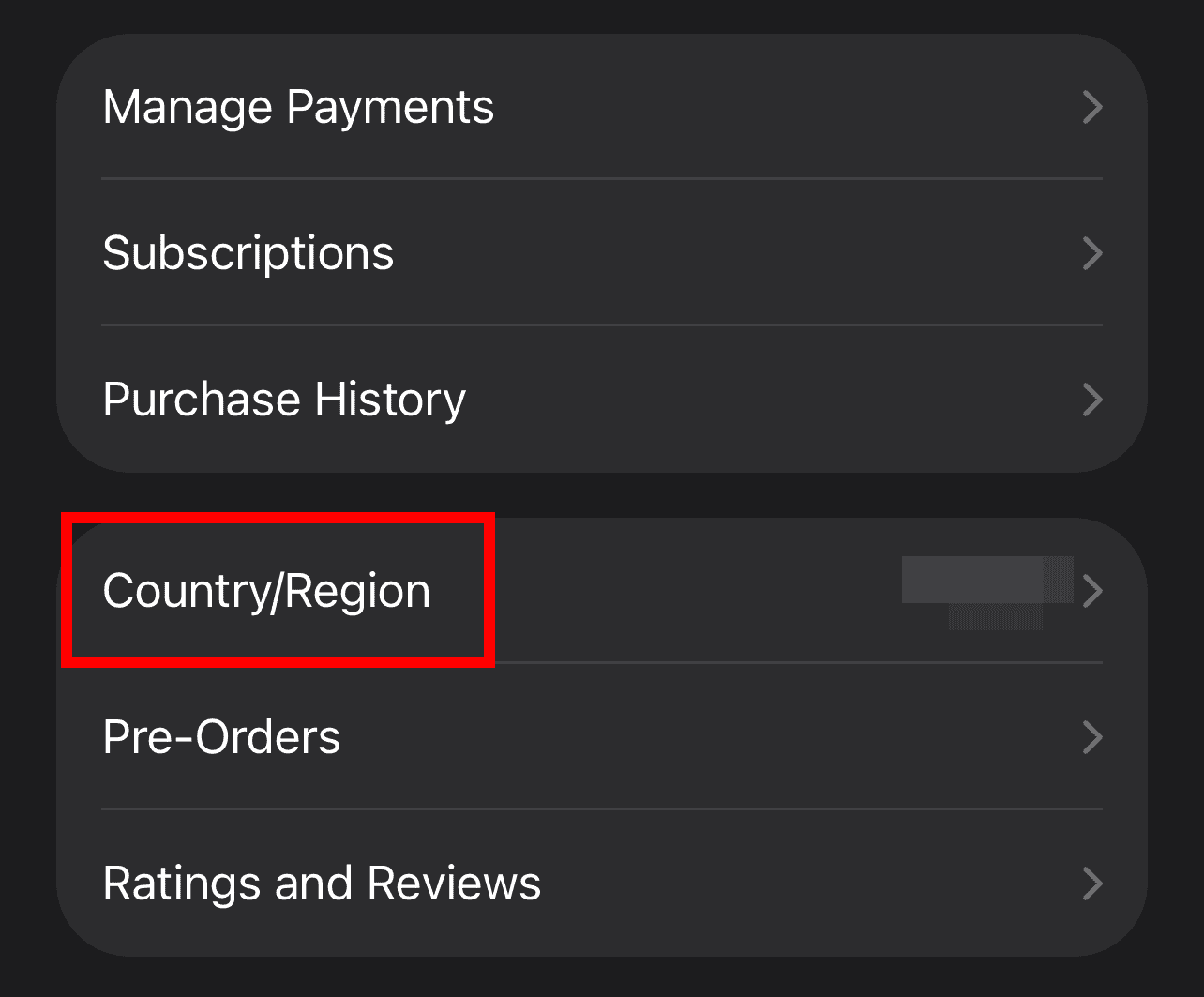
- Confirm your region matches your current billing address.
2. Complete Account Setup for the iTunes Store
New accounts often trigger errors because the user has not finished the initialization process. Furthermore, you must accept the latest terms to enable downloads. If you see a prompt that your Apple ID has not yet been used in the iTunes Store, follow these steps:
- Open the App Store app.
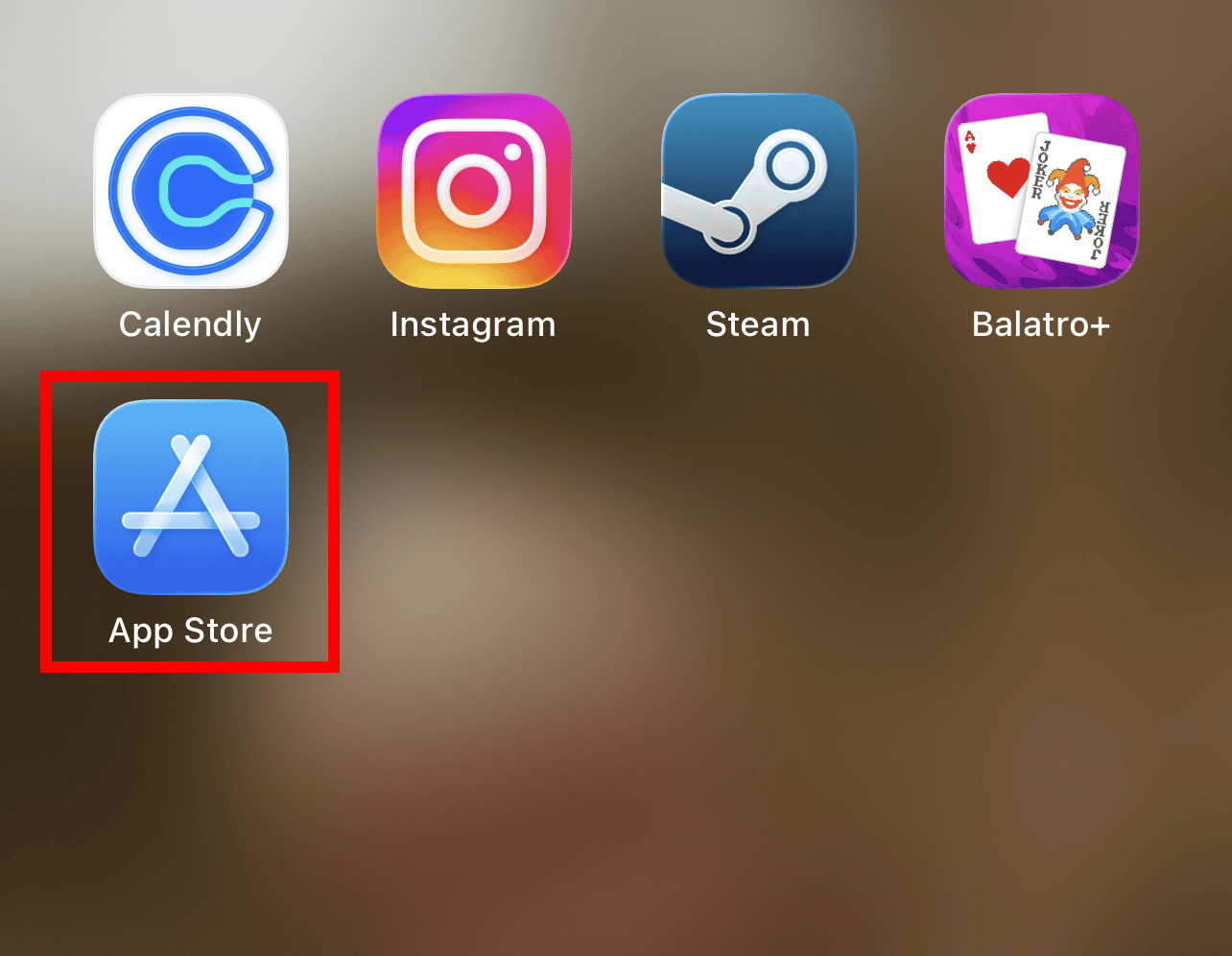
- Sign in with your Apple ID.
- Tap Review on the pop-up message.
- Complete the required address and payment fields.
3. Update Your Payment Information
Apple requires a payment method from the country where you set your store. Therefore, an expired card or wrong address will flag your account.
- Navigate to Settings and tap your Name.
- Select Payment & Shipping.
- Look for “Failed” or “Expired” alerts.
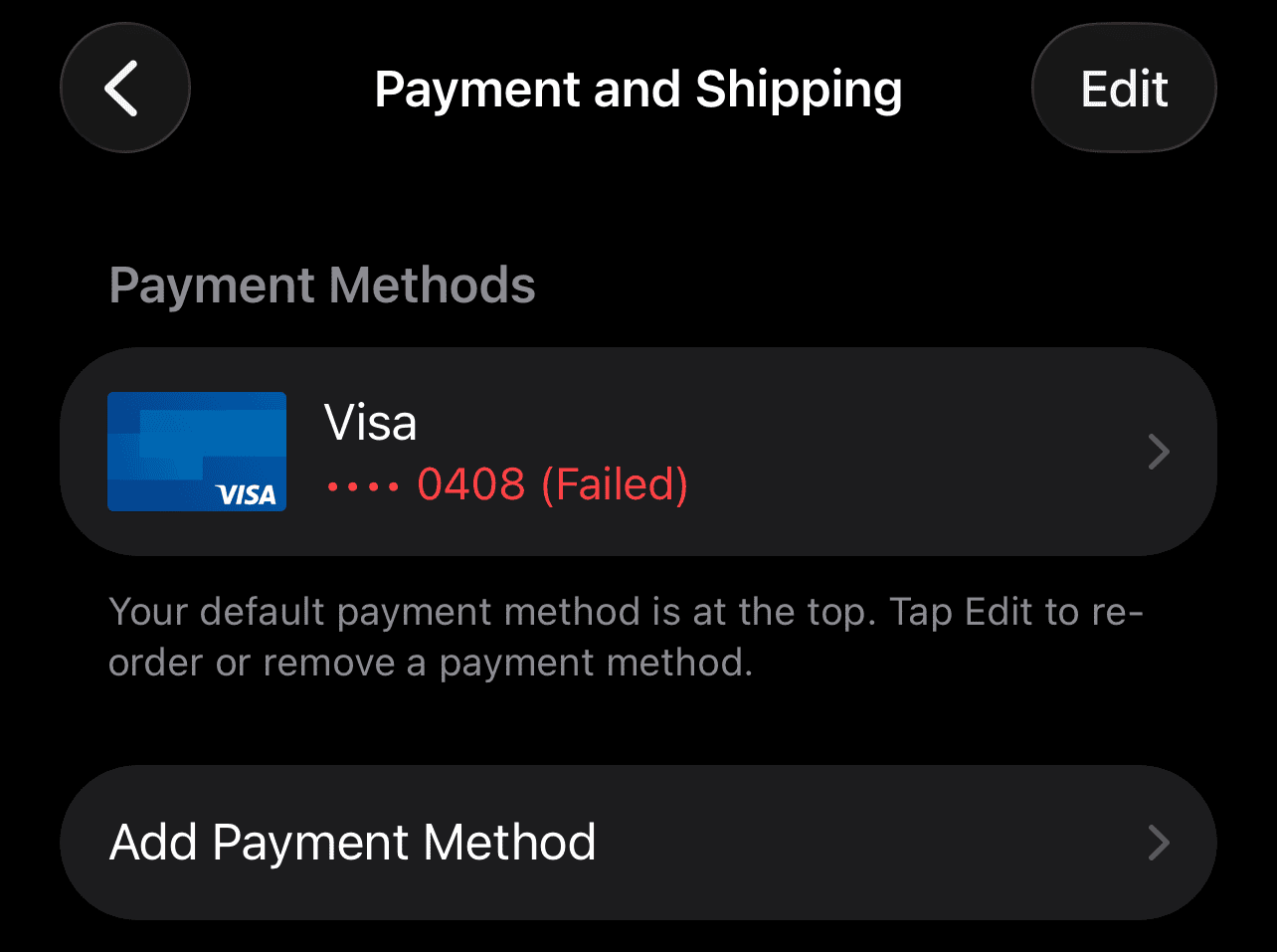
- Update your details to match your store region. If restrictions remain, learn how to fix an account disabled in the App Store and iTunes immediately.
4. Sign Out and Refresh Media Services
Sometimes, a temporary software glitch causes the validation error. You can refresh the connection by signing out of your account. This method often helps when Apple Music is unable to process requests or sync your music library.
- Go to Settings and tap your Apple ID.
- Select Media & Purchases and tap Sign Out.
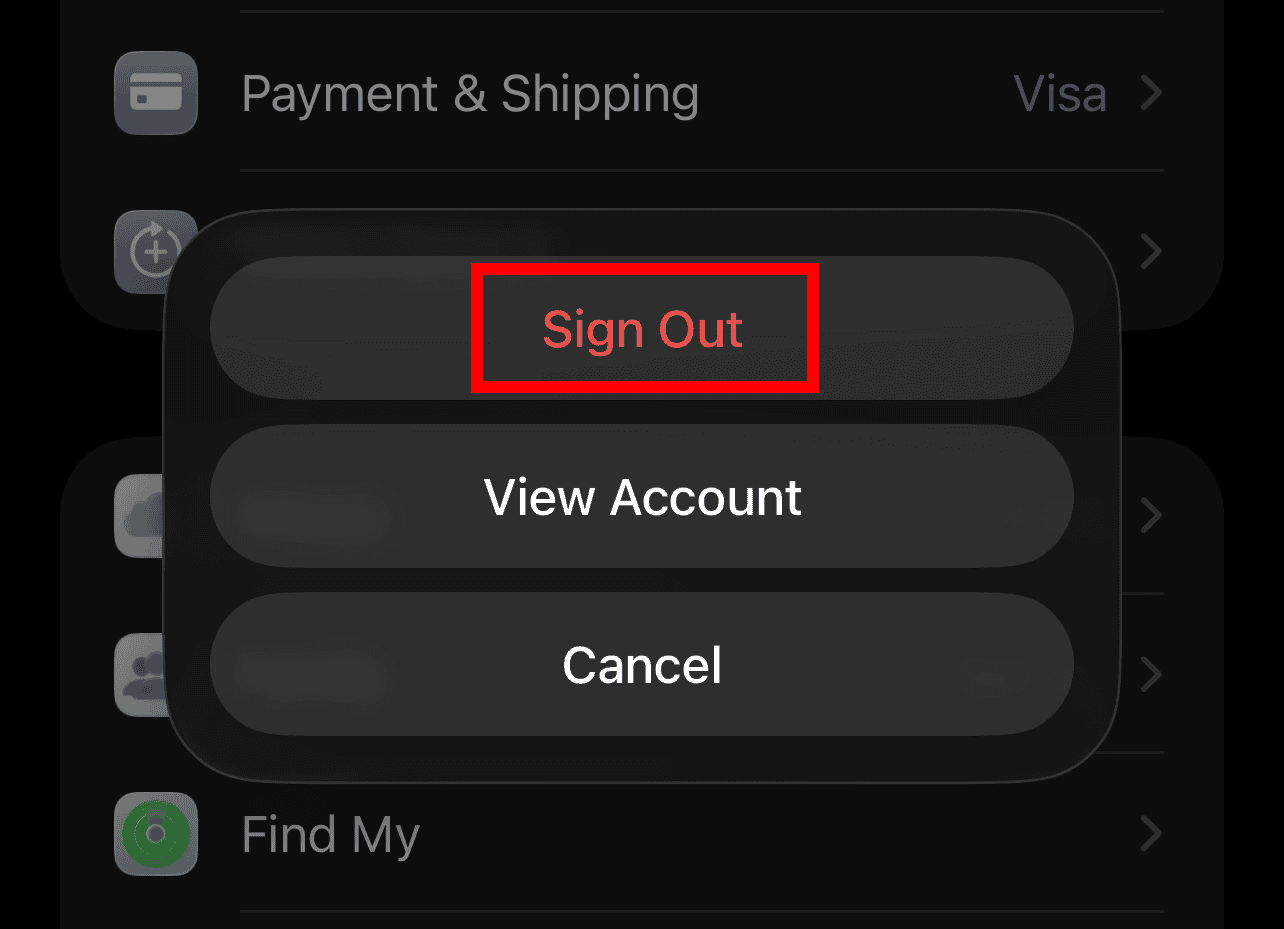
- Restart your device.
- Sign back into your account.
5. Clear Stored Cache on macOS
Mac users might face this error due to outdated cache files. These files point to the wrong regional server.
- Quit the App Store.
- Open Terminal on your Mac.
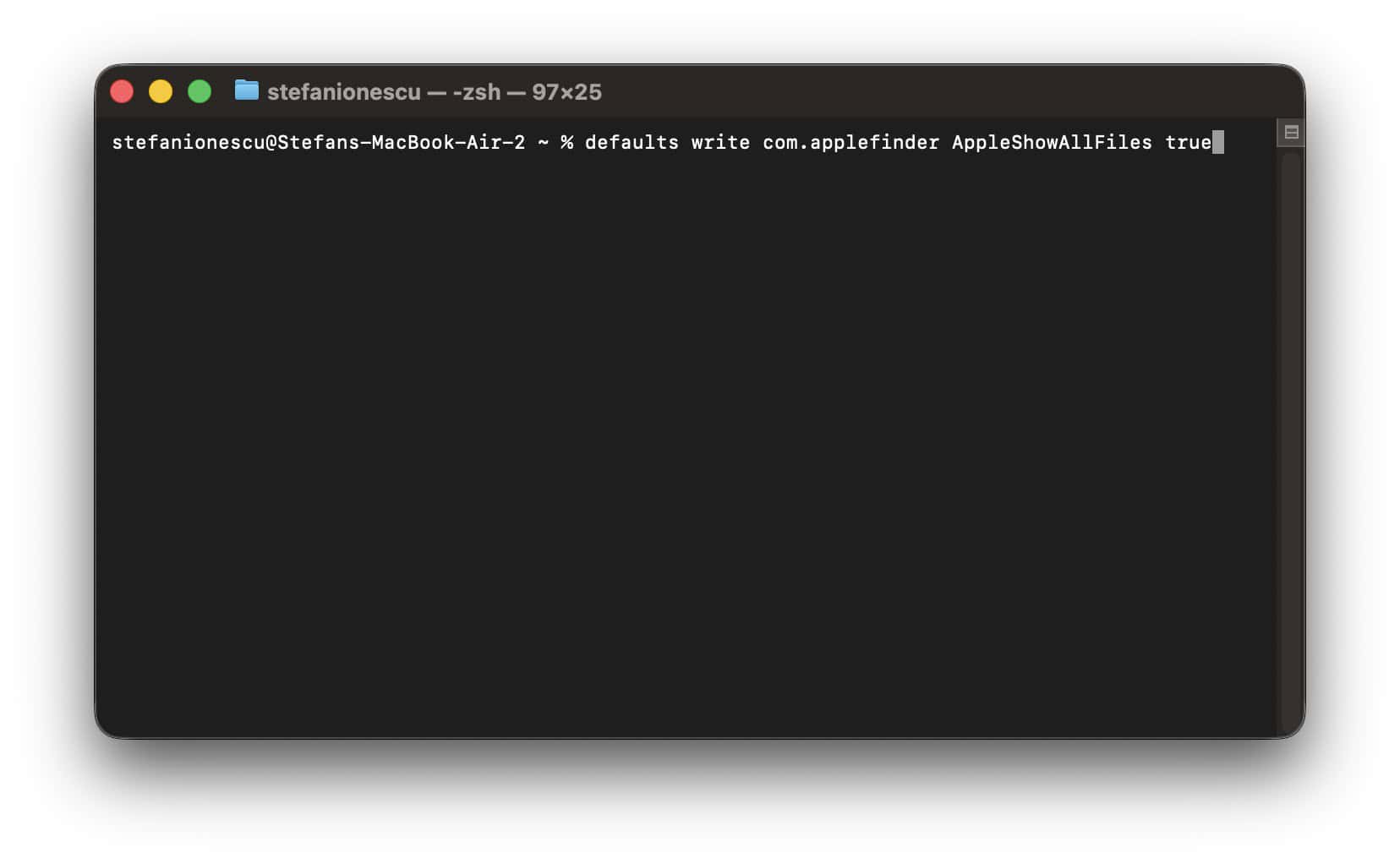
- Enter
open $TMPDIR../C/com.apple.appstore/. - Delete the contents of this folder and restart the app.
FAQ
This happens when your account region differs from the store you are browsing.
No, you must link one Apple ID to only one country.
You keep your purchases, but some apps may not exist in the new region.
Resolving Apple ID Store Validation Errors
Fixing a regional validation error ensures you receive critical software updates. Always verify your billing address and keep your payment methods current. These actions will eliminate most storefront interruptions. If you still face trouble, read how to fix an Apple ID not valid error for more help.




Discussion