
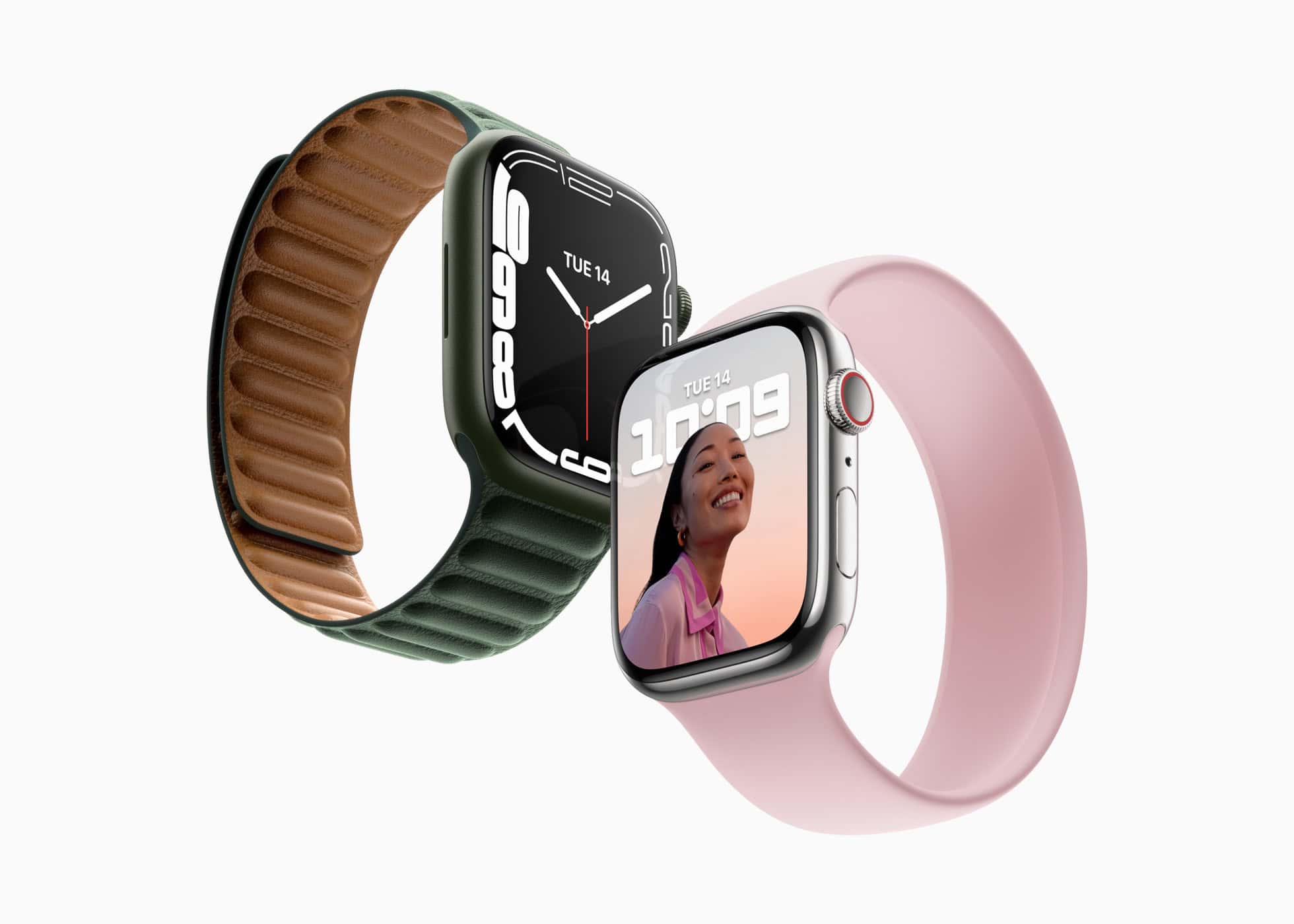
Getting to the Apple Watch home screen is a simple task, but it’s essential for navigating through your apps. Whether you’re new to the Apple Watch or just need a refresher, this guide will show you how to return to the home screen quickly and efficiently.
Table of Contents
How to Get to the Apple Watch Home Screen
The home screen on your Apple Watch is where you see your configured watch face. Here’s how to get there:
1. Use the Digital Crown
The quickest way to return to the Apple Watch home screen is by using the Digital Crown. This is the round button on the side of your watch. Follow these steps:
Don’t miss the best of The Mac Observer
Set us as a preferred source and our Apple reporting ranks higher in your Google Search results and Discover feed — one tap, no account changes.
Time needed: 1 minute
- Press the Digital Crown once to exit any app and return to the home screen.
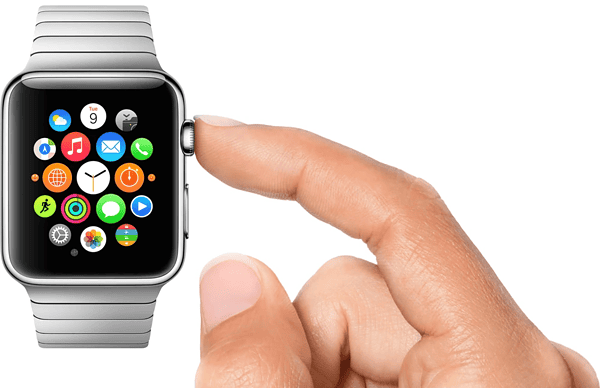
- If you’re already on the home screen, pressing the Digital Crown will take you to the last used screen.
2. Swipe Down to Access Control Center
If you’re in an app and want to go back to the home screen, but need quick access to settings like Do Not Disturb or Battery, swipe down to open the Control Center. From there, you can return to your home screen easily by pressing the Digital Crown again.
3. Swipe Up for the App Switcher
If you’re multitasking, swiping up from the bottom of the screen opens the App Switcher, which shows all open apps. You can use this to navigate between your active apps, but to return to the home screen:
- Swipe up to open the App Switcher.
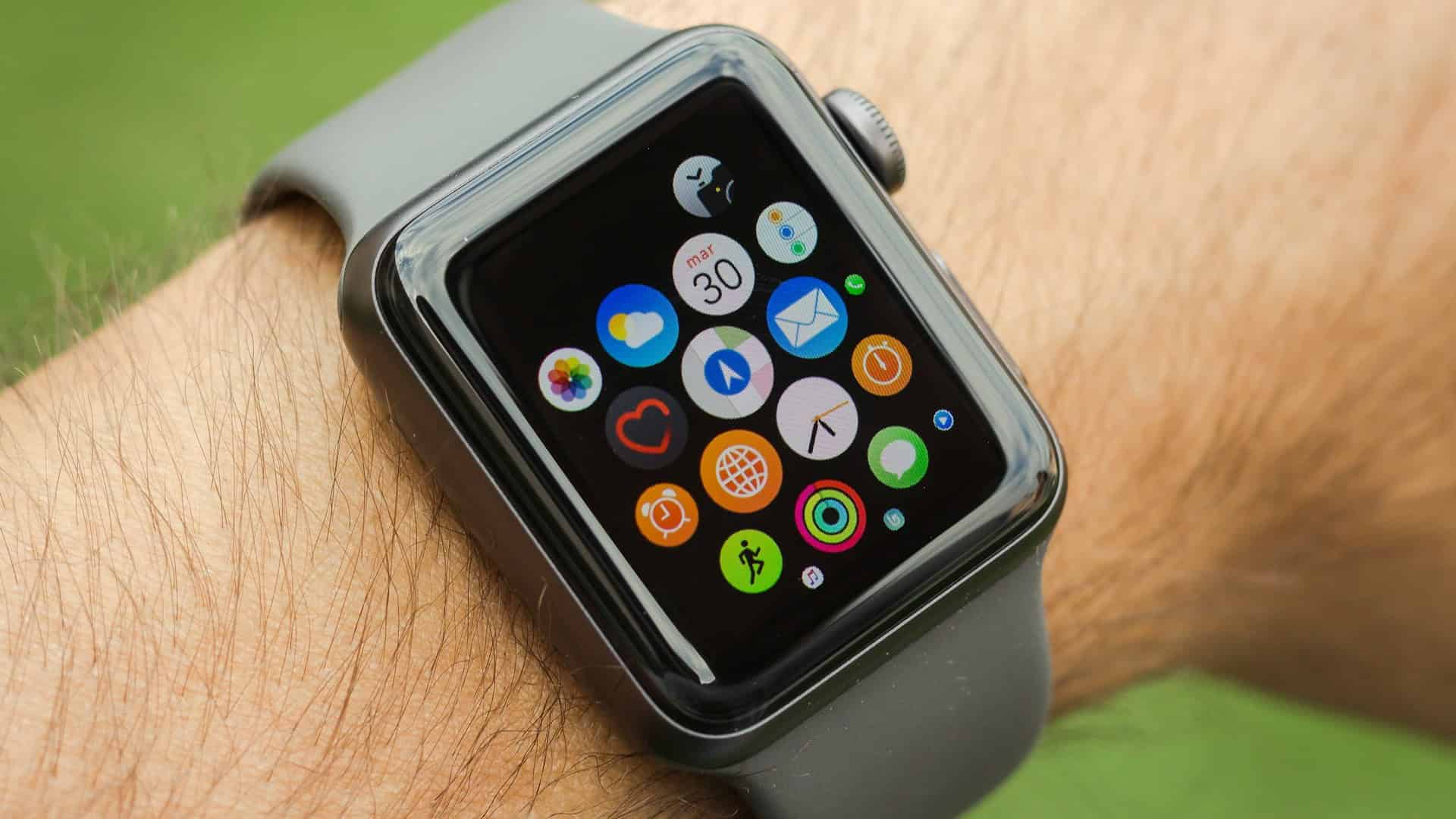
- Tap on the app icon you want to open, or press the Digital Crown to go back to the home screen.
Tips
- Make sure your Apple Watch is updated to the latest watchOS to ensure smooth navigation.
- If you’re on an app and want to quickly return to the watch face, pressing the Digital Crown is the fastest method.
Summary
- To return to the Apple Watch home screen, simply press the Digital Crown.
- You can also swipe down for the Control Center or swipe up for the App Switcher to multitask, then press the Digital Crown to go back.
Getting back to the Apple Watch home screen is quick and easy with the Digital Crown. Whether you want to check notifications, open apps, or simply see your watch face again, these simple steps will get you there. If you need more help, be sure to check some of our other watchOS guides:




Discussion