

If you need to connect your Beats earbuds to a new device or troubleshoot connection issues, putting them in pairing mode is straightforward. I’ll walk you through the process for every Beats earbud model, from Studio Buds to Powerbeats Pro.
Table of contents
Understanding Pairing Mode
Pairing mode makes your Beats earbuds discoverable to nearby devices via Bluetooth. When activated, the LED indicator on your earbuds or charging case flashes white, signaling they’re ready to connect. Most Beats models with Apple’s H1 or W1 chip offer automatic pairing with Apple devices, but you can still manually enable pairing mode when needed.
Beats Studio Buds and Studio Buds+
The Beats Studio Buds and Studio Buds+ use the same pairing method:
Don’t miss the best of The Mac Observer
Set us as a preferred source and our Apple reporting ranks higher in your Google Search results and Discover feed — one tap, no account changes.
- Place both earbuds in the charging case.
- Keep the case lid open.
- Press and hold the system button on the case for a few seconds.
- Release when the LED light on the front of the case starts flashing white.
The white flashing light confirms your Studio Buds are in pairing mode and ready to connect.

Beats Fit Pro
To put your Beats Fit Pro in pairing mode:
- Place both earbuds in the charging case.
- Leave the case lid open.
- Press and hold the system button inside the case.
- Release when the LED light begins flashing white.
Your Fit Pro earbuds are now discoverable to nearby devices.
Powerbeats Pro and Powerbeats Pro 2
For Powerbeats Pro models:
- Place both earbuds in the charging case.
- Open the case lid.
- Press and hold the system button on the case.
- Release when the LED indicator on the front starts flashing white.
The flashing white light indicates pairing mode is active.
Beats Solo Buds
The Beats Solo Buds have a slightly different process:
- Place both earbuds in the charging case.
- Open the case lid.
- Press and hold the button above the logo on either earbud.
- Continue holding until you hear a tone repeat.
When the tone plays repeatedly, your Solo Buds are in pairing mode.
Beats Flex
For Beats Flex neckband earphones:
- Press and hold the power button on the right control module.
- Continue holding for about 5 seconds.
- Release when the LED indicator light flashes white.
Your Beats Flex are now ready to pair.
Powerbeats
To activate pairing mode on Powerbeats:
- Make sure your Powerbeats are turned off.
- Press and hold the power button on the left earbud.
- Hold for approximately 5 seconds.
- Release when the indicator light starts flashing.
The flashing light confirms your Powerbeats are discoverable.
How to Pair with Different Devices
Pairing with iPhone or iPad
For devices running iOS 10 or later:
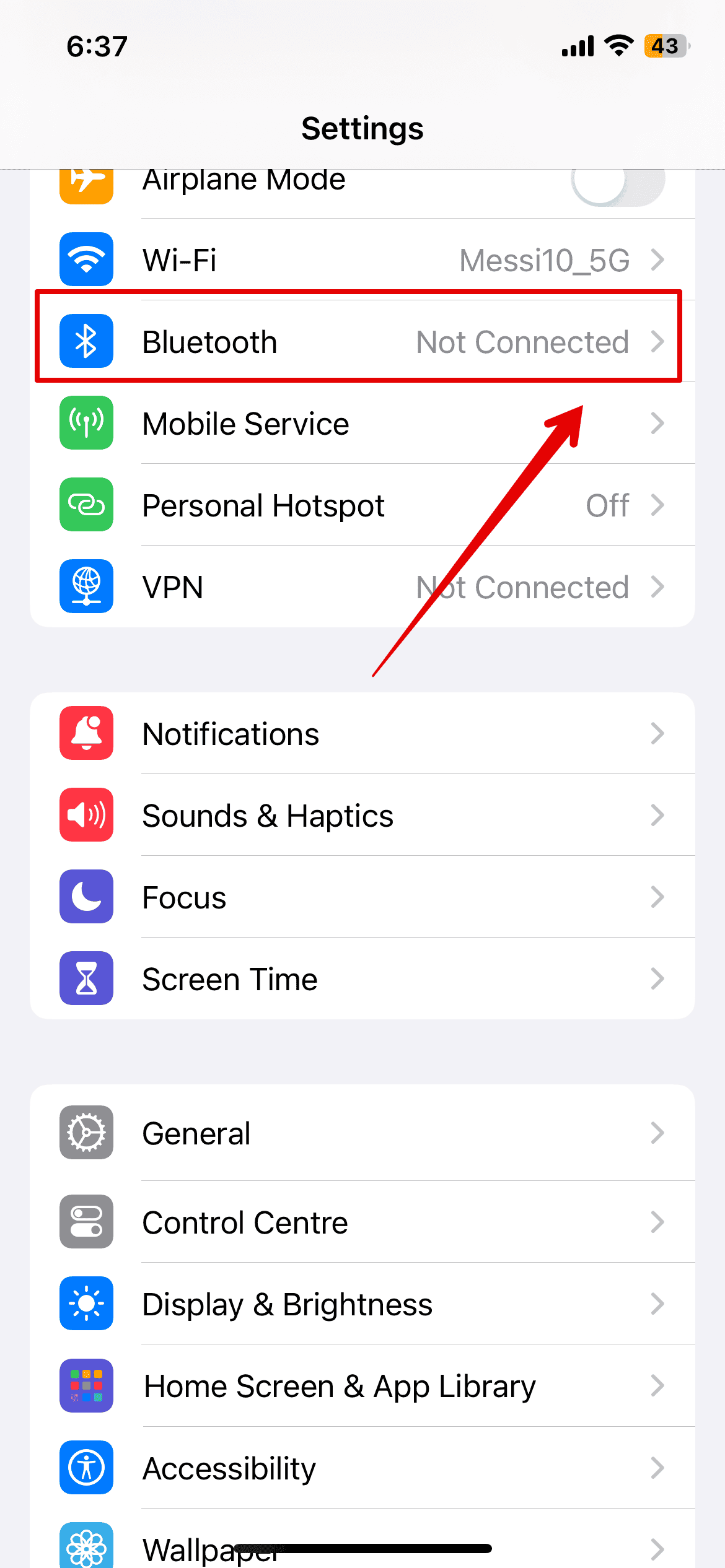
- Enable Bluetooth in Settings > Bluetooth.
- Unlock your iPhone or iPad.
- Put your Beats earbuds in pairing mode.
- Hold the case (with earbuds inside) or earphones next to your device.
- Wait for the setup animation to appear.
- Tap Connect, then Done.

If the animation doesn’t appear, go to Settings > Bluetooth and manually select your Beats from the “Other Devices” list.
Pairing with Mac
- Click the Apple logo in the menu bar.
- Select System Settings (or System Preferences on older macOS versions).
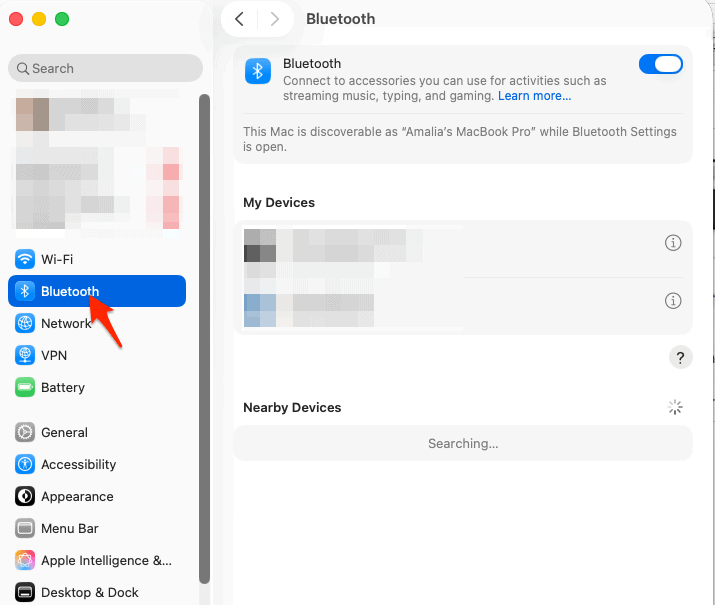
- Click Bluetooth and ensure it’s turned on.
- Put your Beats in pairing mode.
- Find your Beats in the “Nearby Devices” section.
- Click Connect.

Pairing with Android
Using Fast Pair (Android 6.0 or later):
- Enable Bluetooth and Location Services.
- Put your Beats in pairing mode.
- Hold the case near your Android device.
- Tap the Fast Pair notification when it appears.
Manual Pairing:
- Go to Settings > Connected Devices > Bluetooth.
- Turn on Bluetooth.
- Put your Beats in pairing mode.
- Tap Pair new device.
- Select your Beats from the available devices list.
Pairing with Windows PC
- Press Windows + I to open Settings.
- Select Bluetooth & devices.
- Turn on Bluetooth.
- Put your Beats in pairing mode.
- Click Add device > Bluetooth.
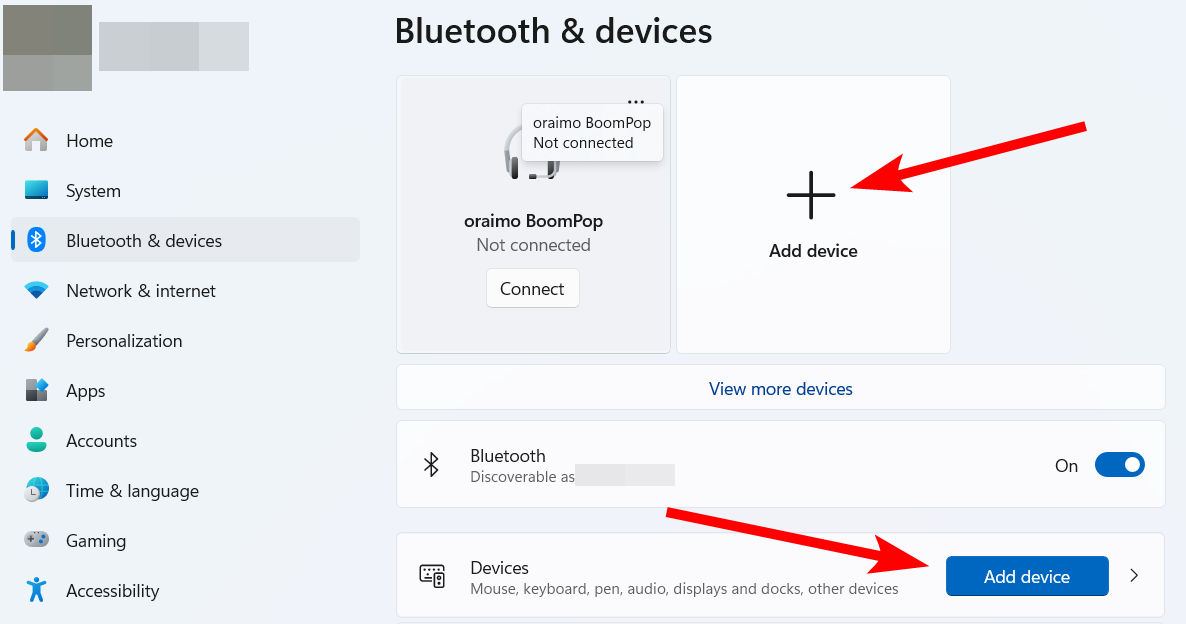
- Select your Beats from the list.
Troubleshooting Pairing Issues
If your Beats won’t enter pairing mode or connect properly, try these solutions:
Check Battery Level
- Charge your Beats for at least 10-15 minutes. Low battery prevents pairing mode activation.
Reset Your Beats
- For Studio Buds/Fit Pro/Powerbeats Pro: Place earbuds in the case, open the lid, and press and hold the system button for 15 seconds until the light flashes red and white, then white only.
- For Beats Flex: Press and hold the power and volume down buttons for 15 seconds until the light flashes.
- For Powerbeats: Hold the power and volume down buttons for 10 seconds until the LED flashes.
Forget and Re-pair
- On your device, go to Bluetooth settings.
- Find your Beats in the connected devices list.
- Tap or click Forget This Device.
- Put your Beats in pairing mode and pair again.
Reduce Interference
- Move away from other Bluetooth devices, Wi-Fi routers, and microwaves.
- Keep your Beats within 30 feet of your device.
Update Software
- Ensure your iPhone, iPad, Mac, or Android device has the latest software updates installed.
Verify LED Indicators
- White flashing = pairing mode active
- Red flashing = low battery or error
- Solid white = connected
From our tests, resetting the earbuds resolves most pairing issues. Based on feedback from Apple Community forums, users who couldn’t activate pairing mode found success after charging their Beats for 15-20 minutes and then resetting them.
In case you want to know how to turn on noise cancelling on the Beats Studio Pro, then hit this link.
Conclusion
Putting your Beats earbuds in pairing mode follows a consistent pattern across models:
- Charge your earbuds to ensure sufficient battery life before pairing.
- Locate the pairing button on your case (Studio Buds, Fit Pro, Powerbeats Pro) or earphones (Flex, Powerbeats).
- Press and hold the system button or power button until the LED flashes white or a tone repeats.
- Open Bluetooth settings on your device and select your Beats from the available devices list.
- Confirm connection when your device shows your Beats as connected.
- Reset if needed by holding the appropriate buttons for 10-15 seconds if pairing fails.
Once you understand your specific model’s button location and hold duration, connecting your Beats becomes a quick process. Whether you’re switching between an iPhone and Mac or connecting to a new Android device, the steps remain simple and consistent.
FAQs
Most Beats models connect to one device at a time. However, if you’re signed into the same Apple ID across multiple Apple devices, your Beats will automatically sync and switch between devices. Beats Flex supports dual pairing for simultaneous connections to two devices.
The most common reasons are low battery (charge above 40%), holding the wrong button, or holding the button for insufficient time. Make sure the case lid is open for case-based models and you’re pressing the correct button for your specific model.
Look for a white flashing LED light on the case (for earbud models) or on the earphones themselves. For Beats Solo Buds, listen for a repeating tone instead of watching for a light.
Yes. After initial pairing, your Beats will automatically reconnect when you remove them from the case and they’re in range of your previously paired device.
Absolutely. Beats earbuds work with any Bluetooth-enabled device, including Android phones, Windows PCs, and other devices. The pairing process is slightly different but still straightforward.



Discussion