

iMessage stickers provide a fun way to express emotions and add personality to your digital conversations. While sending them is simple, many users struggle to figure out how to keep a sticker sent by a friend. Saving these graphics allows you to reuse them in your own chats and build a personalized collection of favorite digital assets.
Table of contents
Simple Methods to Save iMessage Stickers
1. Save Directly to Your Sticker Collection
When a contact sends you a custom sticker, you can easily add it to your own library without downloading external files. This is the most efficient way to ensure you have quick access to the graphic for future conversations. If you find that your collection is becoming cluttered after adding too many, you should learn how to delete stickers on iPhone to keep your library organized and easy to navigate.
- Open the iMessage conversation containing the sticker.
- Long press on the specific sticker you want to keep.
- Tap the Emoji Details option from the pop up menu.
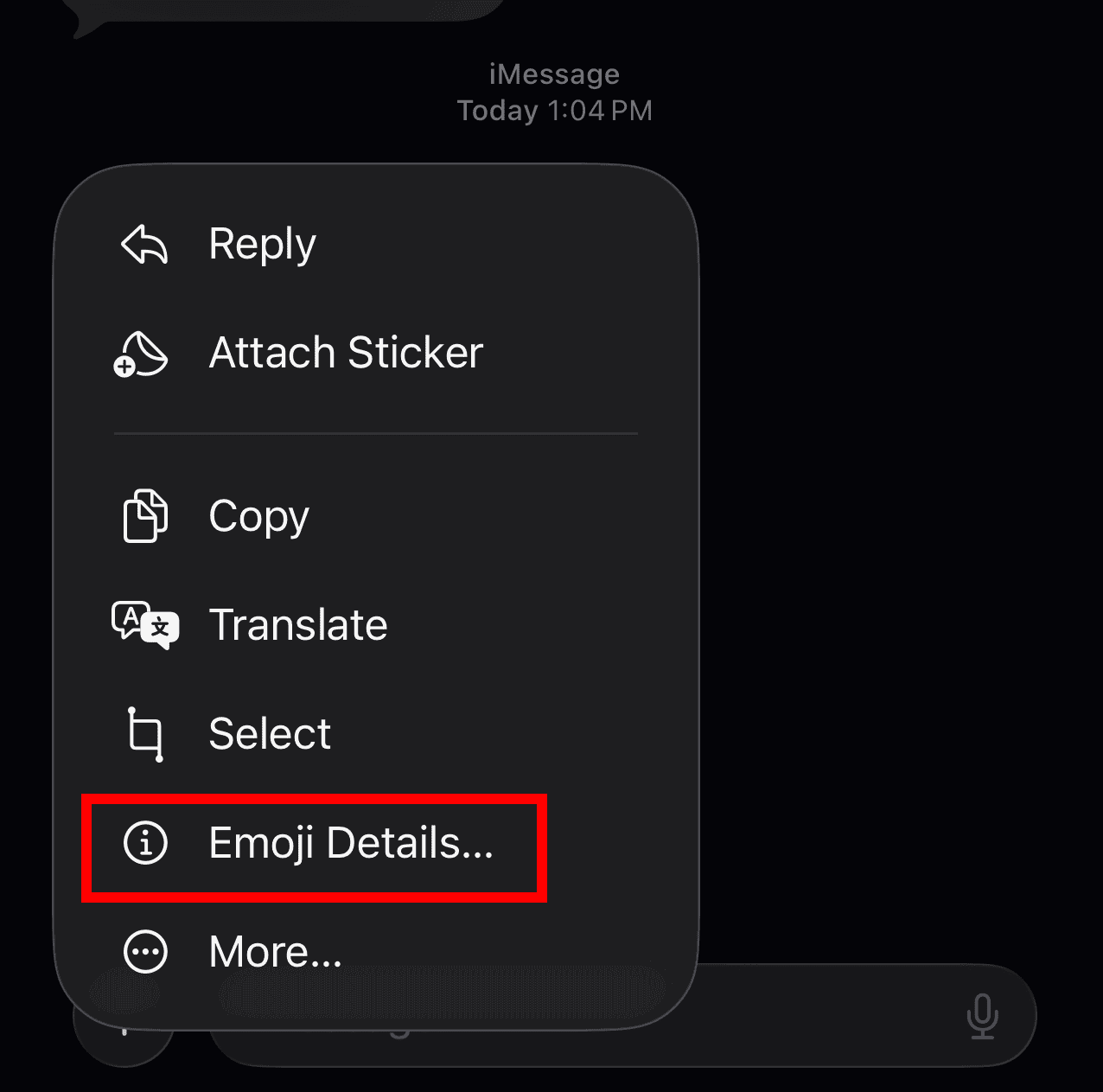
- Tap the Download icon to add it to your sticker drawer.
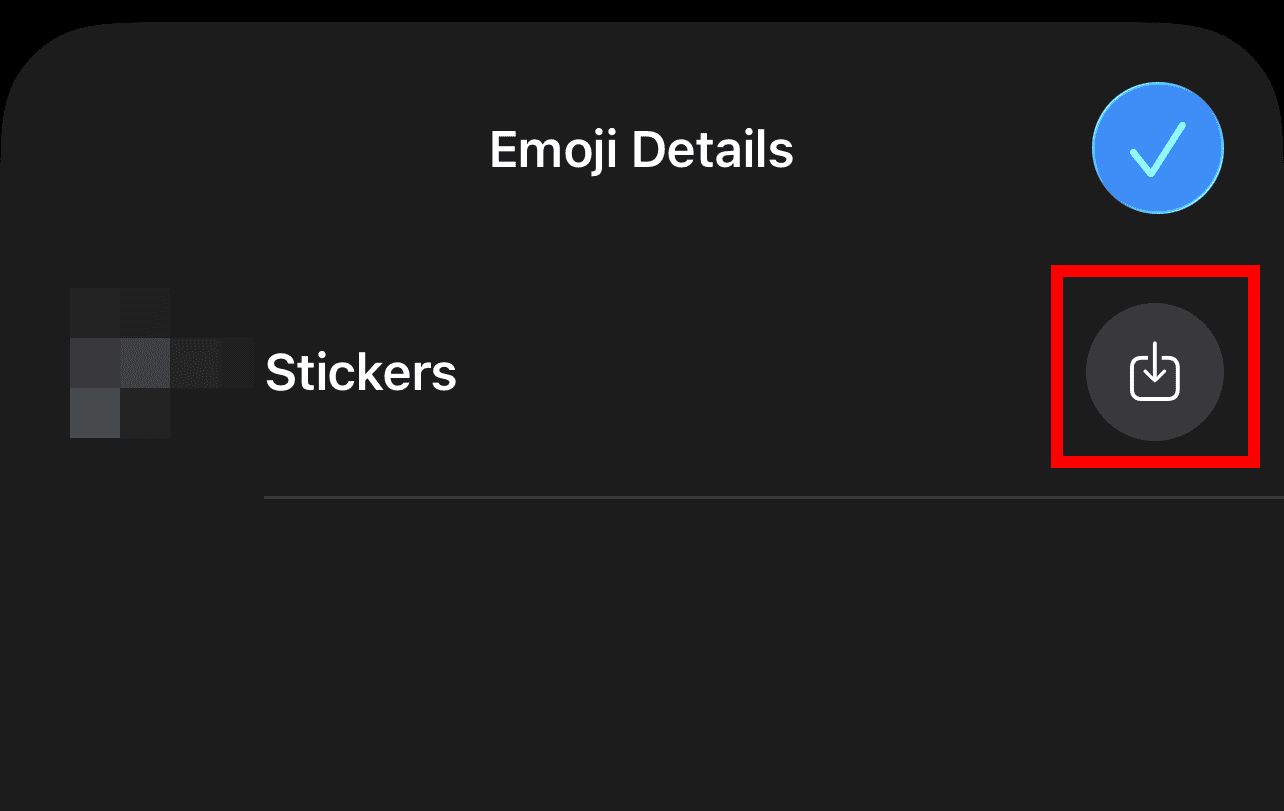
- App the Blue Check mark in the top-right corner.


2. Add a Sticker From the Photos App
You can manually import images from your gallery to turn them into stickers directly within the iMessage interface. This method is perfect for quickly grabbing a photo and converting it into a digital asset without leaving your current conversation. If you run into technical hurdles during this process, you may find that you can’t make stickers on iPhone without checking specific software compatibility settings first.
Don’t miss the best of The Mac Observer
Set us as a preferred source and our Apple reporting ranks higher in your Google Search results and Discover feed — one tap, no account changes.
- Open a conversation in Messages and tap the Plus sign.
- Select the Stickers option from the app menu.
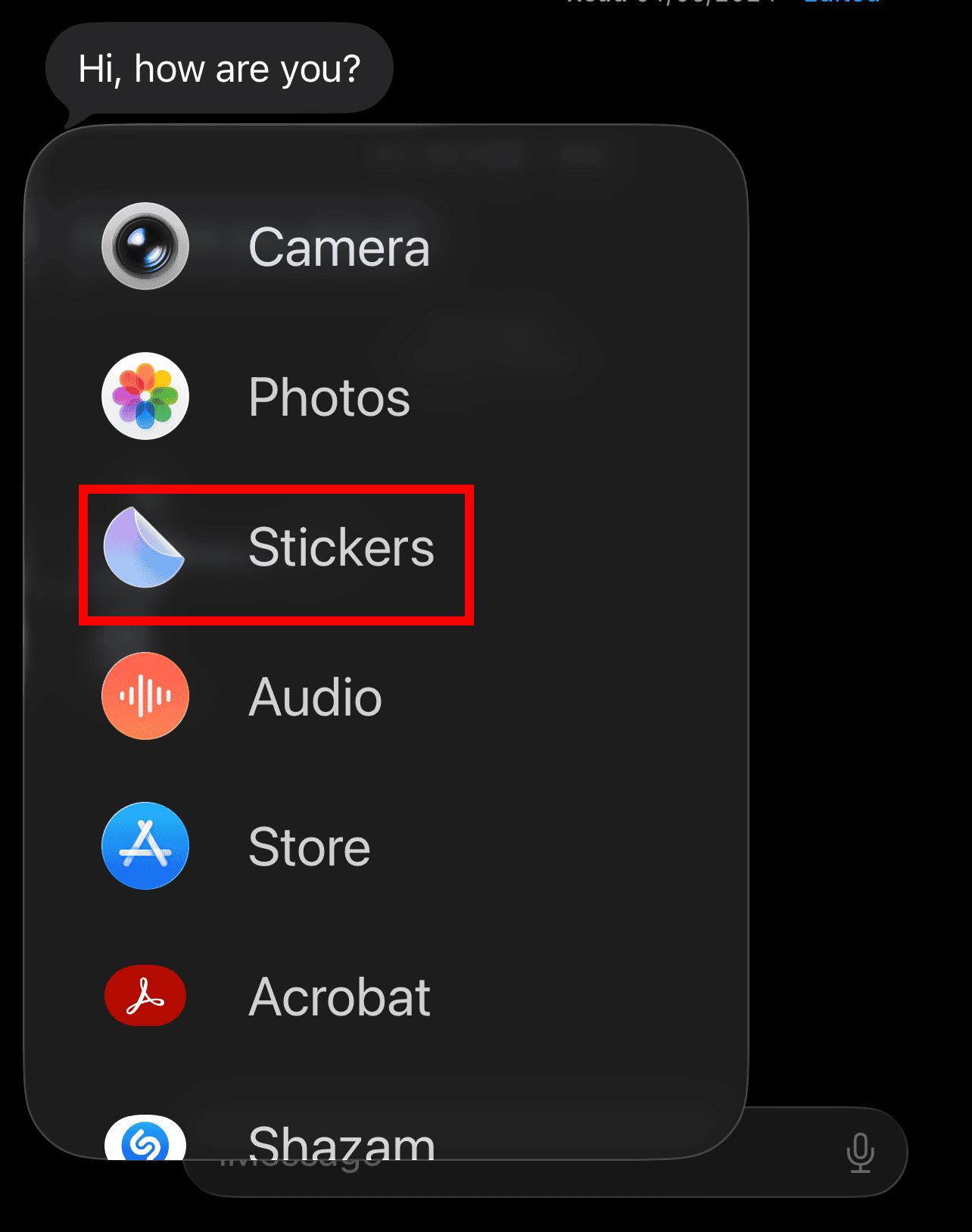
- Tap the large Plus icon located inside the sticker drawer.
- Choose a photo from your Photos app.
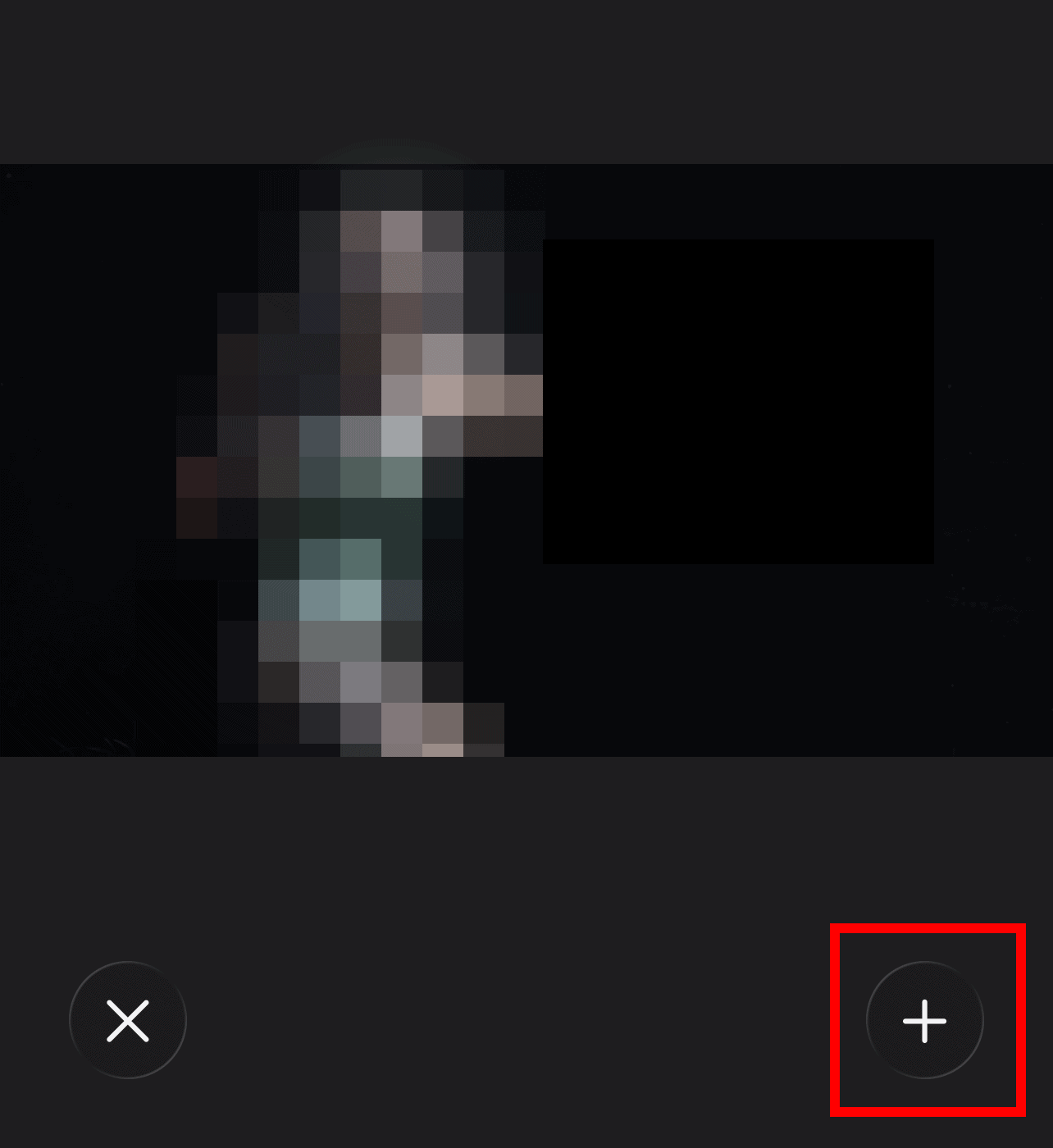
- Tap the Plus icon in the bottom right corner to add it.


3. How to Delete Stickers You Saved
Managing your library is just as important as growing it, especially if you accidentally save duplicate graphics or outdated designs. Removing unnecessary items ensures that your most used stickers remain easy to find during active conversations. This process clears space in your selector and helps keep your messaging interface clean and efficient.
- Open the Messages app and tap the Plus icon next to the text field.
- Select the Stickers option to open your collection.
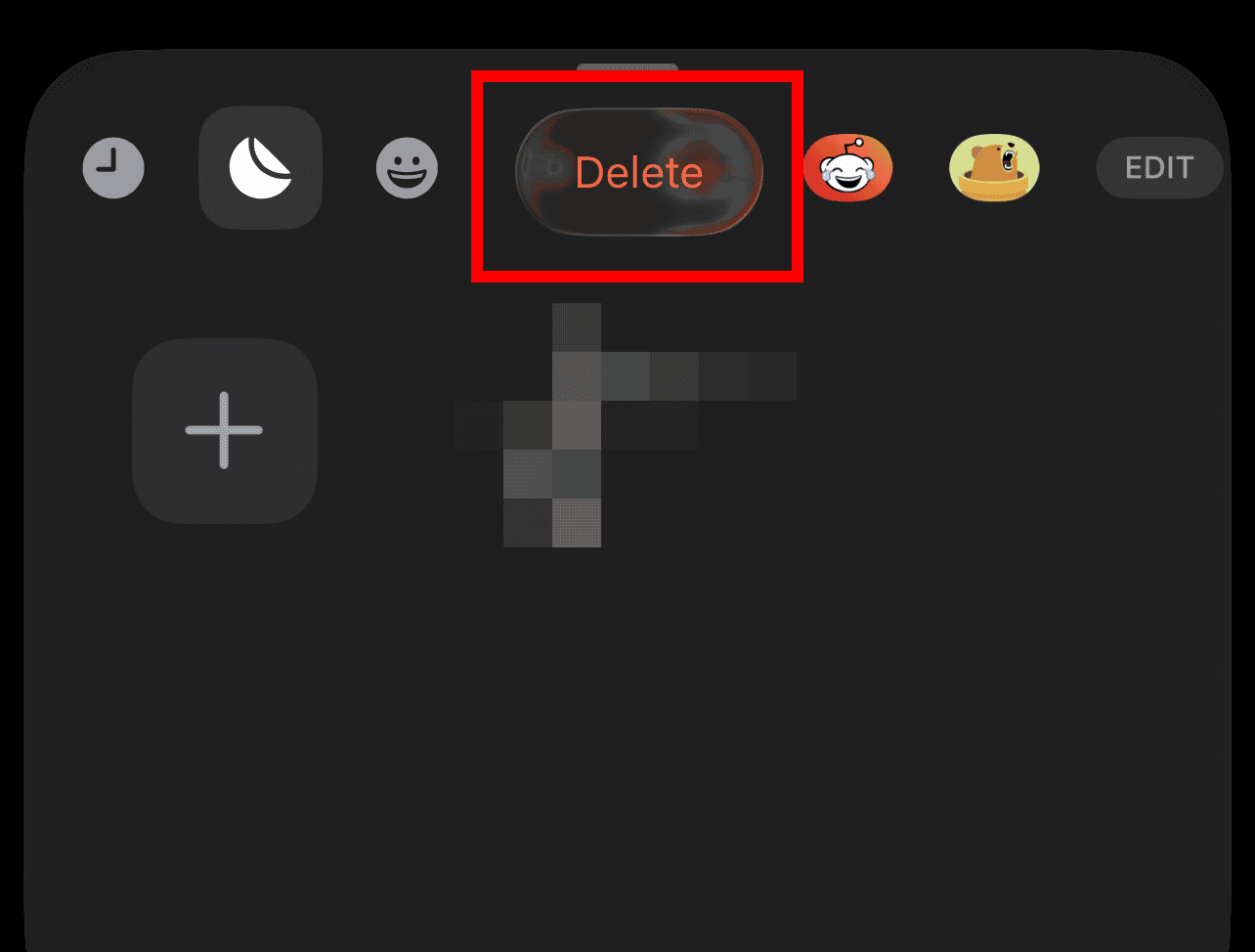
- Long press on any sticker within the drawer until a menu appears.
- Tap the Delete button to remove the sticker from your permanent library.

FAQ
Saved stickers are stored in the sticker drawer within the iMessage keyboard. If you save them as images, they appear in the All Photos album in the Photos app.
No, stickers sent from Android users via RCS or SMS usually arrive as standard image files or stickers that cannot be added to the native iOS sticker drawer.
This usually occurs if the sticker is a live animation or if there is a temporary bug in the Messages app.
Managing Your Personal Sticker Gallery
Mastering the art of saving digital graphics ensures your conversations remain engaging and unique. By using the methods outlined above, you can build an impressive library of custom reactions and artistic cutouts. If you experience technical glitches where your stickers are not working on iOS, a quick settings reset or app restart will typically restore your full sticker functionality. If you have the latest hardware and stickers are not working on iPhone 16, ensure your software is fully updated to the newest version.


Discussion