

Apple has finally added something to Messages that iPhone users have wanted for years: the ability to set custom conversation backgrounds. With iOS 26, you can swap the boring gray backdrop for a photo, a solid color, or even an AI-generated image created through Image Playground.
If you’ve used WhatsApp or Telegram, this won’t feel new. But for iMessage, it’s a big step forward in personalization, especially in an update already packed with changes like the Liquid Glass redesign and the refreshed Lock Screen in iOS 26.
Here’s everything you need to know about iOS 26’s Messages backgrounds: what they are, how to use them, and a few tips for making the most of them.
Don’t miss the best of The Mac Observer
Set us as a preferred source and our Apple reporting ranks higher in your Google Search results and Discover feed — one tap, no account changes.
Table of contents
What Are Messages Custom Backgrounds?
Custom backgrounds replace the default neutral canvas in Messages with something more personal. You can choose from:
- Photos: Any image from your library—maybe the same wallpaper you’re rocking on your Home Screen. (If you want official Apple wallpapers, we’ve got you covered with the iPhone 17, iPhone 17 Pro, and iPhone Air wallpapers).
- Colors: A simple solid background, handy for work or focus.
- Playground images: Use Image Playground to generate a custom background from a text prompt.
- Presets: Options like Sky, Water, and Aurora for quick, subtle effects.
One important detail: backgrounds are shared with everyone in the conversation. Change it for your family chat, and all participants will see that new look.

Like other new features in iOS 26, custom backgrounds sync across devices. So once you pick one on iPhone, it’ll also show up on your iPad (iPadOS 26) and Mac (macOS Tahoe).
How to Change a Messages Background
- Open Messages. Select the conversation you want to customize.
- Tap the name. At the top of the thread, tap the contact or group name.
- Choose Backgrounds. Options for Photo, Color, Playground, and presets appear.
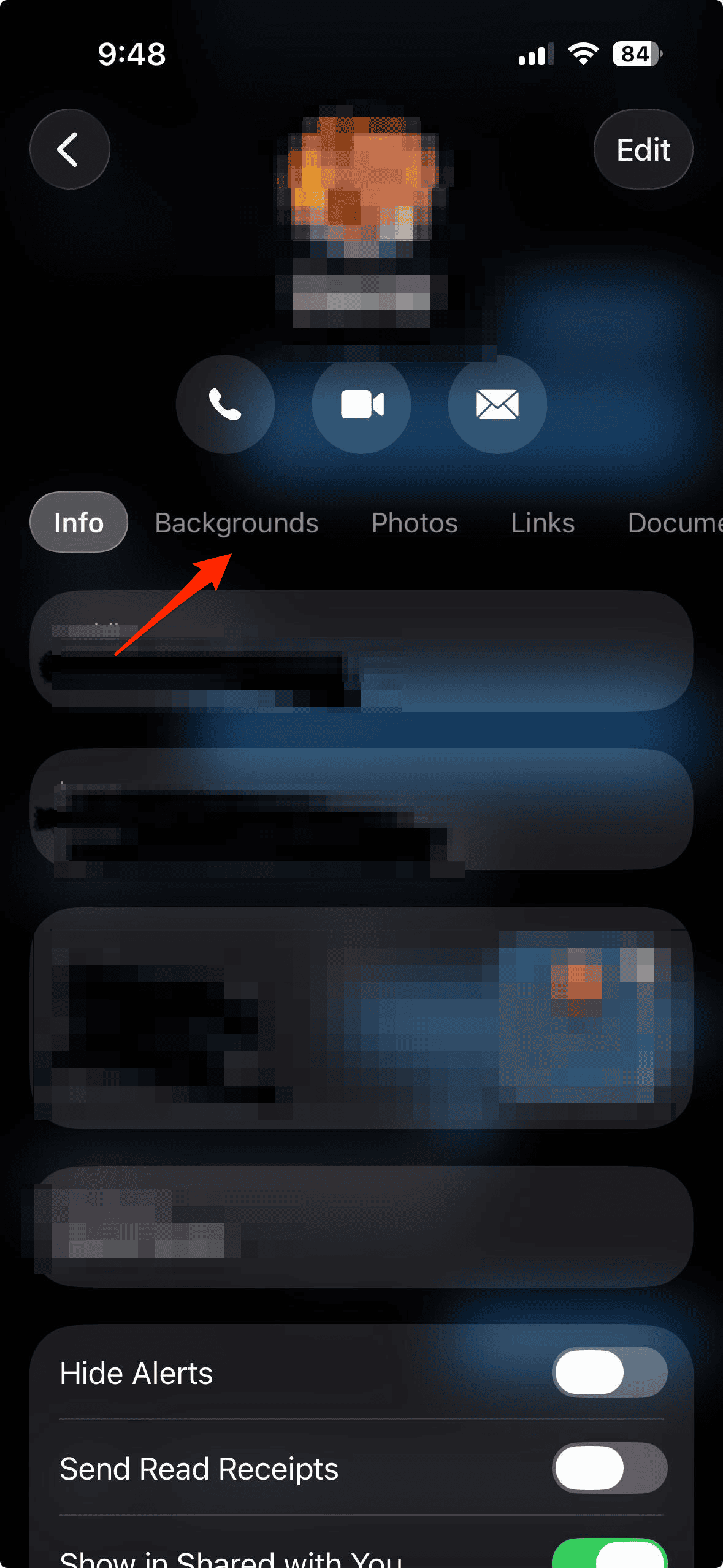
- Preview styles. Swipe left and right to see how each looks.
- Apply. Tap the checkmark in the top-right corner to confirm.

Now the background is live, and visible to everyone in that thread.
How to Reset to the Default Background
If you’d rather go back to the classic Messages look:
- Open the conversation.
- Tap the contact or group name.
- Tap Backgrounds.
- Select None at the top of the menu.

That instantly resets the background to gray.
Tips for Choosing Better Backgrounds
- Think readability. Darker photos work better with light text bubbles, and lighter photos suit dark text. iOS 26 auto-adjusts contrast, but some pairings just feel easier on the eyes.
- Match your setup. Want consistency? Pair your Messages background with your Home Screen customization or Lock Screen Adaptive Time.
- Keep it simple for group chats. Busy images can make group threads harder to follow. A solid tone or subtle preset may be better.
- Remember the sync. If you’re testing backgrounds but don’t want them everywhere, know they’ll show up across all your devices tied to your Apple ID.
Why Custom Backgrounds Matter
On the surface, this feels like a small addition. But just like the redesigned Camera app in iOS 26, it’s all about reducing friction and giving you more control. You can make family chats warm and personal, keep work threads professional, and let friends’ conversations feel playful.
It also fits into the bigger story of iOS 26—Apple leaning into customization while keeping the system clean. Between Liquid Glass, wallpapers that tie into new iPhone colors, and now conversation backgrounds, your iPhone can look more like yours than ever.
FAQs
Yes. They sync automatically with iPadOS 26 and macOS Tahoe once updated.
Yes, each conversation can have its own unique background.
Yes, it’s a shared setting.
You won’t see it. To get them, you’ll need to update. (If you run into issues with iOS 26, you can downgrade safely to iOS 18, but you’ll miss these features.)
Yes—just pick them from your Photos library. You can download the iPhone 17 wallpapers here.
Bottom Line
Custom backgrounds in iOS 26 Messages are more than eye candy—they make conversations more personal and easier to tell apart at a glance. Like much of iOS 26, they’re about giving you choice without overcomplicating the app.
If you’re already testing iOS 26, try setting a few backgrounds and see how they change the tone of your chats. And if you’re still waiting for the public release, this fall is shaping up to be a big one for iPhone customization—right alongside the new iPhone 17 lineup.


Discussion