

Using Find My on an Apple Watch allows users to quickly locate a misplaced iPhone, AirTag, Apple device, or even check the location of people who share theirs. In this article, we’ll walk you through each action step by step, ensuring you can efficiently access and use all Find My functions directly from the wrist.
Table of contents
Before You Begin
Before using Find My, make sure the following conditions are met:
- The Apple Watch and iPhone are signed in with the same Apple ID.
- Find My is enabled on the iPhone.
- The Apple Watch has an active Wi-Fi, cellular, or Bluetooth connection.
How to Find Your iPhone Using an Apple Watch
Use Find Devices to Ping Your iPhone
- Press the Digital Crown.
- Open the Find Devices app.

- Select your iPhone from the list.
- Tap Play Sound to make the iPhone ring, even if silent.
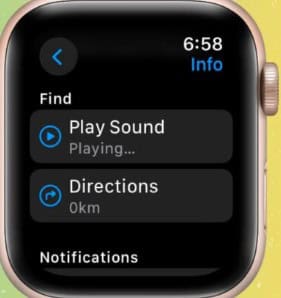
- View the location map for its approximate position.


Use Control Center for a Quick Ping
- Swipe up to open Control Center.
- Tap the iPhone icon to play a sound on your device.
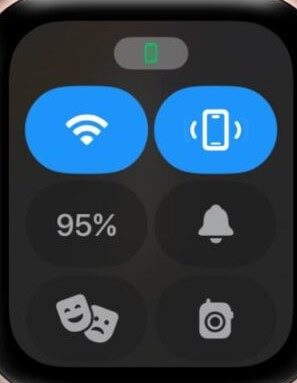
- Press and hold the icon to activate the flashlight flash, if supported.

How to Locate Other Apple Devices Using Apple Watch
Use the Find Devices App
- Open the Find Devices app.
- View all devices linked to your Apple ID.
- Select the device you want to track.
- Check its location on the map.
- Tap Directions for navigation via Apple Maps.
How to Locate People Using Find My on Apple Watch
Check Shared Locations
- Open the Find People app.

- Scroll through your list of contacts who share their location.
- Select a contact to open their live location map.
- Tap Directions for turn-by-turn navigation.

Share Your Location
- In the Find People app, tap Share My Location.
- Choose a contact.
- Select how long you want to share your location.
Additional Tips
- If a device shows No Location, check the last known location displayed in the app.
- AirTags and supported accessories appear in the Find Items app for more detailed tracking.
- Keep both the Apple Watch and iPhone updated to ensure accurate location functions.
Conclusion
Find My on Apple Watch provides fast access to crucial device-tracking and location-sharing tools. With features like sound alerts, precise maps, and navigation guidance, users can retrieve lost items or check on shared locations with ease. Consistently following the steps above ensures reliable and efficient use of Find My from the wrist.
Don’t miss the best of The Mac Observer
Set us as a preferred source and our Apple reporting ranks higher in your Google Search results and Discover feed — one tap, no account changes.
FAQs
It can only display the last known location if the iPhone is powered off.
A connection is required for real-time updates. Offline devices show only their last recorded position.
Yes. AirTags appear in the Find Items app on compatible Apple Watch models.


Discussion