

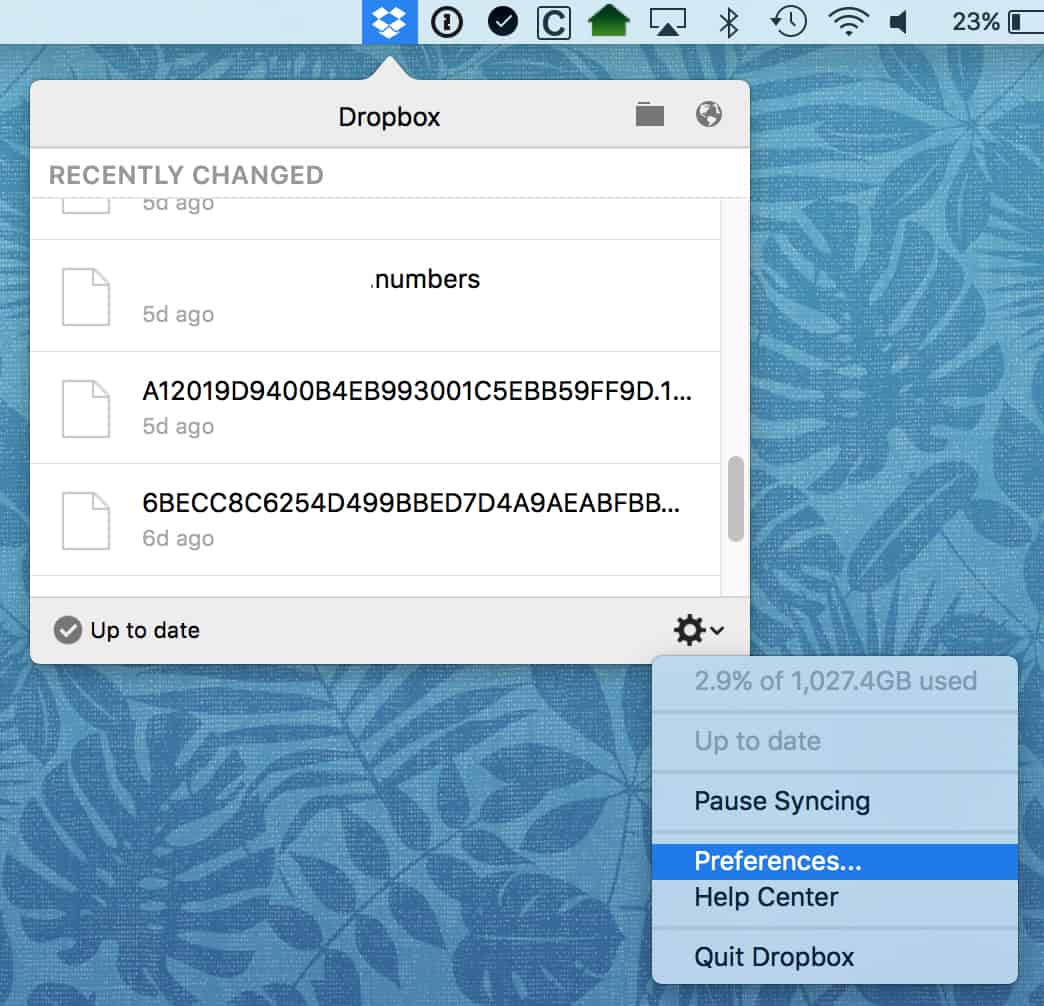
A lot of people don’t know that Dropbox offers a very cool feature called Selective Sync. With this, you can choose which data you want to sync down to your Mac, so if there’s a folder you share with others that you don’t necessarily need a local copy of, for example, you can remove it from your computer to save space. It’s simple to configure, also—to get started, click on the Dropbox icon in your menu bar, and then select the little gear and choose “Preferences.”
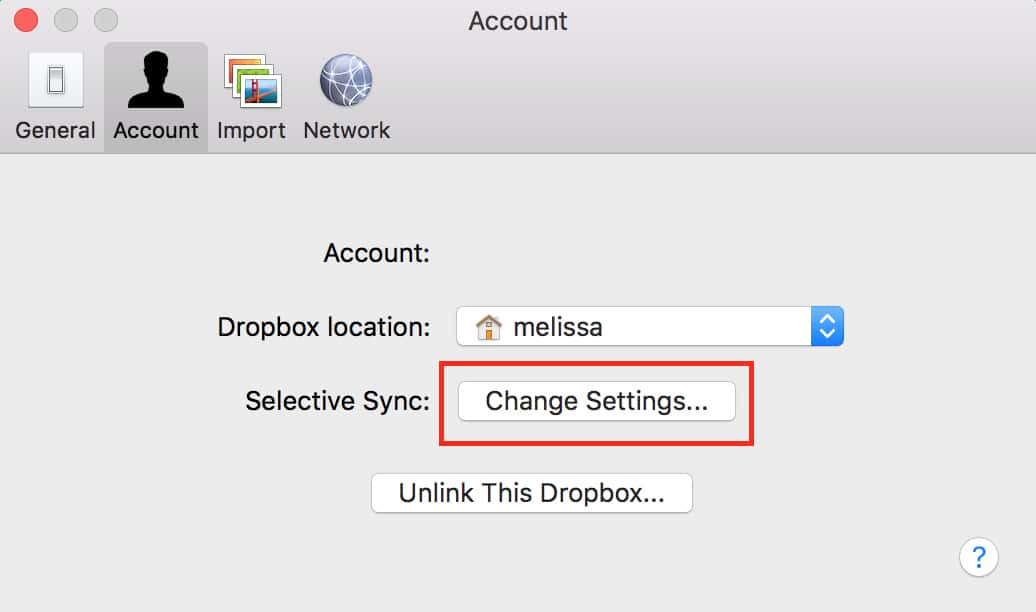
When the associated window opens, click the “Account” tab, and you’ll see the button that’ll let you change the Selective Sync options.
Then you’ll get a hierarchical view of your Dropbox folders, and you can deselect any of them to remove them from the computer you’re sitting at.
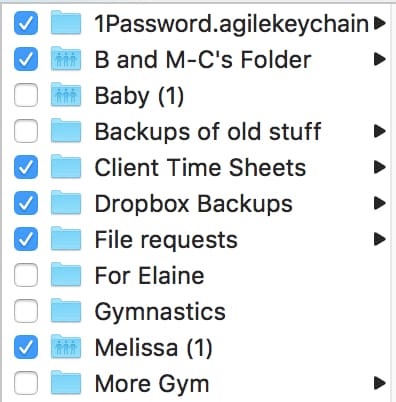
Uncheck as many as you want, click “Update,” and you’ll reclaim all that space when the syncing is complete! Doing this doesn’t remove those folders from Dropbox, of course, so they’ll still be available on the Web and on any other computers you sync your account with. I strongly recommend, though, that you sync crucial folders and files somewhere so that they can be backed up locally. As much as I love Dropbox—and I really do—it’s never a great idea to depend on a service like that for your only copies of important documents.
Don’t miss the best of The Mac Observer
Set us as a preferred source and our Apple reporting ranks higher in your Google Search results and Discover feed — one tap, no account changes.


Hey great tip! I didn’t put DropBox on a computer because I didn’t want want some of the big files wasting space on that machine. I guess I better organize my Dropbox better so I can uncheck some folders!