

With the release of Mac OS X Lion way back in 2011, Apple removed easy access to the user’s Library folder. Although arguably well-intentioned, this change was frustrating for longtime Mac power users. There were still several workarounds to access or unhide the Library folder, but they weren’t immediately obvious or simple.
Thankfully, recent versions of the Mac operating system make things easier. While Apple still hides the user’s Library folder by default, you can restore it with a single checkbox.
To unhide your Library folder in macOS Sierra, launch Finder and navigate to your user Home folder (you can jump directly to your user folder by select Go > Home from the Finder’s menu bar or using the keyboard shortcut Shift-Command-H).
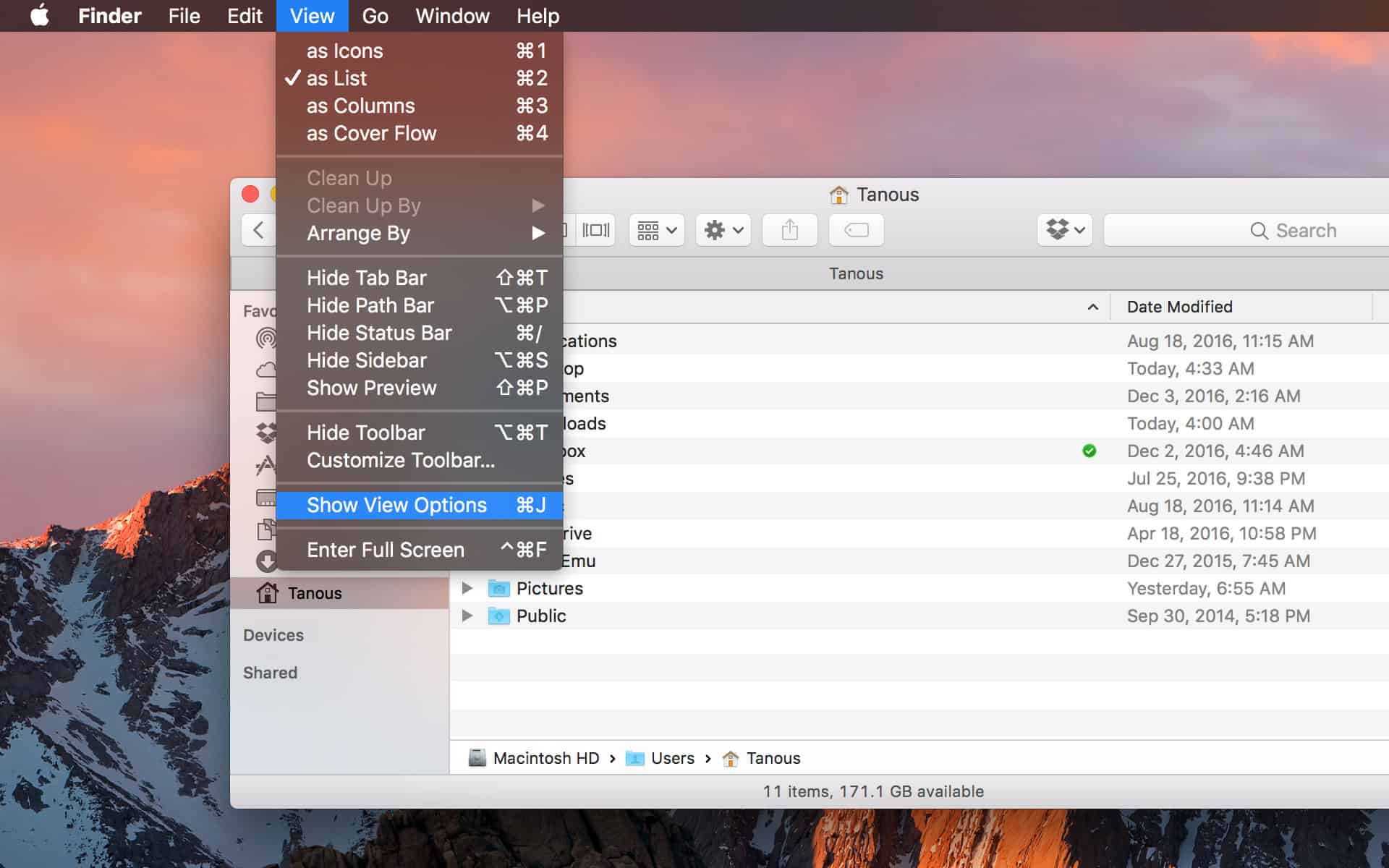
With your Home folder open, go to View > Show View Options from the menu bar, or use the keyboard shortcut Command-J.
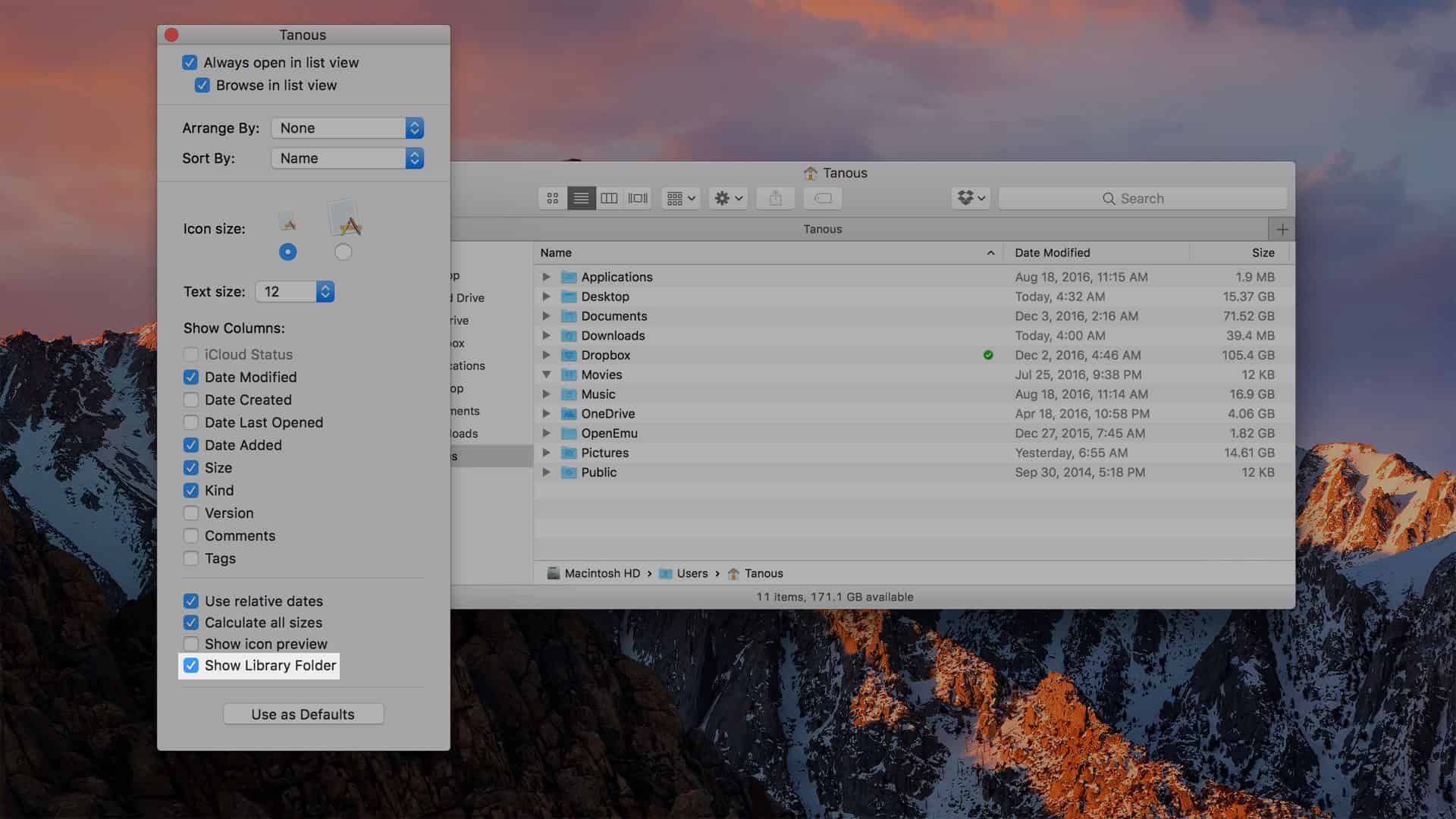
At the bottom of the View Options window, check the box labeled Show Library Folder and then close the window with the red close button in the upper-left. You’ll now see your Library folder listed inside your Home folder, where it will remain unless you uncheck the aforementioned option.
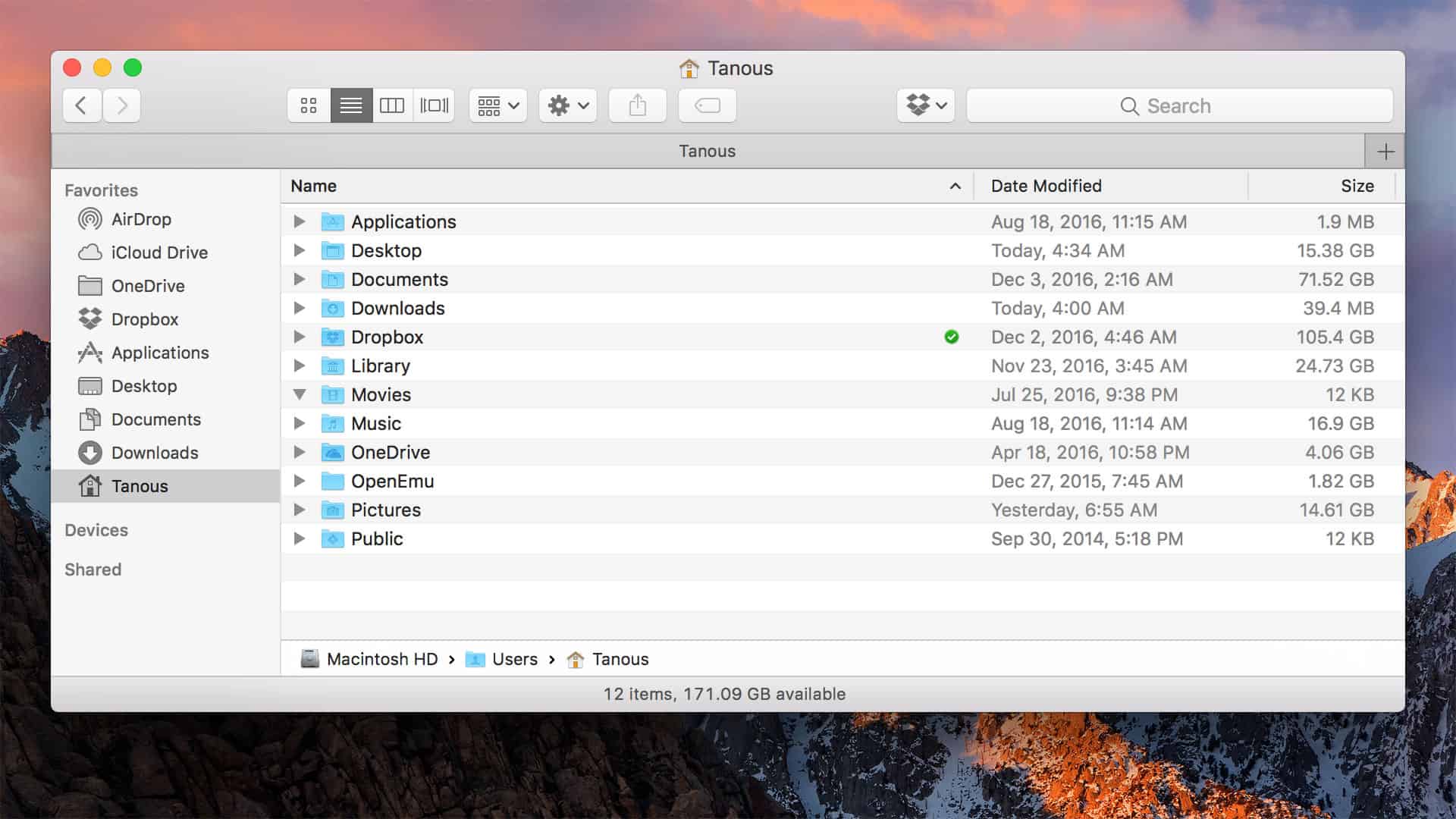
While many Mac users don’t need to venture into their Library folder (hence why Apple chose to hide it by default), there are indeed many useful maintenance and troubleshooting tasks which require access to it. For those new to the Library folder, check out our Top 6 Reasons to Visit Your Library Folder.
Don’t miss the best of The Mac Observer
Set us as a preferred source and our Apple reporting ranks higher in your Google Search results and Discover feed — one tap, no account changes.


Indeed, thanks for this article. 🙂
It works fine in Sierra 10.12.5.
It worked on Sierra (10.12.4) for me.
Does not work on macOS 10.12.4 (16E195) Sierra. Such “Show Library Folder” does not show.