

Whether you switched SIMs or got a new number, updating your phone number in iMessage will let you get back to messaging. And ideally, it doesn’t take more than a few minutes!
This guide walks you through every step of changing the mobile number on iMessage.
Don’t miss the best of The Mac Observer
Set us as a preferred source and our Apple reporting ranks higher in your Google Search results and Discover feed — one tap, no account changes.
Table of contents
- How to update your iMessage phone number?
- Step 1: Ensure iMessage is turned on
- Step 2: Adjust “Send & Receive” settings
- Step 3: Change your “Start New Conversations From” number
- Step 4: Turn off iMessage and FaceTime
- Step 5: Swap your SIM or update your number
- Step 6: Restart your device
- Step 7: Turn iMessage and FaceTime back on
- Reset Network Settings (if needed)
- Tips
- Frequently Asked Questions
- Summary
- Conclusion
How to update your iMessage phone number?
Step 1: Ensure iMessage is turned on
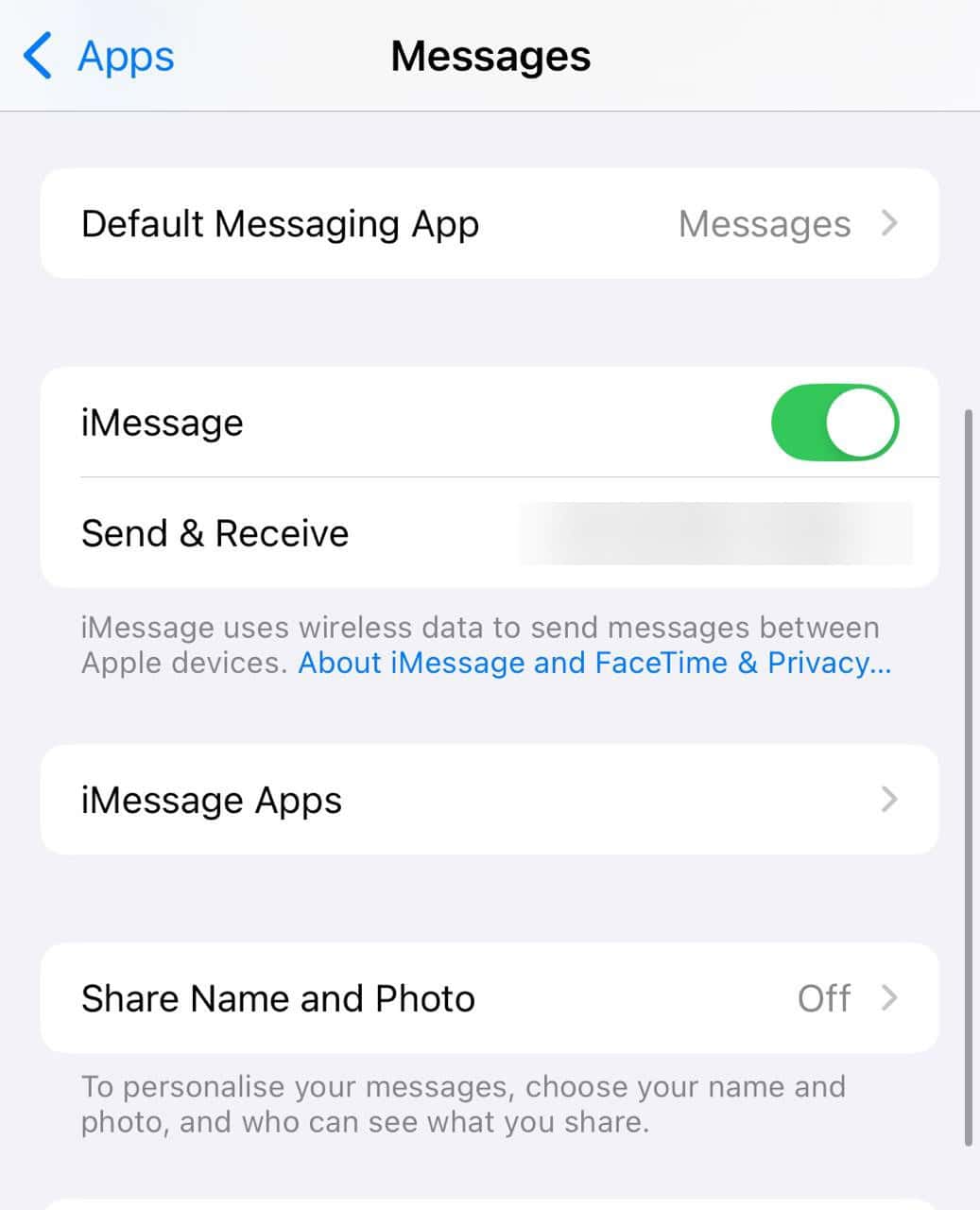
- Before making any changes, go to Settings > Messages and make sure iMessage is enabled. Wait a moment if prompted. That gives iMessage time to activate.

Step 2: Adjust “Send & Receive” settings
- Open Settings > Messages > Send & Receive. In this section, check that your new phone number is selected under “You can receive iMessages to and reply from.” If not, do that.


Step 3: Change your “Start New Conversations From” number
- Still in Send & Receive, find the Start New Conversations From option. Choose your new number if it is available.
Step 4: Turn off iMessage and FaceTime
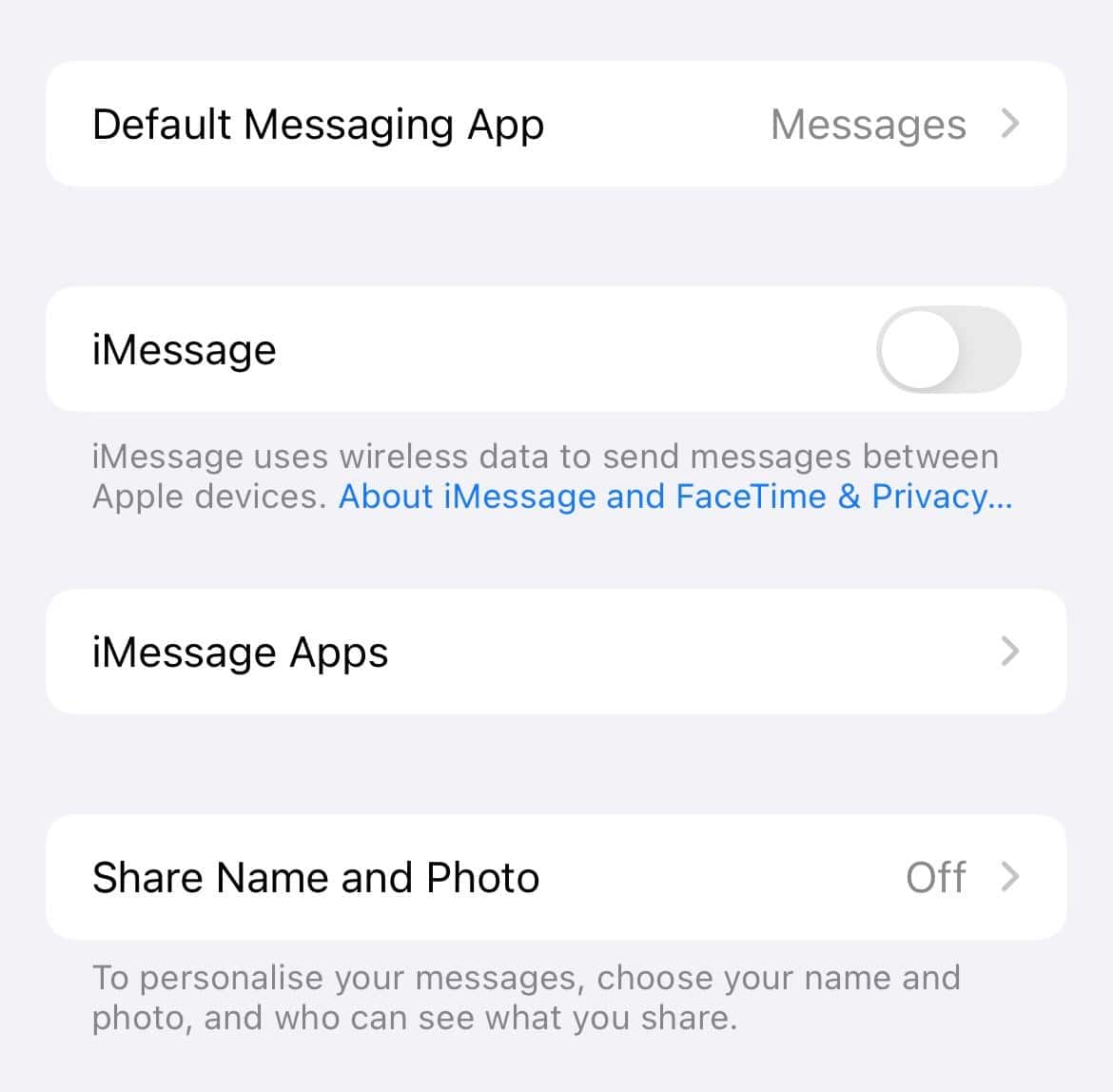
- Toggle off both iMessage and FaceTime from settings. This resets their connection with your number.

Step 5: Swap your SIM or update your number
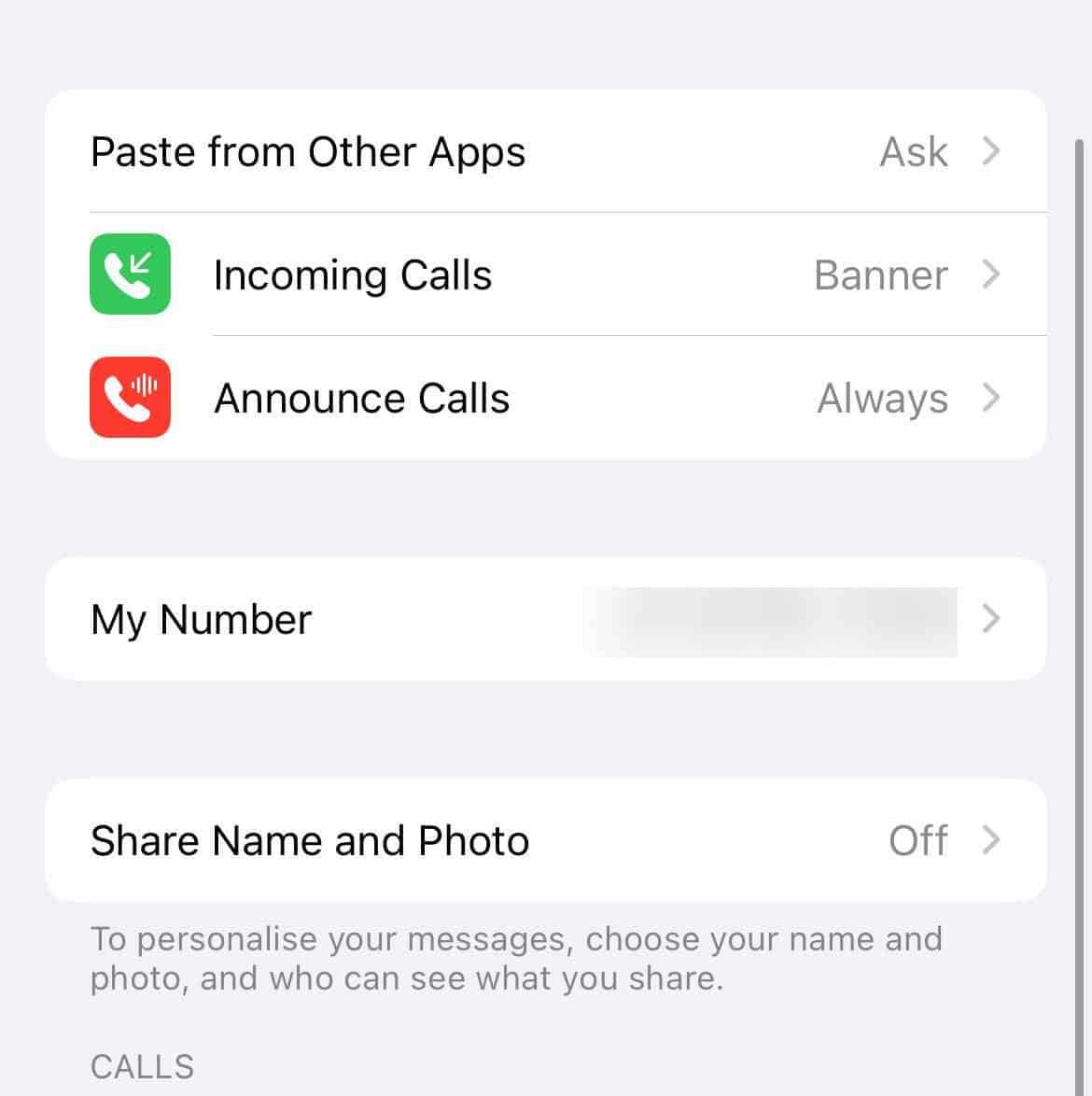
- Remove the old SIM and insert the new one. If you use eSIM, delete the previous profile and add the new one. Go to Settings > Phone > My Number to make sure it shows your new number. If it does not, tap and enter it manually. Then save it.

Step 6: Restart your device
- Turn your iPhone off, wait a few seconds, then turn it back on. This final step helps iMessage and FaceTime pick up the new number.
Step 7: Turn iMessage and FaceTime back on
- Head back to Settings > Messages and enable iMessage, then go to Settings > FaceTime and enable FaceTime.
- Go again to Send & Receive and pick your new number.
- When the verification pop-up appears, tap Turn On and wait for confirmation.
Reset Network Settings (if needed)
- If your new number is still missing or greyed out, go to Settings > General > Reset > Reset Network Settings and confirm. Then repeat the earlier steps.
Tips
- Always wait for activation to finish. Do not rush tapping through.
- Make sure your date and time settings are set to automatic. That helps iMessage verify quickly.
- If a wrong number persists, sign out of your Apple ID in Messages or FaceTime, then sign back in.
- After changing your number, check all Apple devices and confirm they use the same Apple ID with the updated number in “Send & Receive.”
Frequently Asked Questions
Often iMessage caches the old SIM number. Turning it off, restarting, and updating “My Number” usually fixes it.
Only if they share the same Apple ID, and the new number is activated on your iPhone under Send & Receive.
Yes. You must have an active SIM or eSIM with your number for Apple to verify iMessage messages are linked to it.
Messages stay intact, but new iMessage chats will come from your new number. Existing threads will continue as normal, but they might show both blue (iMessage) and green (SMS) bubbles depending on the other person’s device.
Summary
- Enable iMessage in Settings.
- Set “Send & Receive” to your new number.
- Turn off iMessage and FaceTime.
- Swap SIM or update “My Number” manually.
- Restart your iPhone.
- Turn iMessage and FaceTime back on, pick a new number in Send & Receive.
- If still wrong, reset network settings and repeat.
Conclusion
Updating your iMessage phone number does not need to be frustrating. Just follow these clear steps, take your time, and make sure the new number is correctly selected in iMessage settings. Soon, iMessages will go smoothly as usual with your current number.
If you are new to it, learn how to use iMessage and make the most out of available features.


![Fix “macOS Cannot Verify That This App is Free from Malware” [2026]](https://www.macobserver.com/wp-content/uploads/2025/05/MacBook-displaying-multiple-macOS-Gatekeeper-icons-under-a-red-X-surrounded-by-Gatekeeper-dialogs-over-the-default-macOS-Sequoia-wallpaper.webp)

Discussion