
If a show you follow in Podcasts seems to be missing older episodes, check the filter first. Apple’s iOS 27 guide says a followed show is filtered to Unplayed episodes by default, so anything you’ve finished drops out of the list until you remove that filter or search for it. iOS 27 and iPadOS 27.…
Tips

How to set the Apple Watch Ultra Action button and sound or stop the siren
To change what the Action button does on Apple Watch Ultra, open the Settings app, tap Action Button, tap Action, then pick a function such as Workout, Backtrack or Dive. The same button sounds the siren: press and hold it, wait for the countdown to finish, and the watch starts an alarm meant to attract…

How to use Journal's writing prompts in iOS 27, or turn them off
In iOS 27, the Journal app can suggest writing prompts “based on what you write and any photos or drawings you add to your entry,” and you can add up to three of them to a single entry. The prompts come from Apple Intelligence, and one switch hides them: Settings > Apps > Journal >…

How to ask Siri AI from Spotlight on your Mac in macOS 27
To ask Siri AI a question on a Mac running macOS 27, press Command-Space bar to open Spotlight, type your question or request, and press Return. Once Siri AI (Beta) is turned on, Apple’s Mac User Guide says Spotlight “becomes the place where you start a conversation with Siri.” Mac mini with M6, one of…
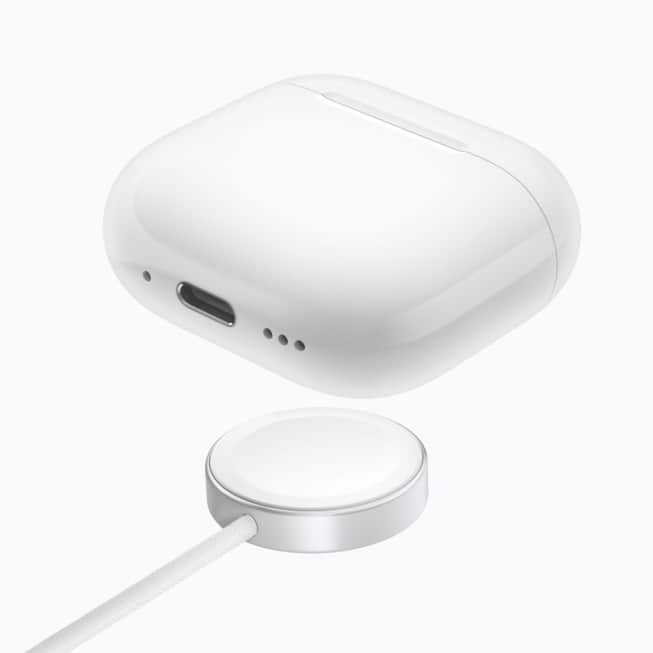
How to reset AirPods 5 without a setup button, using three double-taps
AirPods 5 have no setup button on the back of the case, so you reset them by tapping the front of the case instead. Open the lid, double-tap the front three times as the status light changes, and wait for the light to flash amber, then white. AirPods 5 and their charging case. Image: Apple…
iOS 27 dictation improves spelling and punctuation in English on select iPhones
With Apple Intelligence in iOS 27, dictation uses an on-device model to improve spelling, punctuation and capitalization. Apple says it’s available in English on “iPhone 17 Pro, iPhone 17 Pro Max, iPhone Air, or later,” and its feature availability page lists nine varieties of English. The A20 Pro chip in iPhone 18 Pro. Image: Apple…
How to use Files name suggestions and Access Requests in iOS 27
In iOS 27, when you rename a file in the Files app on an iPhone with Apple Intelligence, Files recommends a name above the keyboard. Apple’s iOS 27 guide also describes Access Requests, an option for shared iCloud Drive links that lets other people with the link ask you to approve their access. A work…
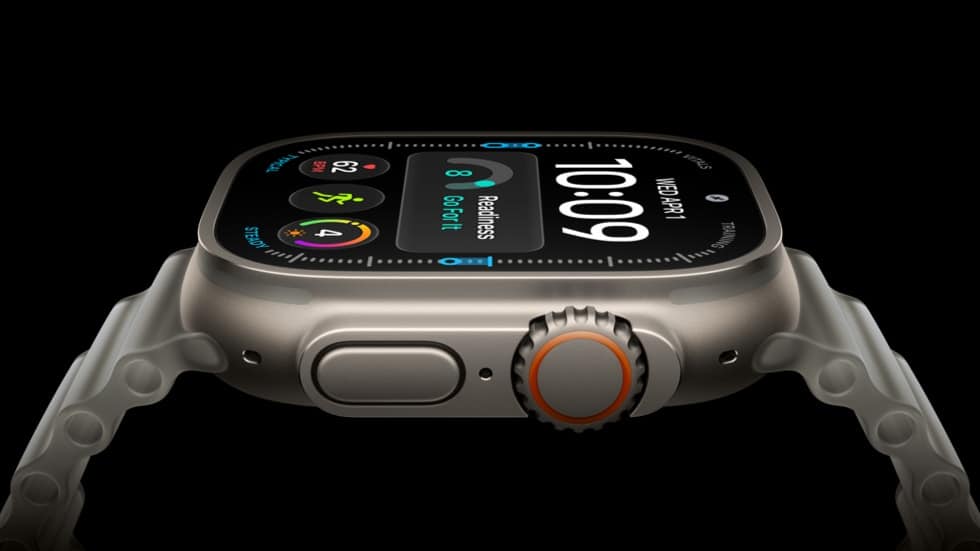
How to set up satellite messaging on Apple Watch Ultra before going off-grid
Set up satellite features on Apple Watch Ultra while you still have cellular or Wi-Fi coverage, because Apple’s watchOS 27 guide says the setup has to happen before you leave it. That means adding two shortcuts, running the Emergency SOS demo, and texting the people you’ll want to reach. Apple Watch Ultra 4 on the…

iOS 27 voicemail can suggest a reminder or calendar event: Here's how it works
On iOS 27, your iPhone can turn a voicemail into a to-do. With Apple Intelligence, the Phone app shows what Apple calls “Siri suggested actions” based on the voicemail transcript, such as adding a reminder or creating a calendar event. iPhone 18 Pro, photographed by Apple. Image: Apple Apple’s iOS 27 guide documents the feature…
How to make a Safari extension by describing it in macOS 27 and iPadOS 27
In Safari on macOS 27, go to the website you want to change, click the Page menu button in the Smart Search field, and choose Describe Extension. Type what you want, and Safari either points you to a matching extension in the App Store or builds one you can try before you save it. Mac…
How to build a shortcut in iOS 27 just by describing what it should do
In iOS 27, you can make a shortcut without touching the action list. Open the Shortcuts app, tap the Add button, and describe what you want in plain language, and the app “creates and names a shortcut based on your input,” according to Apple’s Shortcuts User Guide. Apple's A20 Pro chip for iPhone 18 Pro.…
iPhone 18 Pro setup: How to set a charge limit and still charge to full
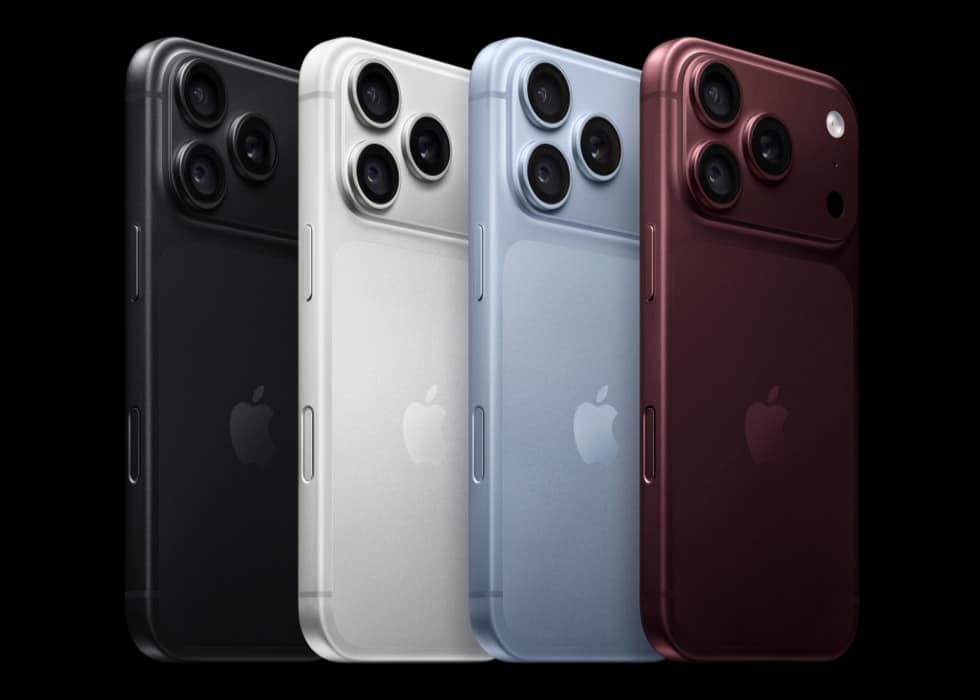
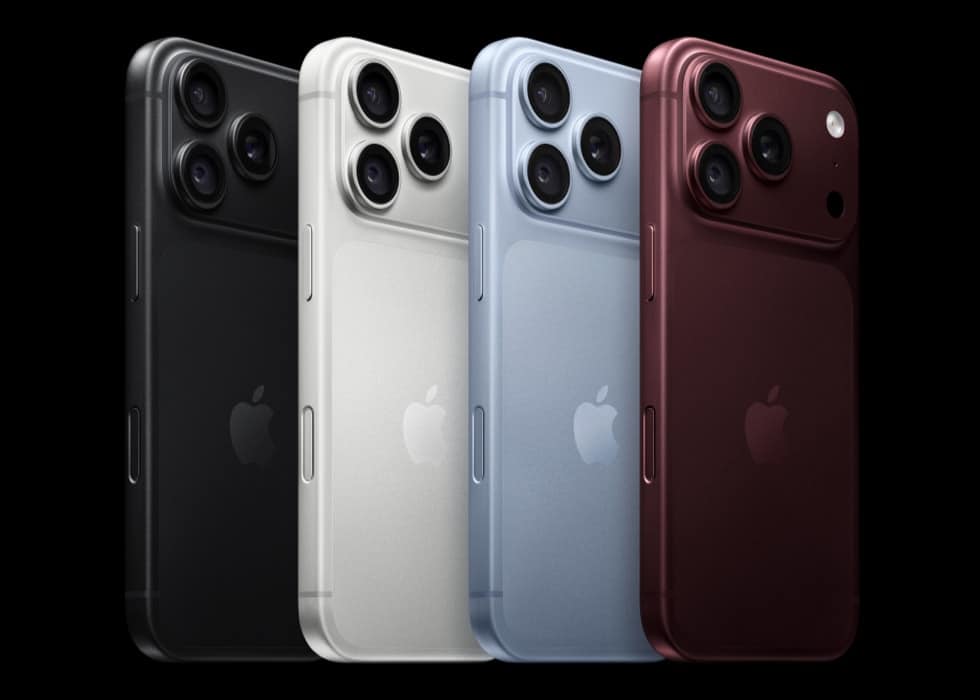
A new iPhone 18 Pro starts out charging to 100 percent, with Optimized Battery Charging switched on. If you’d rather cap it, open Settings, tap Battery, tap Charging, and choose a limit between 80 and 100 percent in 5 percent steps. iPhone 18 Pro in all four colors. Image: Apple It’s worth deciding during setup.…
iOS 27 fills in Reminders and Calendar details from a sentence you type
In iOS 27, you can create a reminder by typing a sentence instead of working through date and repeat pickers. Type something like Apple’s example, “Feed the cat every evening at 5pm,” and Reminders “automatically fills in the details and timing based on what you typed.” Calendar does the same for events. iPhone 18 Pro,…
How to make Apple Watch Series 12 and Ultra 4 recognize songs without a tap
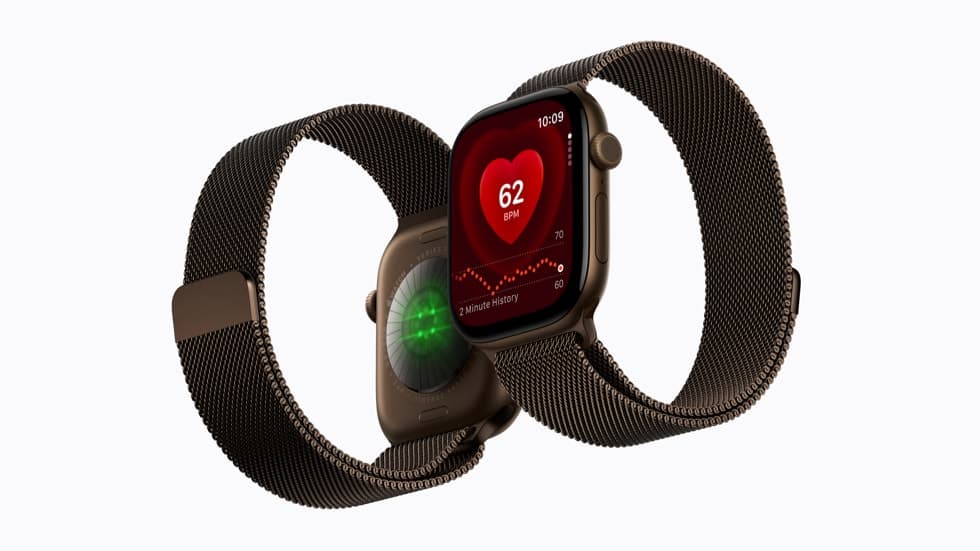
Apple Watch Series 12 and Apple Watch Ultra 4 can identify a song playing around you and show its title and artist in the Smart Stack without a tap. It only happens once Music Detection is on: open the Settings app on the watch, tap Smart Stack, then turn on Music Detection. Apple Watch Series…
How to use Visual Intelligence on your Mac in macOS 27, with two shortcuts
Press Command-Shift-Space bar to select a window, or Command-Shift-6 to drag across any part of the screen, and macOS 27 lets you ask Siri about what you captured. Both shortcuts work once Siri AI (Beta) is turned on, and they hand your selection to Visual Intelligence. Mac mini with M6. Siri AI in macOS 27…

How to use iOS 27's personalized Smart Reply in Mail, or turn it off
Tap a suggested reply above the keyboard in Mail on iOS 27 and Apple Intelligence writes a full draft “in your personalized writing style,” according to Apple’s iPhone User Guide. If you’d rather it didn’t imitate you, turn off Personalize Smart Replies at Settings > Apps > Mail. Apple's artwork for iOS 27 and iPadOS…
iPhone 18 Pro won't record ProRes until you reserve Pro Video Storage
On iPhone 18 Pro and iPhone 18 Pro Max, switching on Apple ProRes isn’t the end of the job. After you turn on Apple ProRes in Settings > Camera > Formats, Apple’s iPhone User Guide says to tap Configure Pro Video Storage and set aside space on the phone for pro video recordings. Manual camera…
macOS 27 now lists your Intel apps: Here's where to find it and what it means
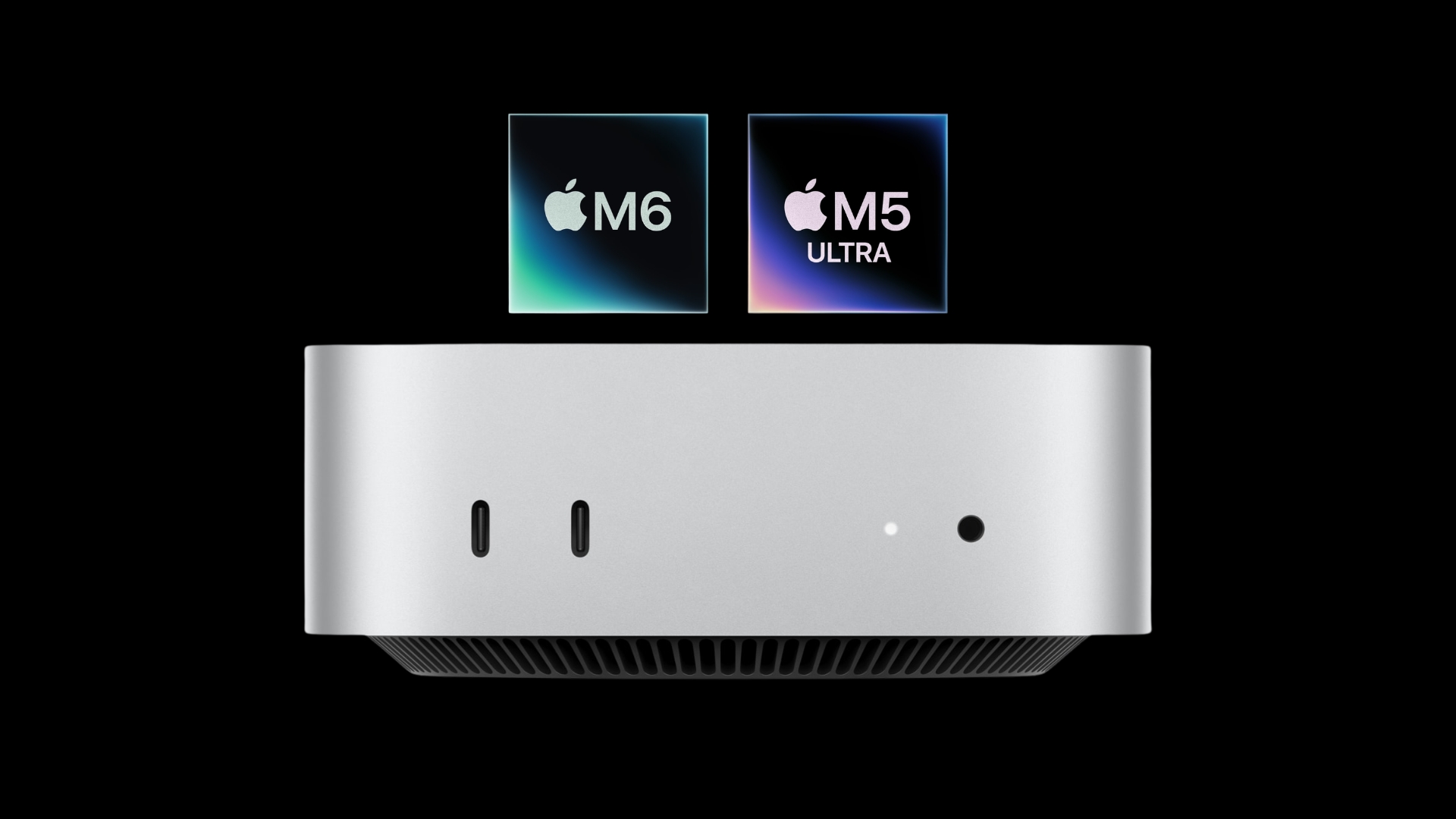
macOS 27 Golden Gate can show you which of your apps are still built for Intel. Open System Settings, click General, then About, and click the Details button next to Intel-based Apps in the macOS section. Apple's M5 and M6 chips side by side. The Intel-based apps list is for Macs with Apple silicon running…
How to start Siri AI in iOS 27, including a swipe down on the Dynamic Island
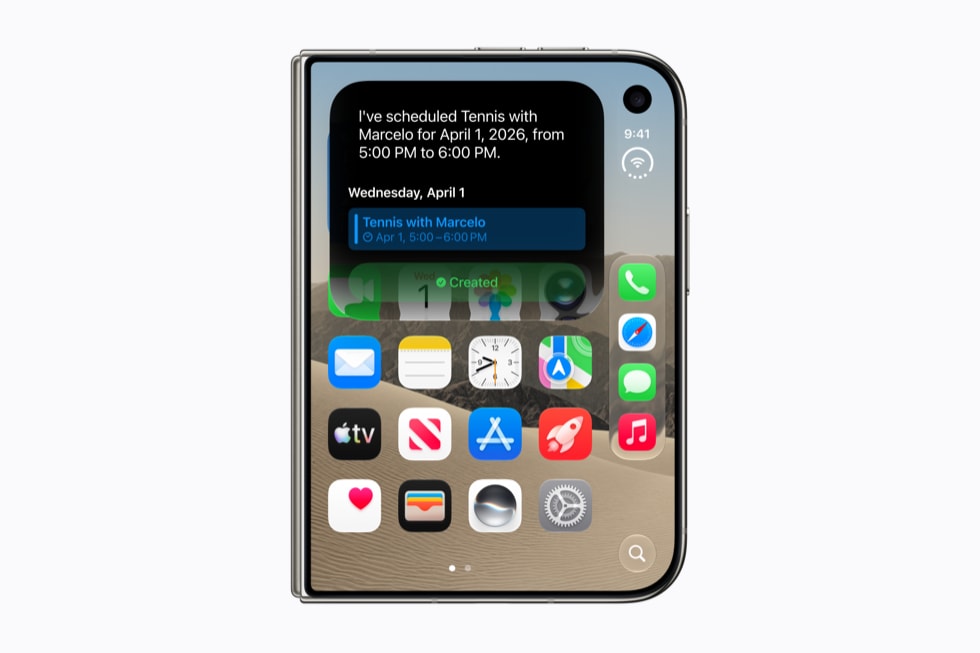
With Siri AI turned on, iOS 27 gives you four new ways to start Siri on iPhone: swipe down from the Dynamic Island, touch and hold something and choose Ask Siri, take a screenshot, or switch the Camera app to Siri mode. Saying “Siri” or “Hey Siri” and holding the side button still work. The…
Apple Intelligence can take up to 14GB on iOS 27: Here's which iPhones need what
Apple Intelligence in iOS 27 can take up to 14GB of storage on an iPhone 17 Pro, iPhone 17 Pro Max or iPhone Air, and up to 8GB on other supported iPhones. Apple says it becomes available automatically when you update, so if your free space shrank after installing iOS 27, that’s one likely reason.…
iOS 27's new Screen Time controls need your family's devices updated first
Updating your own iPhone to iOS 27 doesn’t switch on Apple’s new parental controls. Time Allowances, Ask to Browse and the rest of the redesigned Screen Time appear only after the devices in your Family Sharing group run version 27 software and a parent runs a one-time setup from Settings > Family. The current iPad,…
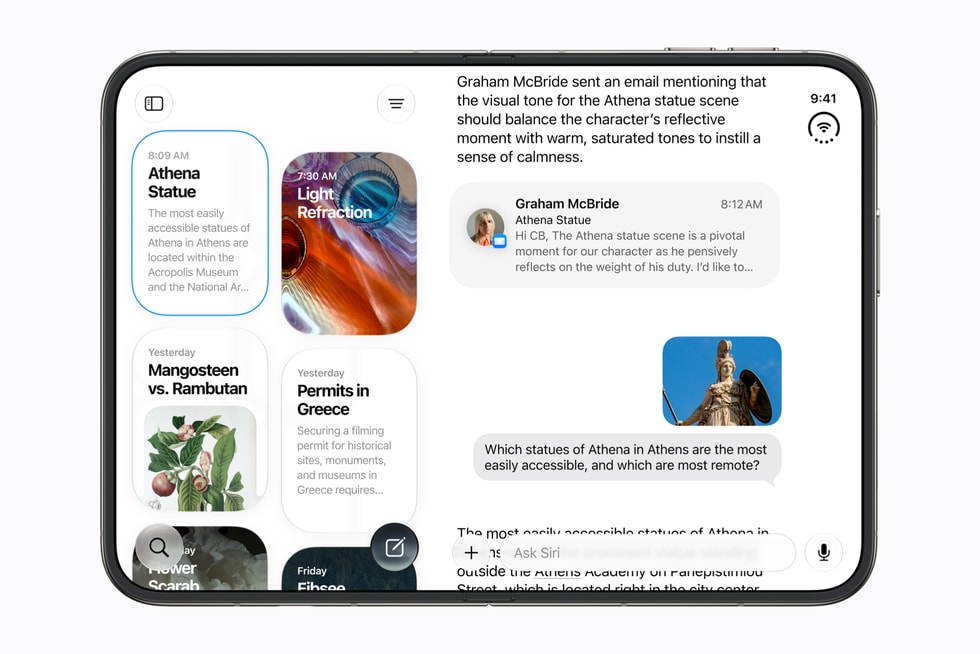
How to switch from Siri AI back to Siri Classic on your iPhone
iOS 27 lets you go back to the previous Siri, which Apple calls Siri Classic. In Settings > Siri, turn Siri off, turn it back on, and choose Siri Classic. Write with Siri on iPhone Duo. Image: Apple There’s no separate Siri AI switch. Turning Siri off and on again is how you pick a…
How to give alarms their own volume in iOS 27, separate from your ringtone
iOS 27 can play alarms and timers at their own volume, but only after you change one setting. Go to Settings > Sounds & Haptics and turn off Match Ringtone Volume under Alarms and Timers, then drag the slider. iPhone 18 Pro and iPhone 18 Pro Max seen from the front and back. Image: Apple…
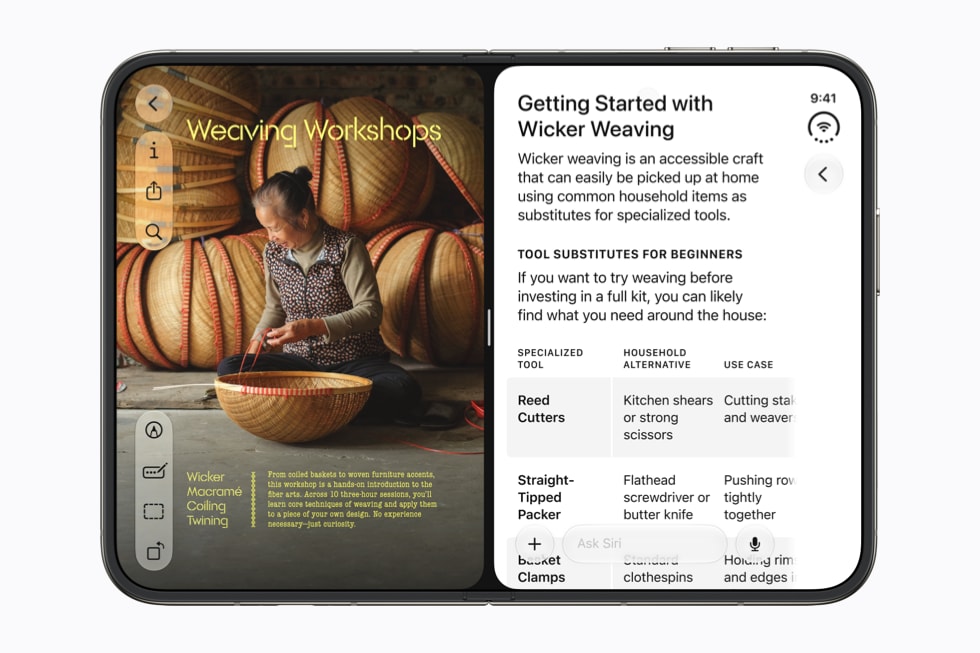
How to join the Siri AI waitlist on iPhone, and who can't get it yet
Installing iOS 27 doesn’t switch on the new Siri. Open Settings, tap Siri, then tap Try Siri AI (Beta) and follow the setup screens, which put you on a waitlist until Siri AI downloads. Siri AI on iPhone Duo. Image: Apple Apple gives no estimate beyond “wait times can vary,” and says Siri AI “will…