
If your iPhone feels frozen, stuttery, or laggy after updating to iOS 26, you’re in for a ride. Some users report delays when swiping between screens, opening apps, or even typing. The good news is that most of these slowdowns are temporary or fixable. Let’s look at why this happens and what you can do to speed things back up.
Table of contents
Why your iPhone freezes or lags in iOS 26
A frozen or laggy iPhone can come from a few different places:
- Background reindexing: After an update, iOS re-scans Photos, Notes, and other apps, which can temporarily slow things down.
- Visual effects: iOS 26 added new design flourishes like clear apps and Liquid Glass animations. These look great, but they can tax older iPhones.
- Heat and battery strain: If your iPhone gets hot, iOS will throttle performance. See our guide to fix iOS 26 overheating.
- Bugs in iOS 26: Early releases often come with rough edges. Keep an eye on all reported iOS 26 bugs and fixes.
- Low storage or memory: Almost-full storage can cause lag and freezing.
If you’re wondering whether this is just you, check our breakdown: Is iOS 26 stable? We answer.
Don’t miss the best of The Mac Observer
Set us as a preferred source and our Apple reporting ranks higher in your Google Search results and Discover feed — one tap, no account changes.
How to fix iPhone freezing and lagging in iOS 26
1. Restart your iPhone
The oldest trick in the book still works. A restart clears memory and background tasks that might be stuck.
2. Free up storage
Go to Settings → General → iPhone Storage. If you’re near full, delete unused apps, large files, or old downloads. For context, here’s the iOS 26 download size — the update itself takes several GB.

3. Reduce animations
Some iOS 26 effects look great but aren’t worth the slowdown. Use Settings → Accessibility → Motion → Reduce Motion or follow our guide to make iOS 26 less animated.
4. Update apps
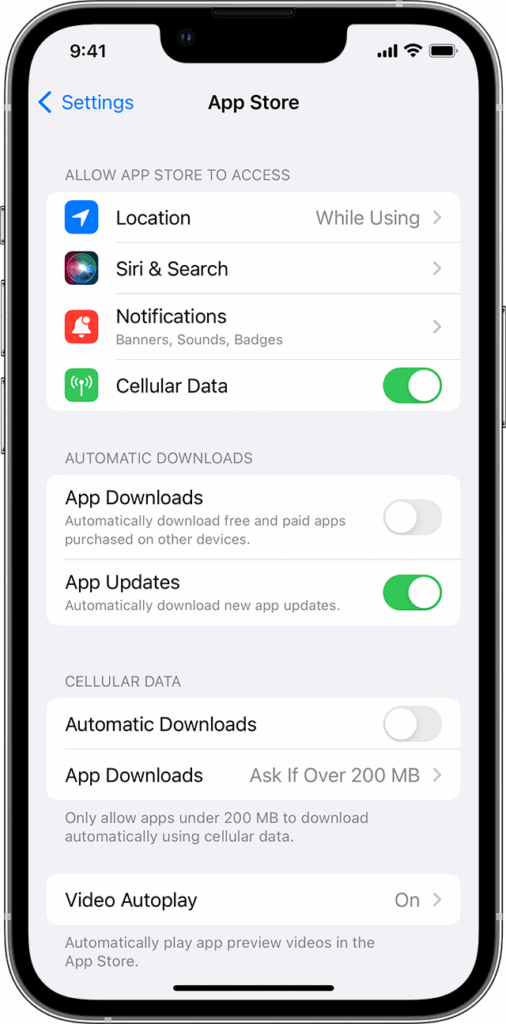
Out-of-date apps may not play nicely with iOS 26. Open the App Store → your profile → Update All.
5. Check for iOS patches
Apple often releases quick bug-fix updates after major releases. If you have trouble seeing the update, try:
- iOS 26 update not showing up — here’s how to fix it
- iOS 26 stuck on Update Requested — fix
- Can’t update to iOS 26? Here’s how to fix it
6. Reset settings
If freezes persist, reset settings: Settings → General → Transfer or Reset iPhone → Reset → Reset All Settings. This doesn’t erase your data.
7. Downgrade (last resort)
If your iPhone is unusable, you can downgrade from iOS 26 to iOS 18. Apple only signs old versions for a limited time.
Related issues you might notice
- Battery drain often goes hand-in-hand with lag. Check our guide: iOS 26 battery drain.
- Slow charging? If you’re also seeing that, here’s what to do: iPhone charging slowly after iOS 18.
- Cellular data not working can feel like lag, but it’s actually connectivity. Fix it here: iOS 26 cellular data not working.
- iMessage glitches? A common freeze trigger is stuck messages. Try: Fix iMessage not working after iOS 26 update.
FAQs
Big updates like Tahoe’s sibling macOS Tahoe and iOS 26 add visual effects and features that use more power. On older devices, this can feel sluggish.
Usually not. Most freezes are software bugs or temporary background tasks. Hardware failures are rare but possible if freezes persist even after a full restore.
It depends. For context, here’s our guide: Should you upgrade to iOS 26?
Freezing and lag in iOS 26 usually come from background reindexing, visual effects, or early bugs. Restart, free up storage, reduce animations, and check for patches. If all else fails, downgrading to iOS 18 is still an option, but most iPhones smooth out after a few days.


I am having trouble with my iPhone. I installed an upgrade on my computer 26.5.2 and after that I installed the same upgrade on my iPhone 14. Now my computer apparently works fine but my phone is frozen. I can’t get it to open. I get the opening screen and when I scroll up to open it is frozen and after a few seconds disappears. Any Ideas! I can’t call you or apple!